
WooCommerce is a plugin for WordPress that enables eCommerce. Over the years, the platform has become tremendously popular with users. The plugin has been downloaded hundreds of millions of times. The eCommerce platform consistently holds a leading market share worldwide.
WooCommerce is preferred by WordPress users because it is built on WordPress and thus has all the strength and reliability of WordPress. It is easy to configure and install and is fully customizable with loads of WooCommerce themes and extensions.
To get started with WooCommerce, users first need to install and set up WordPress, and then install the WooCommerce plugin.
Table of Contents:
BigCommerce to WooCommerce migration
In short, store migration is the process of transferring data, design, and functionality from the existing store to a new store. The process allows merchants to export the database (products, customers, orders, etc.) to the new store and configure the store’s look and feel. Moreover, it allows to install the necessary apps to add functionality.
What is BigCommerce to WooCommerce Migration?
The eCommerce migration is the transfer of data like products, customers, orders and more from your current BigCommerce store to the new WooCommerce one. It consists of a few simple steps if done in automated manner, takes only a couple of hours and requires no tech skills.
With Cart2Cart, it takes just four simple steps to set up the migration, and it allows you to switch your BigCommerce data to WooCommerce. The migration process will safely maintain your order IDs and SEO during the transfer to the new store.
Prepare your BigCommerce store
Audit all your BigCommerce store data and determine which data should be edited, moved or deleted.
Prepare your WooCommerce store
Get your WooCommerce store ready. To do this, install the WooCommerce plugin for your WordPress website.
Set up the theme for your new store
Choose a default theme for your WooCommerce store, the WooCommerce Storefront, a free WordPress theme.
Set up BigCommerce to WooCommerce data transfer by first configuring the Source cart and then specifying the Target cart.
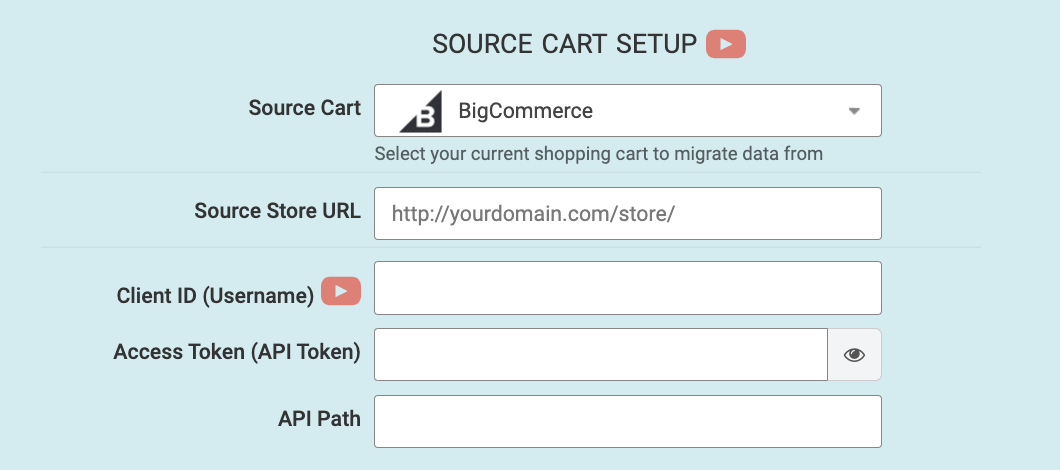
Set up the Source cart
Choose BigCommerce from the drop-down menu and enter your current store’s URL. Provide the Client ID, API Path and API Token from the admin account (find a detailed guide on how to do that in our FAQ).
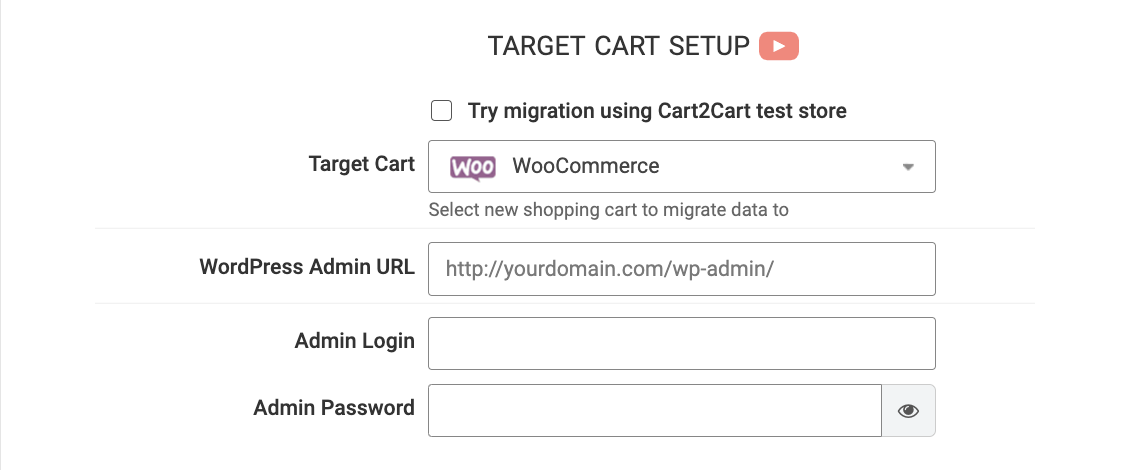
Specify the Target cart
Choose WooCommerce from the drop-down menu and click the “Install Plugin” button and provide your store’s URL.
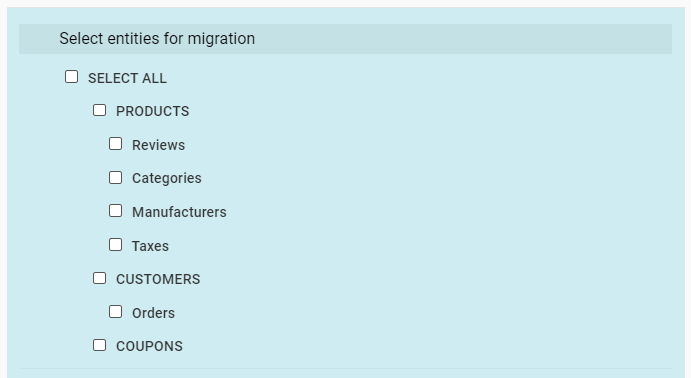
Select data for migration
You can choose each item you want to transfer, or you can select to transfer everything by clicking the “Select All” box. You can transfer orders, customers, products and product categories, manufacturers, coupons, taxes, reviews, blog posts, and CMS pages.
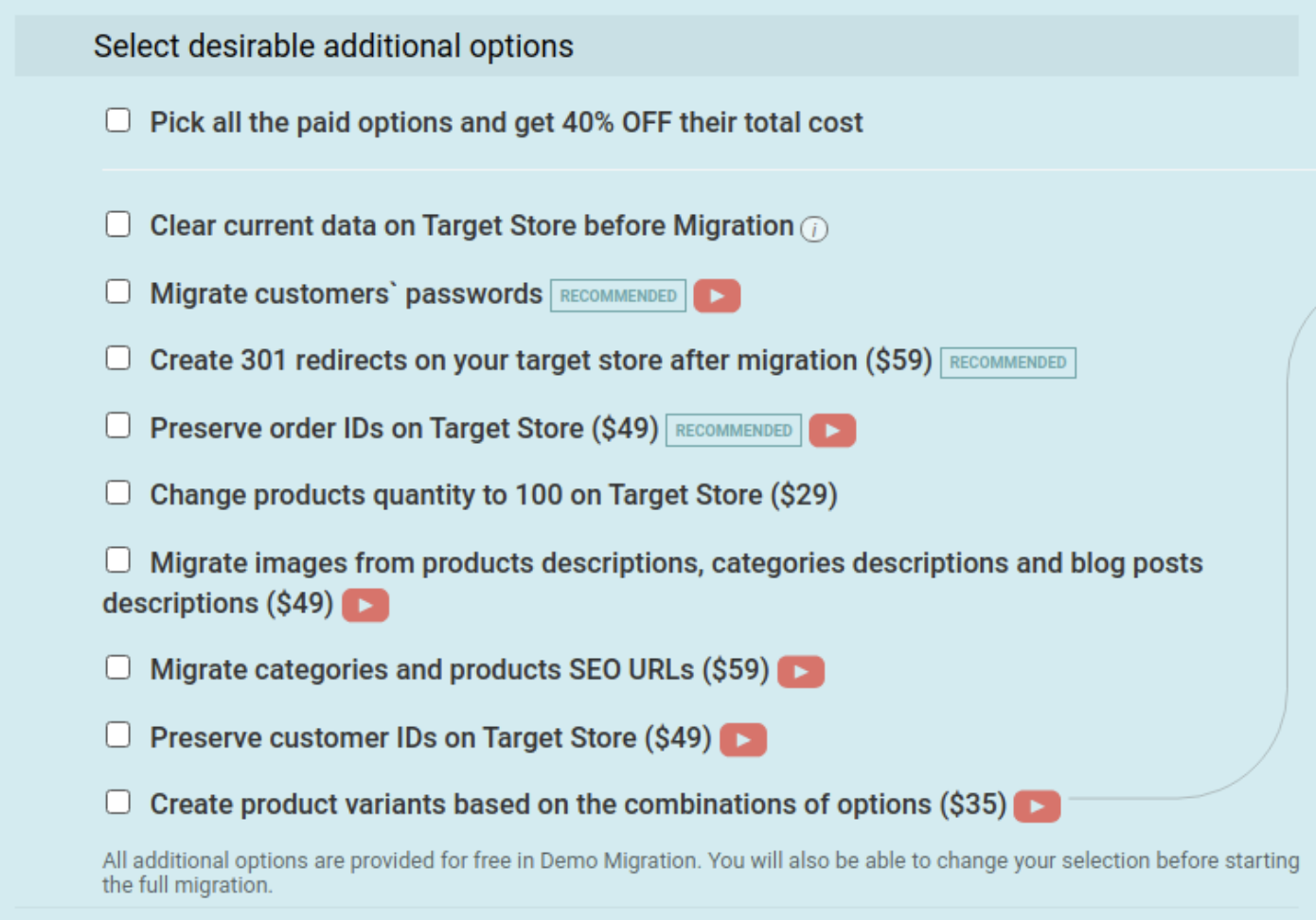
Specify migration extras
To refine your migration, choose some of the many Cart2Cart migration extras like 301 redirects or preservation of BigCommerce product, customer and order IDs on the WooCommcerce Store and moving BigCommerce store categories and product SEO URLS to the target store.
Map customer groups & order statuses
Match your BigCommerce order statuses and fulfillment statuses to the corresponding ones on WooCommerce.
Launch a free Demo migration
Transfer a few products, about ten or so in 15 minutes, to the new store so you can check that the transfer works as you envisaged.
Start Full migration
Click the Start Full Migration button to start the Full BigCommerce database transfer to your new WooCommerce store. When it’s completed, check the migration results and make sure that everything works perfectly.
- Check that the website migration went as planned. Take your new store for a test drive and test every aspect of buying and selling on the platform. Create a test product and place an order. Select shipping and payment options and check that the order processes correctly.
- Make full use of the vast array of WooCommerce extensions to extend the functionality of your new store and make it look the way you want.
- Notify your customers that your store operates from a new platform and invite them to activate their accounts.
Congratulations! You have successfully transferred your store to WooCommerce. Enjoy the new experience!
Monthly Update – March 2026
As we step into March 2026, the e-commerce landscape is increasingly shaped by advancements in AI and the imperative for frictionless customer experiences. For store owners considering a platform like WooCommerce, integrating AI-powered personalization tools is no longer a luxury but a necessity. These tools can analyze customer behavior in real-time, offering highly relevant product recommendations, dynamic pricing, and even customized content layouts. Beyond personalization, focus on optimizing your store for speed and mobile responsiveness. A slow loading site or a clunky mobile interface can significantly increase bounce rates and negatively impact conversions. Consider implementing Progressive Web App (PWA) features for a native-app-like experience in a browser. Furthermore, with data privacy regulations evolving, ensure your WooCommerce setup is compliant, offering transparent data handling and clear consent options. Prioritizing these areas will not only enhance customer satisfaction but also future-proof your online business in a rapidly changing digital marketplace.
For more details, explore our FAQ section or schedule a call with a migration expert.