
How can we help you?
Important: Network Solutions Online Store is a long-running / aging hosted cart. There is typically no public store API for third-party migrators. For Cart2Cart, export CSV files from the admin and upload them as a CSV File source in the Migration Wizard. Export field coverage is often limited—verify files before Full Migration.
If your panel still has a classic Export Data section:
Products
1. Log in to the Network Solutions store admin and open Export Data.
2. Choose products (for example All Products).
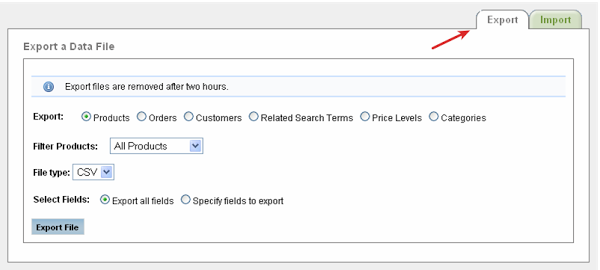
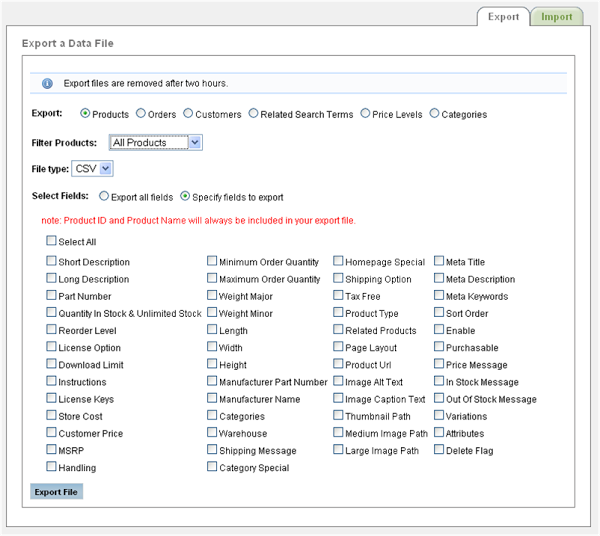
3. Select CSV, choose Select all fields when available, and click Export file.
Customers
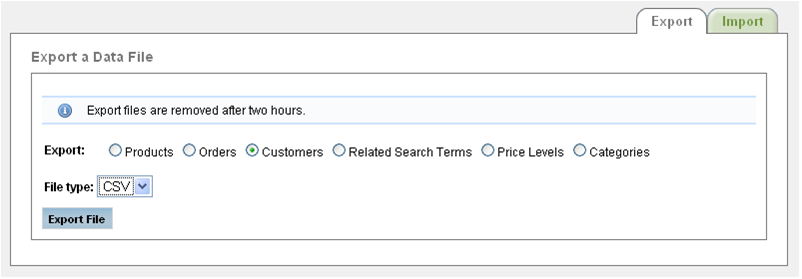
1. In Export Data, choose Customers.
2. Select CSV and click Export file.
Orders
1. Choose Orders, set the date range you need, and include all relevant order statuses.
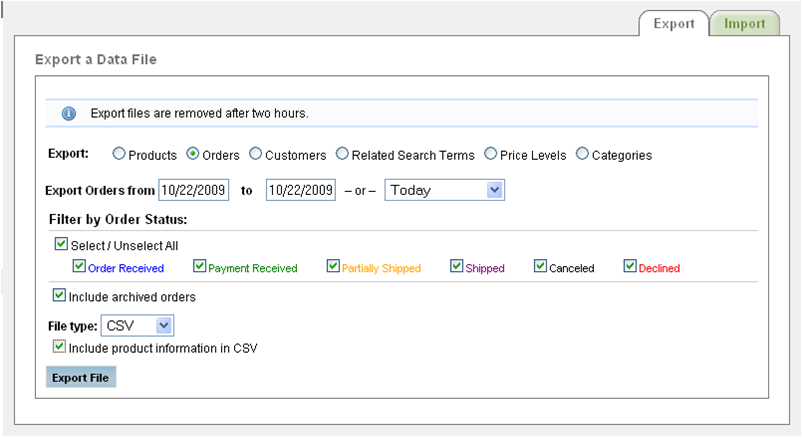
2. Select CSV and click Export file.
Categories
1. Choose Categories, select CSV, and export the file.
Newer Network Solutions ecommerce dashboards may instead expose inventory/file tools under Store → Settings → File Templates (or similar “Upload / Export inventory” wording). Use those exports if Export Data is missing, then map the resulting CSVs in Cart2Cart.
Upload every required CSV in the Wizard, run a Demo, and compare row counts. If exports omit variants, images, or custom fields you need, contact Cart2Cart Migration Experts for a service package review.
Do you need help? Contact our support team
Just set up the migration and choose the entities to move – the service will do the rest.
Try It FreeDelegate the job to the highly-skilled migration experts and get the job done.
Choose Package