
How can we help you?
Yes, with an important caveat for AmeriCommerce / Cart.com Online Store.
Cart2Cart migrates product image references (URLs). If the Source store stays online, images usually keep loading from the old host. If the Source is taken down, or you need files hosted on Cart.com, upload the image files to the Target and enable Preserve product image URLs in the Migration Wizard so paths stay consistent.
Upload images via SFTP (bulk)
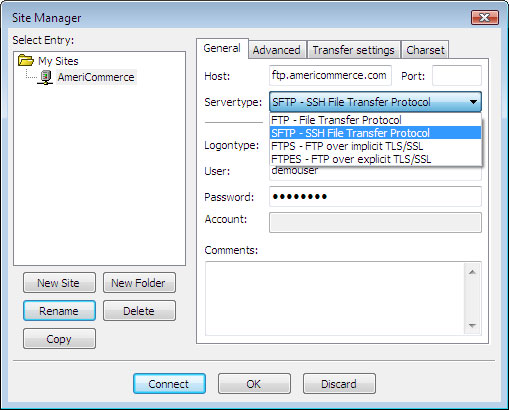
1. Request SFTP credentials from Cart.com support (separate from your admin login).
2. In your SFTP client use: protocol SFTP, host ftp.americommerce.com, port 22. For QuickConnect, prefer sftp://ftp.americommerce.com.
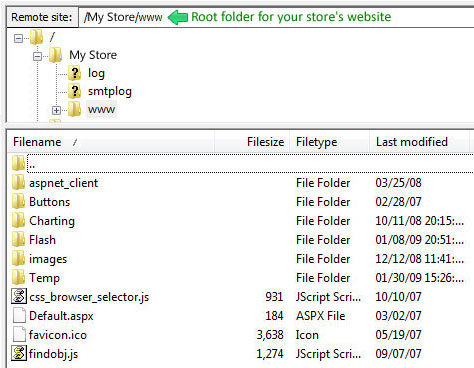
3. After connecting, open My Store → www (site root). Place image folders there so relative paths such as /images/… resolve. For multi-store shared media, use the shared directory as documented by Cart.com.
4. In Cart2Cart, select Preserve product image URLs when configuring the AmeriCommerce / Cart.com Target.
Smaller uploads (admin File Manager)
For a few files: Cart.com admin → Storefront → Content → Files → upload. You can also attach images later under Catalog → Product, or via product CSV (ItemImages column) after files are on the server.
Official references: Bulk Upload and Download Files, Product Images Overview.
Do you need help? Contact our support team
Just set up the migration and choose the entities to move – the service will do the rest.
Try It FreeDelegate the job to the highly-skilled migration experts and get the job done.
Choose Package