

QuickBooks to Squarespace Migration - Step-by-Step Guide & Expert Services
QuickBooks to Squarespace migration simplified. Ready to move QuickBooks store to Squarespace seamlessly? Cart2Cart ensures a smooth switch from QuickBooks to Squarespace, preserving your SEO and maintaining zero downtime. Effortlessly transfer data with our secure automated tool, or let our experts handle your full migration with speed and unmatched security. Whether you're researching the process and need a step-by-step guide, or require professional help to get it done for you, trust us for your QuickBooks to Squarespace migration.
What data can be
migrated from QuickBooks to Squarespace
-
Products
-
Product Categories
-
Customers
-
Orders
- Name, ID, SKU, Short Description, Full Description.
- Quantity.
- Weight, Width, Height.
- Options(Name).
- Name, ID.
- Meta Title.
- Created Date.
- Customer Billing Address.
- Customer Shipping Address.
- ID, Order Date, Order Status, Order Products(Tax Value, Name, SKU), SubTotal Price, Discount Price, Tax Price, Shipping Price, Total Price.
- Customer Name, Email, Telephone, Billing Address.
- Shipping Address.
- Name, ID, SKU, Short Description, Full Description.
- Quantity.
- Weight, Width, Height.
- Options(Name).
- Name, ID.
- Meta Title.
- Created Date.
- Customer Billing Address.
- Customer Shipping Address.
- ID, Order Date, Order Status, Order Products(Tax Value, Name, SKU), SubTotal Price, Discount Price, Tax Price, Shipping Price, Total Price.
- Customer Name, Email, Telephone, Billing Address.
- Shipping Address.
Products
Estimate your Migration Cost
The price of your migration depends on the volume of data to migrate and the additional migration options you pick. To check the price for QuickBooks to Squarespace conversion, click “Get estimates” and follow the suggested steps.
How to Migrate from QuickBooks to Squarespace In 3 Steps?
Connect your Source & Target carts
Choose QuickBooks and Squarespace from the drop-down lists & provide the stores’ URLs in the corresponding fields.
Select the data to migrate & extra options
Choose the data you want to migrate to Squarespace and extra options to customise your QuickBooks to Squarespace migration.
Launch your Demo/Full migration
Run a free Demo to see how the Cart2Cart service works, and when happy - launch Full migration.
Migrate QuickBooks to Squarespace: The Ultimate Guide for a Seamless E-commerce Transition
A Comprehensive Guide to Transitioning from QuickBooks to Squarespace
As your e-commerce business grows, the need for a robust, user-friendly, and visually stunning online presence becomes paramount. While QuickBooks excels in accounting and business management, its capabilities as a primary e-commerce storefront are often limited. This guide provides a detailed roadmap for merchants looking to move their online store and valuable business data from QuickBooks to Squarespace, a leading platform known for its intuitive design tools and integrated e-commerce features. This transition, often referred to as a replatforming or data transfer, will leverage a CSV file export from QuickBooks, ensuring data integrity and a smooth transition to your new Squarespace storefront.
Migrating your store's data, including essential information like products (with their SKUs and variants), customer details, and order history, requires careful planning and execution. This guide will walk you through each step, helping you minimize downtime, preserve your SEO rankings, and ensure a seamless user experience for your customers on your new Squarespace site.
Prerequisites for Migration
Before initiating your migration from QuickBooks to Squarespace, a few preparatory steps are essential to ensure a smooth and successful data transfer. Proper preparation of both your source (QuickBooks) and target (Squarespace) platforms will mitigate potential issues and preserve your valuable business data.
Preparing Your QuickBooks (Source) Store
- Data Export: Since QuickBooks does not offer a direct API connection for e-commerce store migration, the process will involve exporting your data into CSV (Comma Separated Values) files. You will need to export key entities such as products, product categories, customers, orders, and potentially other relevant information. This method, often referred to as CSV.File Data Migration, is a reliable way to prepare your data.
- Data Cleansing and Backup: Take this opportunity to review your QuickBooks data. Cleanse any outdated, duplicate, or irrelevant entries. Ensure all product details, customer information, and order statuses are accurate. Crucially, perform a full backup of your entire QuickBooks database before beginning any export process. For more detailed instructions, refer to our guide on How to prepare Source store for migration?.
Preparing Your Squarespace (Target) Store
- New Squarespace Site Setup: If you haven't already, set up a new Squarespace account and create your initial store. While you don't need to populate it with products yet, ensure your basic site structure and design preferences are established.
- Install Cart2Cart Squarespace Migration App: To facilitate the API connection and data transfer, you will need to install the dedicated migration app for Squarespace. This is a crucial plugin requirement for connecting with Squarespace effectively.
- API Access and Credentials: Squarespace uses an API (Application Programming Interface) for data interaction. Ensure you have the necessary admin access and can generate or locate the required API keys (apiKey, apiSecret, accessToken, refreshToken, adminEmail, adminPwd) to grant the migration tool permission to your new store. HTTPS is required for all API connections. Custom app development might be needed for advanced integrations.
- Review Target Store Readiness: Ensure your Squarespace store is ready to receive data. This includes checking general settings and understanding where migrated data (like products and categories) will reside. Find more tips on How to prepare Target store for migration?.
Performing the Migration: A Step-by-Step Guide
With your preparations complete, you're ready to embark on the data transfer journey using a migration wizard. Follow these steps carefully to move your e-commerce assets from QuickBooks (via CSV) to Squarespace.
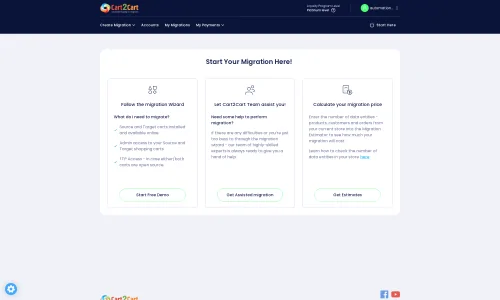
Step 1: Initiate Your Migration
Begin by accessing the migration wizard. This is your starting point for setting up the data transfer. Select the option to start a new migration to transition your e-commerce store.
Step 2: Configure Your Source Store (QuickBooks via CSV)
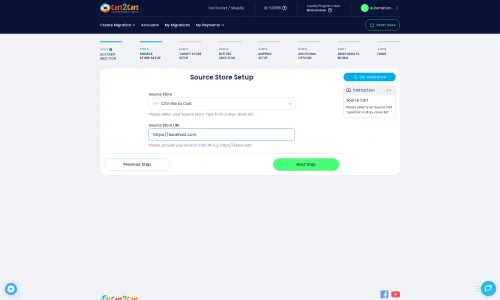
Connecting your QuickBooks data requires selecting 'CSV File to Cart' as your source platform. You will then upload the CSV files containing your exported QuickBooks data, such as products, customers, and orders. The migration tool will read these files to extract your store's entities effectively.
Step 3: Connect Your Target Store (Squarespace)
Next, you'll specify Squarespace as your target e-commerce platform. The system will prompt you for the necessary Squarespace connection details, including your Admin URL, Admin Email, and Admin Password. Ensure you have installed the 'Cart2Cart Squarespace Migration App' as this plugin is crucial for establishing a secure API connection for the data transfer. Be aware of potential API rate limits during this process.
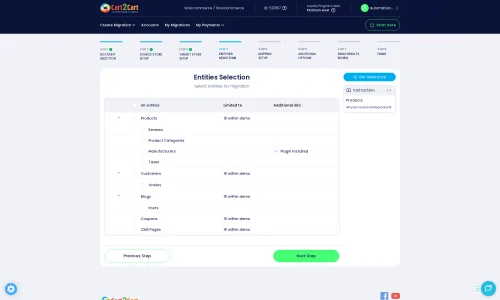
Step 4: Select Data Entities for Migration
This critical step allows you to choose exactly which types of data you wish to migrate from your QuickBooks CSV files to your new Squarespace store. Common entities include:
- Products: Including product names, descriptions, SKUs, images, pricing, and variants.
- Product Categories: Organizing your product catalog.
- Customers: Customer names, email addresses, billing, and shipping information.
- Orders: Order IDs, dates, products purchased, customer details, and order statuses.
- Coupons: Discount codes and their configurations.
- CMS Pages: Static content pages.
- Blogs Posts: Blog content, authors, and comments.
You can select all available entities or handpick specific ones based on your needs. This granular control over data transfer ensures only relevant information is moved, maintaining data integrity.
Step 5: Configure Additional Options & Data Mapping
This stage involves fine-tuning your migration settings and ensuring data consistency between platforms.
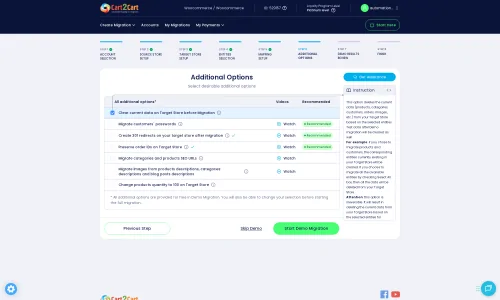
Additional Migration Options
You'll encounter various checkboxes to customize your migration. Consider options such as:
- Clear Target Store Data: Useful if you've done previous tests and want to start with a fresh Squarespace store. Read more about this option here.
- Preserve Order IDs: Maintain your existing order numbering for continuity, which is crucial for accounting and customer service. Learn more on how Preserve IDs options can be used.
- Migrate Images in Description: Ensure product images embedded within text descriptions are transferred correctly.
- Create 301 Redirects: Essential for SEO, this option helps maintain your search engine rankings by automatically redirecting old QuickBooks-related URLs to their new Squarespace counterparts, preserving valuable link equity.
Data Mapping Setup
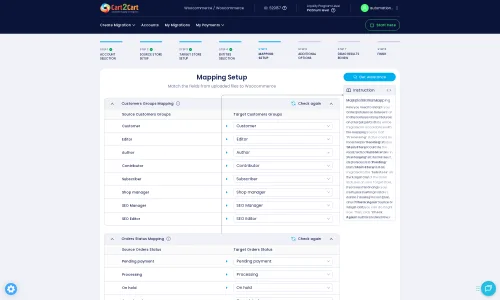
The data mapping feature allows you to match specific fields from your QuickBooks CSV files to their corresponding fields in Squarespace. This is crucial for maintaining data integrity, especially for customer groups and order statuses. For example, you can map 'Pending Payment' status from QuickBooks to 'Processing' in Squarespace, or align specific customer roles to ensure consistency across platforms.
Step 6: Run Demo Migration & Full Migration
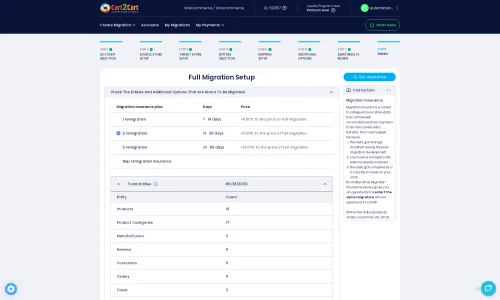
Before committing to a full data transfer, it's highly recommended to perform a free demo migration. This allows you to see a portion of your data (e.g., a limited number of products, customers, and orders) transferred to Squarespace, helping you verify the process and make any necessary adjustments without impacting your live store. Once satisfied with the demo, you can proceed with the full migration.
During the full migration setup, you might also consider adding a Migration Insurance Service, which provides options for re-migrations in case of unexpected issues or if you need to transfer new data accumulated during the migration window. Learn more about how Migration Insurance works.
Post-Migration Steps
Congratulations, your data has been moved to Squarespace! However, the migration isn't complete until you've performed these crucial post-migration tasks to ensure your new store is fully operational and optimized.
- Thorough Data Verification: Rigorously check all migrated data on your Squarespace store. Verify products (SKUs, variants, descriptions, images), customer accounts, order histories, coupons, and CMS pages. Ensure everything looks correct and functions as expected, maintaining data integrity.
- Configure Squarespace Settings: Set up your payment gateways, shipping zones, tax rules, and email notifications. Customize your Squarespace theme to align with your brand's aesthetics and enhance the user experience.
- SEO Optimization and 301 Redirects: If you used the 301 redirect option during migration, confirm they are working correctly. Implement Squarespace's built-in SEO tools to optimize your product pages and content. Monitor your search engine rankings to ensure a smooth transition of your link equity.
- Domain Connection: Update your DNS records to point your domain to your new Squarespace store. This is a critical step for making your new site live to the public.
- Testing: Perform extensive testing of all functionalities, including product browsing, adding to cart, checkout process, customer account logins, and contact forms. Test on various devices and browsers to ensure a flawless user experience.
- Inform Your Customers: Announce your new Squarespace store to your customer base. This can be a great opportunity to re-engage them and showcase your improved platform.
- Backup Your New Store: Establish a regular backup routine for your Squarespace store data to protect against any future issues.
- Monitor and Refine: Keep an eye on your Squarespace analytics. If you accumulated new data on QuickBooks during the migration, consider a Recent Data Migration Service to ensure everything is up-to-date and your data transfer is complete.
Ways to perform migration from QuickBooks to Squarespace
Automated migration
Just set up the migration and choose the entities to move – the service will do the rest.
Try It Free
Data Migration Service Package
Delegate the job to the highly-skilled migration experts and get the job done.
Choose Package

Benefits for Store Owners

Benefits for Ecommerce Agencies

The design and store functionality transfer is impossible due to QuickBooks to Squarespace limitations. However, you can recreate it with the help of a 3rd-party developer.

Your data is safely locked with Cart2Cart
We built in many security measures so you can safely migrate from QuickBooks to Squarespace. Check out our Security Policy
Server Security
All migrations are performed on a secure dedicated Hetzner server with restricted physical access.Application Security
HTTPS protocol and 128-bit SSL encryption are used to protect the data being exchanged.Network Security
The most up-to-date network architecture schema, firewall and access restrictions protect our system from electronic attacks.Data Access Control
Employee access to customer migration data is restricted, logged and audited.Frequently Asked Questions
What factors influence the cost of migrating from QuickBooks data to Squarespace?
Will my QuickBooks store experience downtime during migration to Squarespace?
Will my QuickBooks store's design and theme transfer directly to Squarespace?
How can I preserve SEO rankings when migrating from QuickBooks to Squarespace?
Should I use an automated tool or hire an expert for QuickBooks to Squarespace migration?
How long does it take to migrate my store data from QuickBooks to Squarespace?
How can I ensure data accuracy after migrating from QuickBooks to Squarespace?
Can customer passwords be migrated from QuickBooks' associated data to Squarespace?
What types of data can be migrated from QuickBooks to Squarespace?
Is my QuickBooks data secure during the migration to Squarespace?
Why 150.000+ customers all over the globe have chosen Cart2Cart?
100% non-techie friendly
Cart2Cart is recommended by Shopify, WooCommerce, Wix, OpenCart, PrestaShop and other top ecommerce platforms.
Keep selling while migrating
The process of data transfer has no effect on the migrated store. At all.
24/7 live support
Get every bit of help right when you need it. Our live chat experts will eagerly guide you through the entire migration process.
Lightning fast migration
Just a few hours - and all your store data is moved to its new home.
Open to the customers’ needs
We’re ready to help import data from database dump, csv. file, a rare shopping cart etc.
Recommended by industry leaders
Cart2Cart is recommended by Shopify, WooCommerce, Wix, OpenCart, PrestaShop and other top ecommerce platforms.
Trusted by eCommerce dominators since 2009
















Great Solution! Excellent Support team which helped to migrate my store data from Magento to Bigcommerce in no time. Cart2Cart developed a custom solution to which helped me to Migrate my Blog Data too. I will surely use their service on my upcoming projects.
Review source

Migration from Shopify to BigCommerce was exactly what I need it. Customers information, orders, products description and images were displayed in my new platform perfectly. Additionally, the support team were very helpful and patience while I was doing all of this process. I highly recommend it!
Review source

Working with Cart2Cart on a recent Yahoo Store to BigCommerce Store migration was a pleasure. The support was very helpful in getting to my end solution. I would definitely recommend their service for anyone looking to migrate data between these platforms.
Review source

Solid work on the cart2cart migration from Magento to BigCommerce! Also, they helped me a lot for the data re-migration due to an accidental deletion on BigCommerce I definitely would recommend Cart2Cart 🙂
Review source

I have been very happy with the service and support of Cart2Cart in migrating from an older WebAsyst based e-commerce site to a much more modern CS-Cart based one. Worked perfectly!
Review source

Very good support. They migrated our store from Big Cartel to Magento, and were very cooperative during all this process. Thank you team. I recommend them to everyone
Review source
I have successfully used Cart2Cart to migrate products & categories from DrupalCommerce to Magento. It’s easy, affordable and they offer decent support (no I’m not affiliated with them).
Review source
we have already contracted the service three times to migrate from prestashop to magento. We were very well catered for. I recommend!
Review source
Many of my customers have Magento 1 stores. This year Magento will stop supporting this system and because of this these customers need to migrate to another system. Migration can be difficult and very time consuming process. But then i found Cart2Cart. There solution is the best and affordable. With the first migration there where some problems, but i did made some mistakes with filling in the correct fields to get a connection between the current and the target store. After starting a chat these problems where fixed very quickly. Support is very good and there solution is very affordable. The perfect solution!
Review source
We were in need of migrating 10.000 orders & customers from a PrestaShop site to a Magento site, already being in use. We therefore needed to be extra careful not to erase any of the existing data, which is why we seeked out the service of Cart2Cart. With a readily available customer service providing guidance and support during the entire process, we felt secure in the choice of Cart2Cart. We also enjoyed the possibility to do a test migration to be able to verify the values, before going ahead with a full migration. The full migration was surprisingly quick, within just a couple of minutes we had successfully transfered all the data, without experiencing any issues on the site. I’d recommend Cart2Cart to anyone who are looking to simplify the process of migrating.
Review source