
VirtueMart to CubeCart Migration - Step-by-Step Guide & Expert Services
VirtueMart to CubeCart migration doesn't have to be complicated. Effortlessly move VirtueMart store to CubeCart with Cart2Cart, ensuring a secure, fast, and SEO-friendly switch from VirtueMart to CubeCart with zero downtime. Seamlessly transfer data, preserving all your vital e-commerce elements. Whether you're seeking a detailed step-by-step guide for a DIY approach or require expert assistance for a done-for-you service, Cart2Cart provides the ultimate solution for your VirtueMart to CubeCart migration needs.
What data can be
migrated from VirtueMart to CubeCart
-
Products
-
Product Categories
-
Manufacturers
-
Customers
-
Orders
Estimate your Migration Cost
To estimate your VirtueMart to CubeCart migration price, click the button below. The migration price varies in accordance with the number of data types and the additional migration options selected.
How to Migrate from VirtueMart to CubeCart In 3 Steps?
Connect your Source & Target carts
Choose VirtueMart and CubeCart from the drop-down lists & provide the stores’ URLs in the corresponding fields.
Select the data to migrate & extra options
Choose the data you want to migrate to CubeCart and extra options to customise your VirtueMart to CubeCart migration.
Launch your Demo/Full migration
Run a free Demo to see how the Cart2Cart service works, and when happy - launch Full migration.
Migrate VirtueMart to CubeCart: The Ultimate 2025 Guide for E-commerce Merchants
A Comprehensive Guide to Transitioning from VirtueMart to CubeCart
As an e-commerce merchant, the decision to replatform your online store is a significant one, often driven by the need for enhanced features, improved performance, or a more modern user experience. This guide will walk you through the process of migrating your store from VirtueMart to CubeCart, a robust and feature-rich e-commerce platform.
Given that VirtueMart primarily integrates within the Joomla CMS framework, direct API-based migration tools can sometimes be challenging. Therefore, for optimal data integrity and a smooth transition, we will treat VirtueMart as a CSV file source. This approach allows for a meticulous transfer of your valuable store data, including products, customer information, orders, and more, to your new CubeCart store.
By following these steps, you can ensure a successful data transfer, preserving your SEO rankings, customer relationships, and operational continuity. Let's embark on this journey to elevate your online retail presence with CubeCart.
Why Migrate to CubeCart?
- Modern Architecture: CubeCart offers a contemporary e-commerce platform with a focus on ease of use and merchant-friendly features.
- Robust Feature Set: Benefit from advanced product management, order processing, and customer management capabilities.
- Scalability: CubeCart is designed to grow with your business, handling increasing traffic and product catalogs efficiently.
- Community & Support: Leverage a dedicated community and comprehensive support resources to optimize your store.
Prerequisites for Migration
Before initiating your data transfer from VirtueMart to CubeCart, some crucial preparatory steps are essential to ensure a seamless and error-free process. Proper groundwork will safeguard your data integrity and minimize any potential downtime.
For Your VirtueMart (Source) Store:
- Data Backup: Always perform a complete backup of your VirtueMart database and files. This is your safety net in case of any unforeseen issues during the migration.
- Data Audit & Cleanup: Review your VirtueMart store data. Remove any outdated products, unused customer accounts, or redundant information. Clean data translates to a cleaner new store.
- Export Data to CSV: Prepare your VirtueMart data for export into CSV (Comma Separated Values) files. This includes product details (SKUs, variants, descriptions, images), customer data, order history, and any other relevant e-commerce entities. Ensure your CSV files are well-formatted for easier import. Read our guide on CSV File Data Migration for best practices.
- Review Access Credentials: Ensure you have full administrative access to your VirtueMart instance and any FTP/database access necessary for exporting data.
For Your CubeCart (Target) Store:
- CubeCart Installation: Ensure you have a fresh installation of CubeCart ready on your hosting environment. It should be fully functional and accessible.
- Hosting Environment: Verify your hosting meets CubeCart's system requirements to guarantee optimal performance after the migration. Check for sufficient disk space and memory.
- FTP/cPanel Access: You will need FTP or cPanel access to your CubeCart store's root directory. This is crucial for uploading the connection bridge file. Understanding what a root folder is will be helpful.
- Install Cart2Cart CubeCart Migration Module: CubeCart migrations require a specific plugin. You will need to install the "Cart2Cart CubeCart Migration module" on your CubeCart store. This module facilitates the secure connection and data transfer.
- Disable Caching: Temporarily disable any caching mechanisms on your CubeCart store to prevent conflicts during the data import process.
- Review Access Credentials: Have your CubeCart admin login details and FTP credentials readily available. For more details on secure credentials, refer to The Short & Essential Guide to Access Credentials for Cart2Cart.
Performing the Migration: A Step-by-Step Guide
With your preparations complete, you're ready to initiate the migration process using a dedicated migration tool. Here's a step-by-step walkthrough:
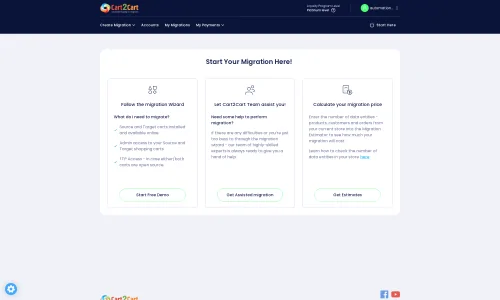
Step 1: Start Your Migration
Begin by accessing the migration wizard. You will typically be presented with options to start a new migration, calculate costs, or seek assisted service.
Step 2: Source Store Setup (VirtueMart via CSV)
In this step, you will specify your source platform and provide the necessary data for connection. Since VirtueMart will be migrated via CSV files, select "CsvToCart" as your Source Cart.
You will then be prompted to upload your prepared CSV files containing all the VirtueMart store data you wish to migrate. Ensure all relevant entities like products, product categories, customers, orders, and reviews are included in your CSV exports. The system supports a wide range of entities, including products with their SKUs and variants, customer data, and order history.
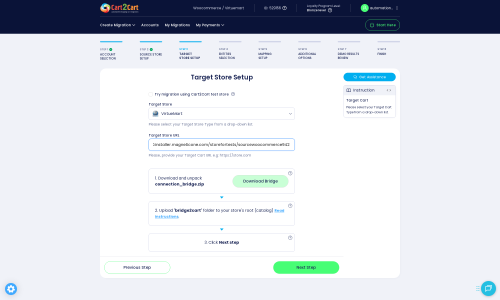
Step 3: Target Store Setup (CubeCart)
Now, configure your target store, which is CubeCart. Select "CubeCart" from the list of available platforms.
- Enter Target Store URL: Provide the full URL of your newly installed CubeCart store.
- Upload Connection Bridge: As CubeCart uses a "Bridge only" connection method, you will need to download a unique
connection_bridge.zipfile. Unpack this archive and upload the resultingbridge2cartfolder to the root directory of your CubeCart installation via FTP. This bridge file acts as a secure conduit, allowing the migration service to access and transfer data to your CubeCart store. - Install CubeCart Migration Module: If you haven't already, install the "Cart2Cart CubeCart Migration module" on your CubeCart store as required.
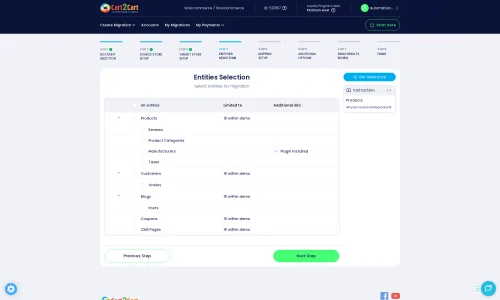
Step 4: Select Data Entities for Migration
This critical step allows you to choose exactly which types of data you want to transfer from your VirtueMart CSV files to CubeCart. You can opt to migrate all supported entities or selectively pick specific data types.
Supported entities for this migration typically include:
- Products (including SKUs, descriptions, images, and variants)
- Product Categories
- Product Manufacturers
- Product Reviews
- Customers
- Orders (including order statuses and histories)
- Invoices
- Taxes
- CMS Pages
- Coupons
Review the list carefully and select what's essential for your new CubeCart store. It's often recommended to transfer core data first, then evaluate additional entities.
Step 5: Configure Additional Migration Options
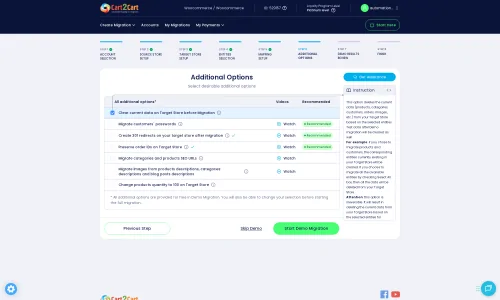
Enhance your migration with a range of additional options designed to preserve data integrity and SEO.
Consider these important choices:
- Clear Target Store Data: The "Clear Target" option allows you to remove any existing data in your CubeCart store before the migration. This is highly recommended for fresh installations to avoid duplicate entries. Learn more about clearing target data.
- Preserve IDs: Options like "Preserve Product IDs," "Preserve Orders IDs," and "Preserve Customers IDs" ensure that your items retain their original identification numbers in CubeCart. This is crucial for maintaining historical data references and external integrations. Discover how Preserve IDs options can be used.
- Create 301 SEO URLs: This is vital for maintaining your search engine rankings and link equity. This option automatically creates 301 redirects from your old VirtueMart URLs to their new CubeCart counterparts, preventing broken links and lost SEO value.
- Migrate Images in Description: Ensure product images embedded within product descriptions are also transferred to CubeCart.
- Password Migration: Enable "Password Migration" to transfer customer passwords securely, allowing your existing customers to log into their accounts on CubeCart without needing to reset their passwords.
- Migrate Invoices: Transfer all your historical invoice data for seamless accounting.
- Create Variants from Attributes: If your VirtueMart products use attributes, this option will help create proper product variants in CubeCart.
- Skip Custom Attributes: If you have custom attributes in VirtueMart that are not needed in CubeCart, you can choose to skip them.
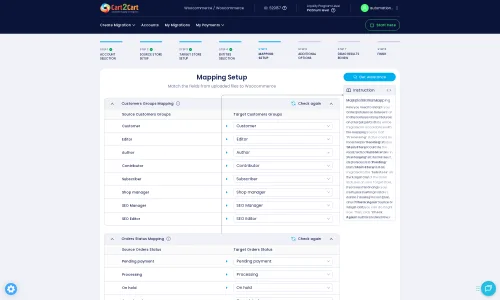
Step 6: Data Mapping
In this step, you will map your VirtueMart (CSV) data fields to the corresponding fields in CubeCart. This ensures that customer groups, order statuses, and other custom fields are correctly aligned in your new store.
- Customer Groups Mapping: Match customer roles (e.g., "Registered Customer") from your source to appropriate groups in CubeCart.
- Order Status Mapping: Align order statuses (e.g., "Pending," "Processing," "Shipped") from VirtueMart to CubeCart's equivalents.
Careful data mapping is key to maintaining data consistency and a smooth user experience post-migration.
Step 7: Initiate Demo or Full Migration
Before committing to a full migration, it is highly recommended to perform a free demo migration. This allows you to transfer a limited number of entities (e.g., 10-20 products, customers, orders) to CubeCart.
- Review Demo Results: After the demo, meticulously check the migrated data on your CubeCart store. Verify product details, customer accounts, and order information. This step helps identify and resolve any potential mapping or data integrity issues.
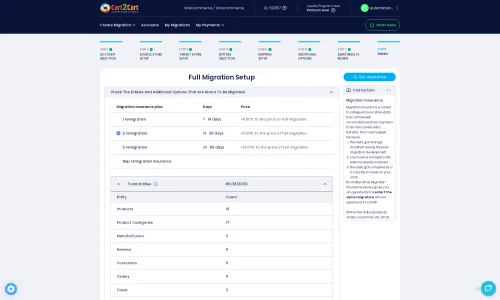
- Full Migration: Once satisfied with the demo, proceed with the full migration. This will transfer all selected data from your VirtueMart CSV files to your CubeCart store. You'll also have the option to select a Migration Insurance Plan for added peace of mind, offering remigrations within a specified period.
Post-Migration Steps
Congratulations! Your data has been transferred to CubeCart. However, the migration process isn't truly complete until you've performed these crucial post-migration tasks to ensure your new store is fully operational and optimized.
- Thorough Testing:
- Product Verification: Check product pages, ensuring images, descriptions, SKUs, pricing, and variants are correct.
- Customer Accounts: Test customer logins, registration, and account history access.
- Order Processing: Place test orders to confirm the checkout process, payment gateways, and shipping methods are working flawlessly.
- Navigation & Search: Verify site navigation, categories, and search functionality for a smooth user experience.
- Configure Store Settings:
- Payment Gateways: Set up and test all your preferred payment methods (e.g., PayPal, Stripe).
- Shipping Methods: Configure shipping zones, rates, and carriers.
- Tax Settings: Ensure all tax rules and rates are correctly applied according to your business location. CubeCart allows for multi-tax configurations.
- Email Notifications: Customize and test all transactional emails (order confirmations, shipping updates, etc.).
- SEO Optimization:
- 301 Redirects: Verify that all 301 redirects from your old VirtueMart URLs to your new CubeCart URLs are working as intended. This is critical for preserving SEO rankings and link equity.
- Sitemap: Generate and submit a new sitemap to search engines (Google Search Console, Bing Webmaster Tools).
- Broken Link Check: Use SEO tools to scan for any broken links and fix them promptly.
- Update DNS: Once you are completely satisfied with your new CubeCart store, update your domain's DNS records to point to the new store. Plan this carefully to minimize downtime.
- Inform Your Customers: Send out an announcement to your customer base, letting them know about your new and improved store. Encourage them to explore and provide feedback.
- Install Essential Plugins/Apps: Install any necessary CubeCart plugins or extensions for marketing, analytics, customer service, or other functionalities that enhance your store's capabilities.
By meticulously performing these post-migration steps, you can confidently launch your new CubeCart store, providing a superior shopping experience for your customers and a powerful platform for your business growth. If you encounter any challenges or require specialized assistance, consider our Migration Customization Service or Contact Us for expert support.
Ways to perform migration from VirtueMart to CubeCart
Automated migration
Just set up the migration and choose the entities to move – the service will do the rest.
Try It Free
Data Migration Service Package
Delegate the job to the highly-skilled migration experts and get the job done.
Choose Package

Benefits for Store Owners

Benefits for Ecommerce Agencies
Choose all the extra migration options and get 40% off their total Price

The design and store functionality transfer is impossible due to VirtueMart to CubeCart limitations. However, you can recreate it with the help of a 3rd-party developer.

Your data is safely locked with Cart2Cart
We built in many security measures so you can safely migrate from VirtueMart to CubeCart. Check out our Security Policy
Server Security
All migrations are performed on a secure dedicated Hetzner server with restricted physical access.Application Security
HTTPS protocol and 128-bit SSL encryption are used to protect the data being exchanged.Network Security
The most up-to-date network architecture schema, firewall and access restrictions protect our system from electronic attacks.Data Access Control
Employee access to customer migration data is restricted, logged and audited.Frequently Asked Questions
How can I preserve SEO rankings when switching from VirtueMart to CubeCart?
What is the estimated timeline for a VirtueMart to CubeCart migration?
Will customer passwords be migrated from VirtueMart to CubeCart?
Should I use an automated tool or hire an expert for my VirtueMart to CubeCart migration?
What factors affect the cost of migrating my store from VirtueMart to CubeCart?
Will my VirtueMart store go offline during migration to CubeCart?
How is my VirtueMart store data secured during the transfer to CubeCart?
How can I verify data accuracy after my VirtueMart to CubeCart migration?
Can my existing VirtueMart store design or theme be moved to CubeCart?
What data entities can I transfer from VirtueMart to CubeCart?
Why 150.000+ customers all over the globe have chosen Cart2Cart?
100% non-techie friendly
Cart2Cart is recommended by Shopify, WooCommerce, Wix, OpenCart, PrestaShop and other top ecommerce platforms.
Keep selling while migrating
The process of data transfer has no effect on the migrated store. At all.
24/7 live support
Get every bit of help right when you need it. Our live chat experts will eagerly guide you through the entire migration process.
Lightning fast migration
Just a few hours - and all your store data is moved to its new home.
Open to the customers’ needs
We’re ready to help import data from database dump, csv. file, a rare shopping cart etc.
Recommended by industry leaders
Cart2Cart is recommended by Shopify, WooCommerce, Wix, OpenCart, PrestaShop and other top ecommerce platforms.
Trusted by eCommerce dominators since 2009














Very impressed with cart2cart. We used it to migrate userbase and productbase from OsCommerce to Cubecart. Excellent support – even when dealing with a database issue in one of the carts, not really to do with cart2cart! I would recommend.
Review source

I have done my first successfully migration from Virtuemart to Opencart. I must say that this service saved me a lot of work and scripting. The demo possibility is perfect to try out, trial and error before committing.
This was the perfect solution for me and I am going to use it again very soon, only this time Virtuemart to Prestashop. Looking forward to use your service again.
Review source
Great service which allowed us to transfer products, customers and orders database of our customer from Virtuemart to Prestashop 2 times: a first time in order to prepare the new website and a second time in order to update new customers and new orders placed in the meantime. Without Cart2Cart this would have been more complicated… A great customer service also, very available and very competent. Thanks to them
Review source
I had a great experience with Cart2Cart. Reading some of the negative reviews here says more about how complex ecommerce migration is than anything else. I will say that I highly recommend paying the extra $ for their assisted service, which I did. It is totally work the extra $200 or $300 because you get a project manager who is very available, and you get to tweak your migration settings to make sure everything is just right. With the automated tools they offer, you’re on your own. But their customer support on my project was fast and responsive to my questions, and they were able to make any adjustments I needed. I migrated from Virtuemart to Shopify with over 12,000 orders and 4,000 customers. The migration was smooth. They scheduled the last “new data” import for me at a time I chose (within their working hours). And the migration was a success.
Review source
We at beadedcreations.co.za found this to be best migration app ever made our migration from Virtuemart to Shopify painless, we would recommend this app any day to all online stores, great support and best results. Thank you for saving us loads of time
Review source
This migration service has made a transition from VirtueMart to Shopify so much easier. The Cart2Cart support team has been very responsive and helpful as we’ve gone through the process and had questions or needed guidance
Review source
Excellent service that helped us to migrate from Virtuemart to Woocommerce all customers, orders, and products. Support staff also great with rapid communication and support.
Review source
I’m about to migrate VirtueMart to WooCommerce and with this simple step by step instructions through the migration process, it is a great time saver for site migration. Excellent migration process, easy step by step instructions through the process and after demo import very kind gentleman called me for additional instructions and advice.
The free demo is a great feature. Support has been very impressive. The Demo migration itself took about 3 minutes with perfect results. I would highly recommend this service.
Cart2Cart is a very great product, hoping that automated software will save me a lot of time in the process of migrating from VirtueMart to WooCommerce.
All product information, user information and order history are migrated in one go, this is a highly recommended software!
All the time customer service is available and helped me fixed the issue during the setup process in no time. Thank you!
The migration-tool do exactly what is meant for.
Review source
Very good service! I have 4600 products to transfer from virtuemart to woocommerce, and all products was transfered in 2 hours. I haven’t any technical issues, so I will give them 5 star for easy of use.
Review source
It saved me ages of work. Migration from Virtuemart to Woocommerce was so smooth and seamless that almost couldn’t believe it. Excellent implementation and very good support response. Great work, thank you very much.
Review source