
How can we help you?
If the Shopify connection fails while installing the Cart2Cart Store Migration app in the wizard, install it on the correct shop, approve permissions, then re-check the connection.
Start the Shopify connection
1. In the Migration Wizard, select Shopify as Source or Target and start the connection step.
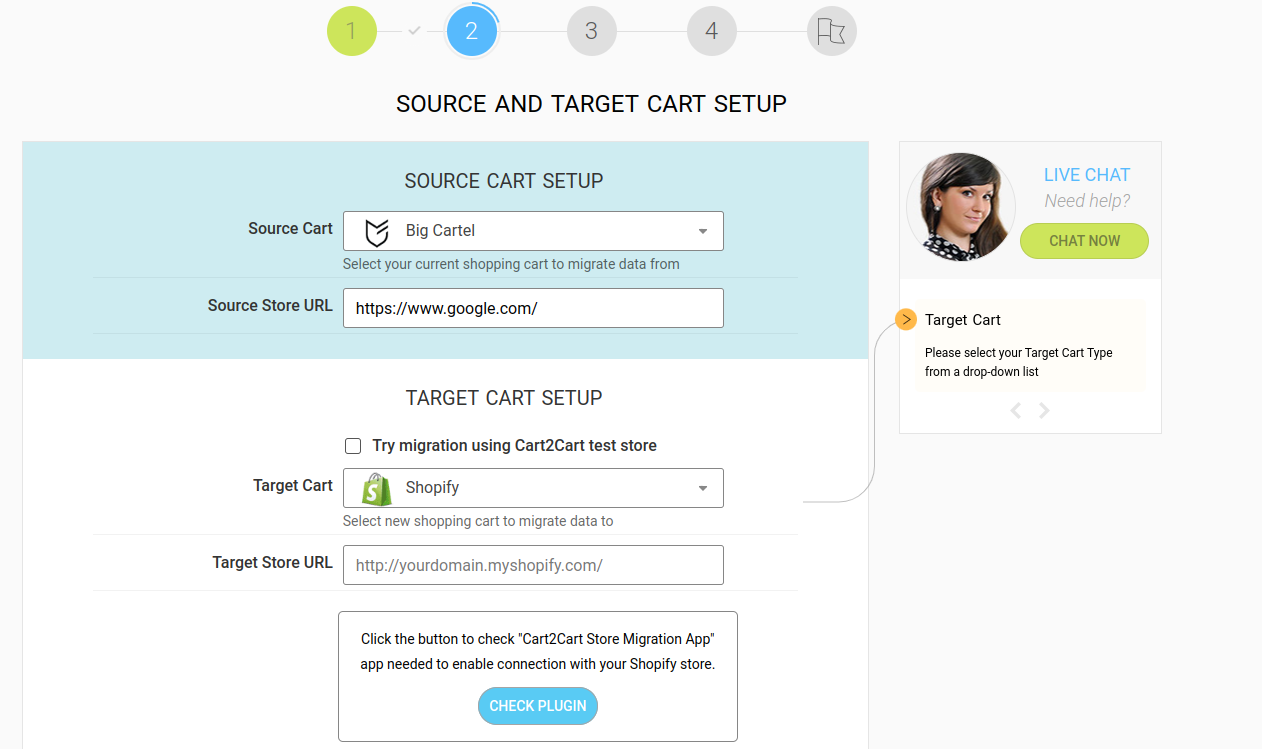
Install the app on the right store
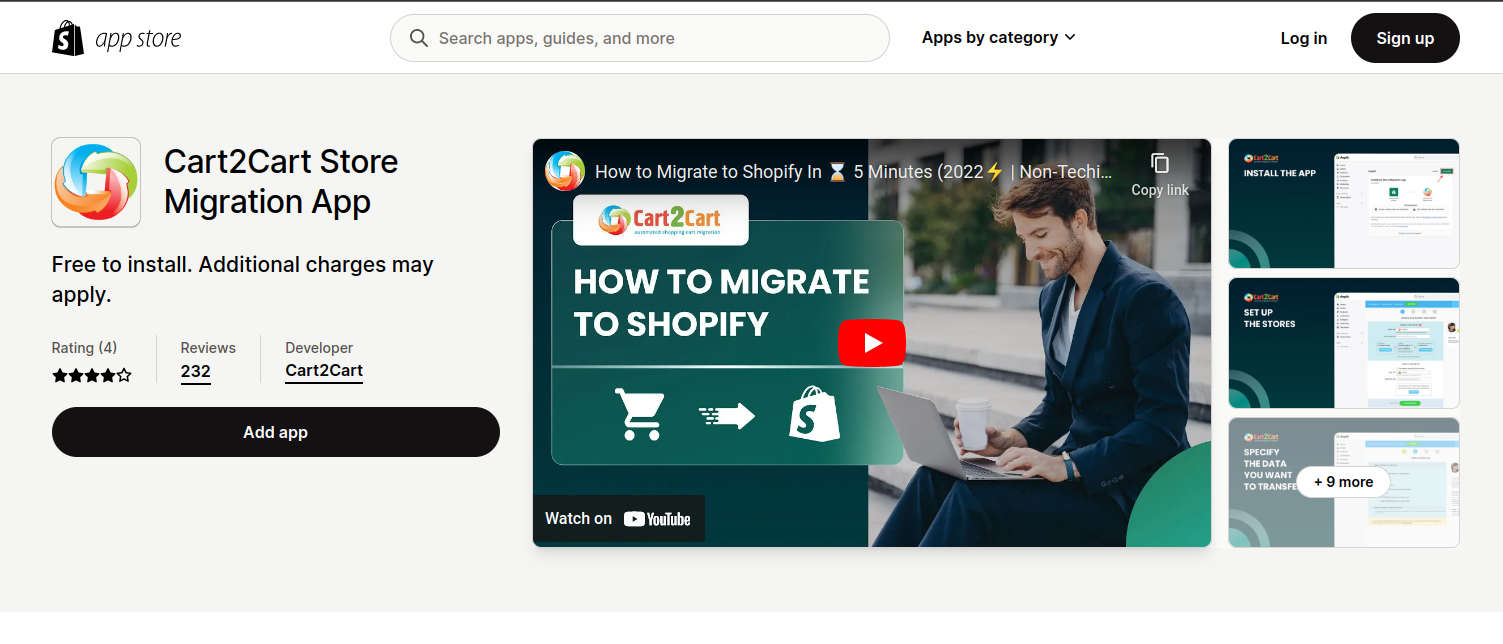
2. When prompted, open the Cart2Cart Store Migration app listing / install page and log in with the Shopify account that owns the correct store.
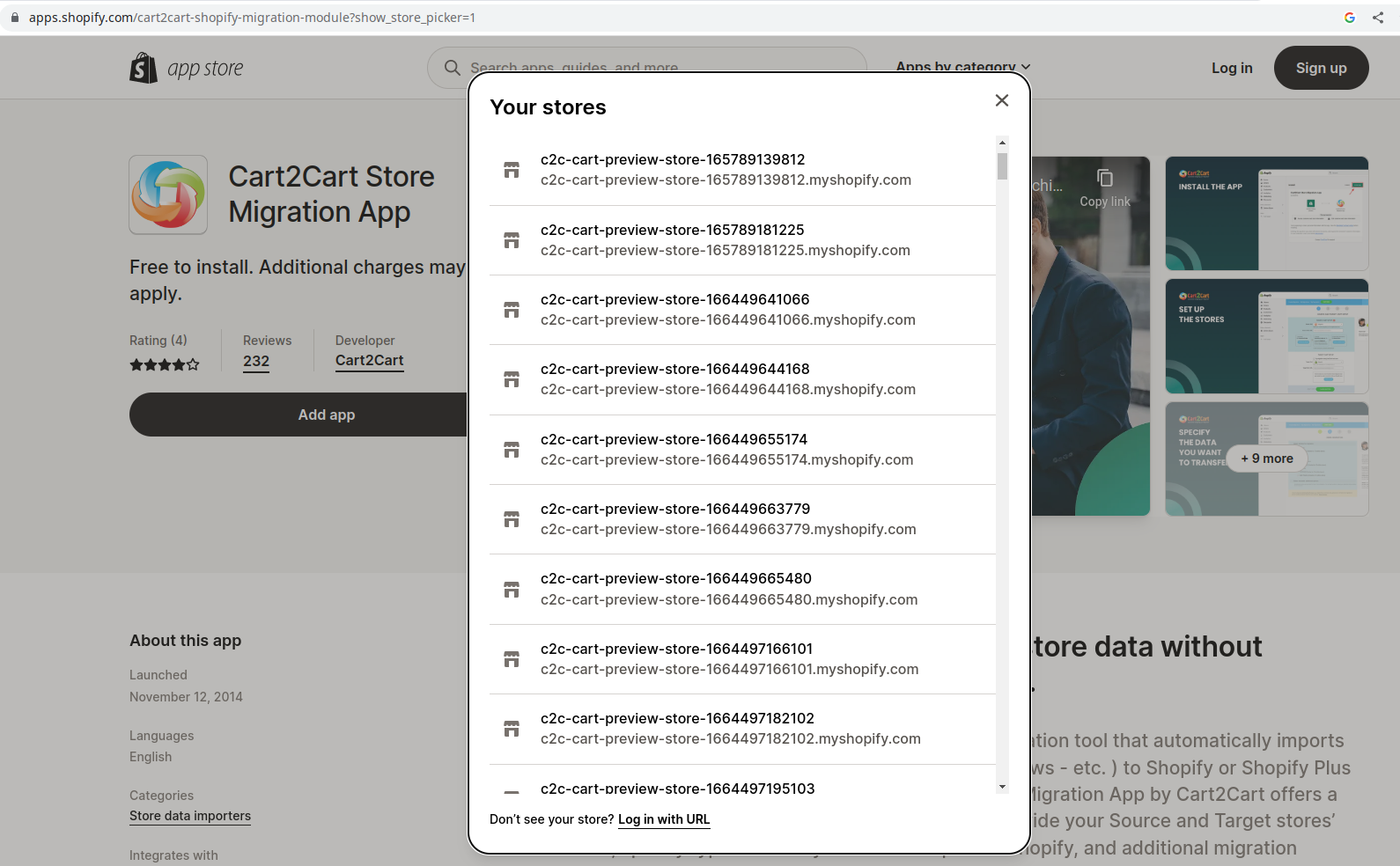
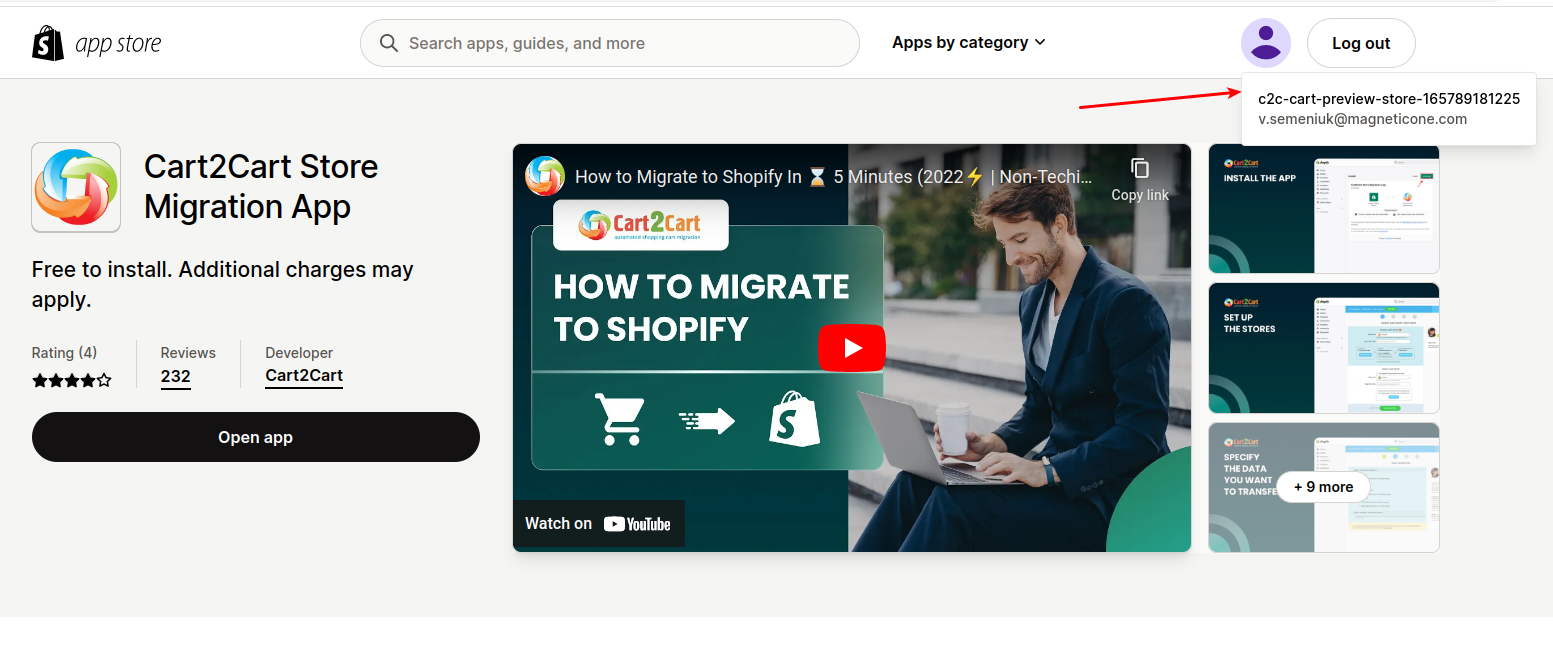
3. Confirm the store name/URL in the Shopify picker (top-right account/store switcher). If the wrong store is selected, log out of Shopify Admin (and the app listing session), then log in again and choose the right shop—Shopify often locks the shop choice for that session.
Approve permissions and return to the wizard
4. Click Install / Add app and approve the requested permissions.
5. Return to the Cart2Cart wizard and re-run the connection check. If you prefer credentials instead of the app, create a custom app Admin API access token—see Where can I get Shopify API Password?.
If install still fails
Disable conflicting staff permission limits, try another browser or an incognito window, or contact Support with the store URL and the exact error text.
Do you need help? Contact our support team
Just set up the migration and choose the entities to move – the service will do the rest.
Try It FreeDelegate the job to the highly-skilled migration experts and get the job done.
Choose Package