


bluCommerce to CubeCart Migration - Step-by-Step Guide & Expert Services
Achieve seamless bluCommerce to CubeCart migration with Cart2Cart. Ready to move bluCommerce store to CubeCart efficiently and without hassle? Our proven service ensures a secure, lightning-fast, and worry-free switch from bluCommerce to CubeCart, meticulously preserving your SEO rankings and guaranteeing zero downtime for your online business. Confidently transfer data – whether you're looking for a comprehensive step-by-step guide for a DIY approach or require expert assistance for a fully managed, done-for-you service. Simplify your bluCommerce to CubeCart migration today.
What data can be
migrated from bluCommerce to CubeCart
-
Products
-
Product Categories
-
Manufacturers
-
Customers
-
Orders
- Name, ID, SKU, Short Description, Full Description, Manufacturer, Tax Class, Sort Order.
- MSRP.
- Meta Title, Meta Keywords, Meta Description.
- Quantity, Stock Availability.
- Weight.
- Options(Name, Price).
- Name, ID, Status.
- Meta Title, Meta Description, Meta Keywords.
- Name, Meta Title.
- ID, Telephone, Newsletter, Gender, Created Date.
- Customer Billing Address.
- Customer Shipping Address.
- ID, Order Date, Order Status, SubTotal Price, Discount Price, Tax Price, Shipping Price, Total Price.
- Customer Name, Email, Telephone, Billing Address.
- Shipping Address.
- Name, ID, SKU, Short Description, Full Description, Manufacturer, Tax Class, Sort Order.
- MSRP.
- Meta Title, Meta Keywords, Meta Description.
- Quantity, Stock Availability.
- Weight.
- Options(Name, Price).
- Name, ID, Status.
- Meta Title, Meta Description, Meta Keywords.
- Name, Meta Title.
- ID, Telephone, Newsletter, Gender, Created Date.
- Customer Billing Address.
- Customer Shipping Address.
- ID, Order Date, Order Status, SubTotal Price, Discount Price, Tax Price, Shipping Price, Total Price.
- Customer Name, Email, Telephone, Billing Address.
- Shipping Address.
Products
Estimate your Migration Cost
To determine your bluCommerce to CubeCart migration price, click the button below. The migration price varies in accordance with the number of data types and the additional migration options selected.
How to Migrate from bluCommerce to CubeCart In 3 Steps?
Connect your Source & Target carts
Choose bluCommerce and CubeCart from the drop-down lists & provide the stores’ URLs in the corresponding fields.
Select the data to migrate & extra options
Choose the data you want to migrate to CubeCart and extra options to customise your bluCommerce to CubeCart migration.
Launch your Demo/Full migration
Run a free Demo to see how the Cart2Cart service works, and when happy - launch Full migration.
Migrating from bluCommerce to CubeCart: Your Definitive Step-by-Step Guide
Seamlessly Transition Your E-commerce Store: bluCommerce to CubeCart Migration Guide
Are you looking to enhance your online store's capabilities, improve scalability, or streamline operations? Migrating your e-commerce platform can be a powerful step towards achieving these goals. This comprehensive guide will walk you through the process of moving your store from bluCommerce to CubeCart, ensuring a smooth and successful data transfer.
bluCommerce, while serving its purpose, might not offer the advanced features or flexibility your growing business demands. CubeCart, with its robust feature set and user-friendly interface, presents an excellent alternative for merchants seeking greater control and functionality. This article will provide clear, actionable steps to help you replatform your store effectively, covering everything from preparing your data to post-migration verification. We'll utilize a CSV-based migration approach for bluCommerce data, given its architecture, and leverage a specialized migration tool to connect with CubeCart, ensuring maximum data integrity.
Prerequisites for a Successful Migration
Before embarking on your data transfer journey, it's crucial to prepare both your source (bluCommerce) and target (CubeCart) stores. Proper preparation minimizes potential issues and ensures a more efficient migration process.
- For Your bluCommerce Store (Source - via CSV):
- Data Export: bluCommerce data will be exported into CSV files. You will need to extract all essential data, including products (SKUs, variants, descriptions, images), product categories, customer records, orders, reviews, and any CMS pages or blog posts you wish to carry over. Ensure these CSV files are well-organized and correctly formatted.
- Data Clean-up: Take this opportunity to clean up any outdated or redundant data from your bluCommerce store. This includes inactive products, duplicate customer entries, or old promotions.
For more details on preparing your source store, you can consult our FAQ on preparing your Source store.
- For Your CubeCart Store (Target):
- Fresh Installation: It is highly recommended to have a fresh, clean installation of CubeCart. This prevents conflicts with existing data and provides a clean slate for your migrated information.
- Admin Access: Ensure you have full administrative access to your CubeCart dashboard. This includes your admin login URL, username, and password.
- FTP/SFTP Access: The migration process for CubeCart typically requires installing a connection bridge. You'll need FTP or SFTP access credentials to your CubeCart root folder to upload the necessary files. Understanding what a root folder is will be helpful.
- Plugin Installation: CubeCart migrations require the installation of a specific plugin. The Cart2Cart CubeCart Migration module is required for establishing a secure connection and facilitating the data transfer.
- Server Resources: Confirm your hosting environment meets CubeCart's requirements and has sufficient resources to handle the migration, especially for larger stores.
Learn more about how to prepare your Target store for migration and The Short & Essential Guide to Access Credentials for Cart2Cart.
Performing the Migration: A Step-by-Step Guide
This section outlines the step-by-step process using a specialized migration wizard to transfer your data from bluCommerce (via CSV) to CubeCart.
Step 1: Initiate Your Migration
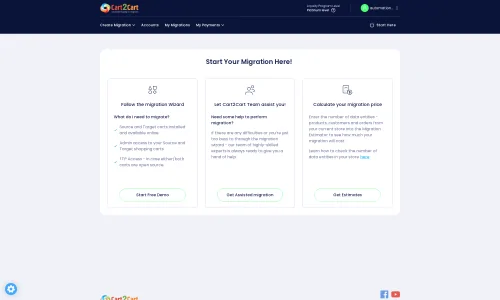
Begin by accessing the migration tool's website. On the main page, you'll find options to start your migration process, either by calculating the cost or by proceeding directly to the migration wizard.
Step 2: Connect Your Source Store (bluCommerce via CSV)
The first step in the wizard is to specify your source platform. Since bluCommerce data will be supplied via CSV files, select "CSV File to Cart" from the dropdown menu. You will then upload your prepared CSV files containing all your e-commerce data such as products, categories, customers, and orders. The tool will parse these files to extract your store's information.
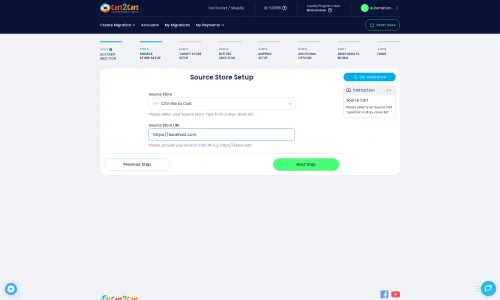
The CSV import method supports a wide range of entities including Products, Product Categories, Product Manufacturers, Product Reviews, Customers, Orders, Invoices, Taxes, Stores, Coupons, CMS Pages, and even Blogs and Blog Posts, allowing a comprehensive data export from bluCommerce.
Step 3: Connect Your Target Store (CubeCart)
Next, you'll need to configure your target store. Select "CubeCart" as your Target Cart. The migration tool typically connects to CubeCart via a secure connection bridge. This requires you to enter your CubeCart admin URL, admin username, and admin password, along with the URL of your CubeCart store.
As noted in the prerequisites, a Cart2Cart CubeCart Migration module plugin is required. The system will guide you through installing this module, which involves uploading a 'bridge' file to the root directory of your CubeCart installation using FTP/SFTP access. This bridge facilitates the secure transfer of your data.
Step 4: Select Data Entities for Migration
This crucial step allows you to choose exactly which types of data you want to transfer from your bluCommerce CSV files to your new CubeCart store. You can select all available entities or pick specific ones like products, customers, orders, product categories, reviews, and CMS pages. CubeCart supports the migration of Products, Products Categories, Products Manufacturers, Products Reviews, Customers, Orders, Invoices, Taxes, Stores, Coupons, and CMS Pages.
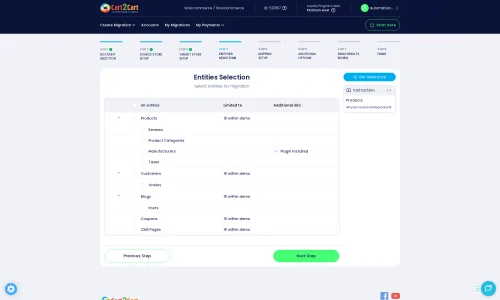
Important Note: While your bluCommerce CSV export may include blog posts, CubeCart's native support for blog migration via the bridge might be limited, and SEO options related to blogs are typically excluded for CubeCart during this process.
Step 5: Configure Additional Options and Data Mapping
Additional Migration Options
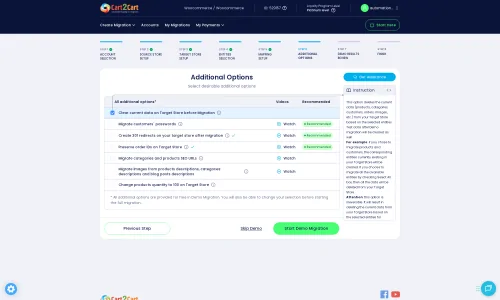
This section offers various customization options to fine-tune your migration. These can include important settings such as:
- Migrate Images in Description: Essential for preserving product and category images embedded within descriptions.
- Clear Target: An option to remove all current data from your CubeCart store before migration (use with caution on live stores). Read more about clearing target data.
- Preserve Product, Order, and Customer IDs: Highly recommended for maintaining historical data integrity and preventing broken links. Learn more about preserving IDs.
- SEO URLs & 301 SEO URLs: Critical for maintaining your search engine rankings and link equity by creating redirects from old bluCommerce URLs to new CubeCart ones.
- Password Migration: Allows transferring customer passwords securely.
- Create 301 SEO URLs: Ensures that when customers or search engines visit old bluCommerce product pages, they are automatically redirected to the corresponding new CubeCart pages.
- Skip Custom Attributes: If you have custom attributes from bluCommerce you don't need in CubeCart.
Data Mapping Setup
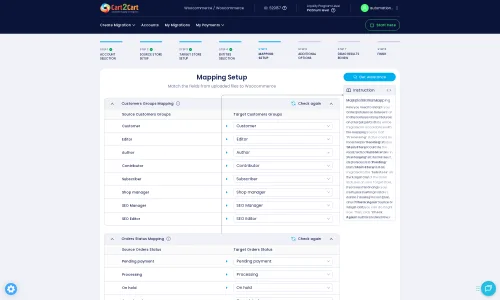
Data mapping ensures that specific fields and statuses from your bluCommerce store correctly align with their counterparts in CubeCart. You'll typically map customer groups (e.g., 'Wholesale' to 'Customer Group A') and order statuses (e.g., 'Pending payment' to 'Processing'). This step is vital for data consistency across platforms.
Step 6: Run Demo Migration & Full Migration
Before committing to a full data transfer, perform a free demo migration. This allows you to migrate a limited number of entities (e.g., 10 products, 10 customers, 10 orders) to your CubeCart store. Review the demo results thoroughly to ensure data accuracy, proper formatting, and correct functionality.
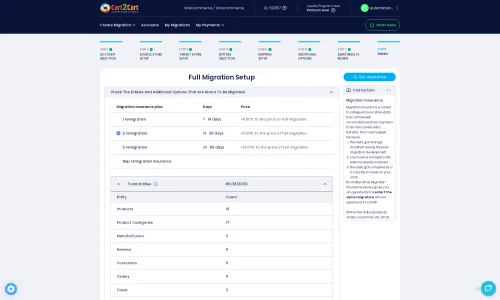
Once satisfied with the demo, proceed with the full migration. At this stage, you may also consider selecting a Migration Insurance Plan, which provides a safety net with remigrations in case any issues arise post-transfer.
Post-Migration Steps
The migration doesn't end when the data transfer is complete. A few critical post-migration tasks are necessary to ensure your new CubeCart store is fully operational and optimized.
- Review and Verify Data: Thoroughly check all migrated data. Confirm product details, pricing, stock levels, customer accounts, order histories, and reviews. Pay special attention to product images and descriptions.
- Configure Store Settings and Design: Adjust your CubeCart store's theme, payment gateways, shipping methods, taxes, and other general settings to match your business requirements.
- Test All Functionality: Perform comprehensive testing of all critical store functions:
- Add products to the cart and complete a test checkout process.
- Register new customer accounts and test existing migrated accounts.
- Verify search functionality and product filters.
- Check all contact forms and CMS pages.
- Update DNS and Implement 301 Redirects: Once you are confident with your new CubeCart store, update your domain's DNS settings to point to the new platform. Crucially, implement the 301 redirects configured during migration to preserve SEO rankings and ensure a seamless user experience for existing links.
- Notify Customers (Optional): Inform your customer base about your new and improved store.
- Monitor Performance: Keep a close eye on your store's performance, traffic, and sales in the initial weeks after launch. Utilize analytics tools to track any anomalies.
If you encounter any new data in your old bluCommerce store after the initial migration, you can always utilize a Recent Data Migration Service to transfer only the latest updates.
Migrating from bluCommerce to CubeCart can be a complex but rewarding process. By following these steps and leveraging the right tools, you can ensure a smooth transition, allowing your business to thrive on a more powerful and flexible platform. If you need any assistance during your migration journey, don't hesitate to contact us.
Ways to perform migration from bluCommerce to CubeCart
Automated migration
Just set up the migration and choose the entities to move – the service will do the rest.
Try It Free
Data Migration Service Package
Delegate the job to the highly-skilled migration experts and get the job done.
Choose Package

Benefits for Store Owners

Benefits for Ecommerce Agencies
Choose all the extra migration options and get 40% off their total Price

The design and store functionality transfer is impossible due to bluCommerce to CubeCart limitations. However, you can recreate it with the help of a 3rd-party developer.

Your data is safely locked with Cart2Cart
We built in many security measures so you can safely migrate from bluCommerce to CubeCart. Check out our Security Policy
Server Security
All migrations are performed on a secure dedicated Hetzner server with restricted physical access.Application Security
HTTPS protocol and 128-bit SSL encryption are used to protect the data being exchanged.Network Security
The most up-to-date network architecture schema, firewall and access restrictions protect our system from electronic attacks.Data Access Control
Employee access to customer migration data is restricted, logged and audited.Frequently Asked Questions
Will my bluCommerce store design and theme transfer to CubeCart automatically?
How is my data kept secure during the bluCommerce to CubeCart migration process?
Can customer passwords be migrated from bluCommerce to CubeCart?
How do I ensure data accuracy after migrating from bluCommerce to CubeCart?
Should I use an automated tool or hire an expert for my bluCommerce to CubeCart migration?
What data entities are migrated from bluCommerce to CubeCart?
Will my bluCommerce store go offline during migration to CubeCart?
How long does a typical bluCommerce to CubeCart migration take?
How can I keep SEO rankings when switching from bluCommerce to CubeCart?
What factors influence the cost of migrating from bluCommerce to CubeCart?
Why 150.000+ customers all over the globe have chosen Cart2Cart?
100% non-techie friendly
Cart2Cart is recommended by Shopify, WooCommerce, Wix, OpenCart, PrestaShop and other top ecommerce platforms.
Keep selling while migrating
The process of data transfer has no effect on the migrated store. At all.
24/7 live support
Get every bit of help right when you need it. Our live chat experts will eagerly guide you through the entire migration process.
Lightning fast migration
Just a few hours - and all your store data is moved to its new home.
Open to the customers’ needs
We’re ready to help import data from database dump, csv. file, a rare shopping cart etc.
Recommended by industry leaders
Cart2Cart is recommended by Shopify, WooCommerce, Wix, OpenCart, PrestaShop and other top ecommerce platforms.
Trusted by eCommerce dominators since 2009















Very impressed with cart2cart. We used it to migrate userbase and productbase from OsCommerce to Cubecart. Excellent support – even when dealing with a database issue in one of the carts, not really to do with cart2cart! I would recommend.
Review source

Great Solution! Excellent Support team which helped to migrate my store data from Magento to Bigcommerce in no time. Cart2Cart developed a custom solution to which helped me to Migrate my Blog Data too. I will surely use their service on my upcoming projects.
Review source

Migration from Shopify to BigCommerce was exactly what I need it. Customers information, orders, products description and images were displayed in my new platform perfectly. Additionally, the support team were very helpful and patience while I was doing all of this process. I highly recommend it!
Review source

Working with Cart2Cart on a recent Yahoo Store to BigCommerce Store migration was a pleasure. The support was very helpful in getting to my end solution. I would definitely recommend their service for anyone looking to migrate data between these platforms.
Review source

Solid work on the cart2cart migration from Magento to BigCommerce! Also, they helped me a lot for the data re-migration due to an accidental deletion on BigCommerce I definitely would recommend Cart2Cart 🙂
Review source

I have been very happy with the service and support of Cart2Cart in migrating from an older WebAsyst based e-commerce site to a much more modern CS-Cart based one. Worked perfectly!
Review source
Very good support. They migrated our store from Big Cartel to Magento, and were very cooperative during all this process. Thank you team. I recommend them to everyone
Review source
I have successfully used Cart2Cart to migrate products & categories from DrupalCommerce to Magento. It’s easy, affordable and they offer decent support (no I’m not affiliated with them).
Review source
we have already contracted the service three times to migrate from prestashop to magento. We were very well catered for. I recommend!
Review source
Many of my customers have Magento 1 stores. This year Magento will stop supporting this system and because of this these customers need to migrate to another system. Migration can be difficult and very time consuming process. But then i found Cart2Cart. There solution is the best and affordable. With the first migration there where some problems, but i did made some mistakes with filling in the correct fields to get a connection between the current and the target store. After starting a chat these problems where fixed very quickly. Support is very good and there solution is very affordable. The perfect solution!
Review source