

Mailchimp Stores to Shopify Migration - Step-by-Step Guide & Expert Services
Mailchimp Stores to Shopify migration made easy. Ready to move Mailchimp Stores store to Shopify effortlessly? Cart2Cart ensures a seamless switch from Mailchimp Stores to Shopify, preserving your SEO rankings and guaranteeing zero downtime. Our secure, fast service expertly transfers all your essential data, letting you scale with confidence. Discover our step-by-step guide for DIY users, or opt for our professional team to handle your complete Mailchimp Stores to Shopify migration. Your new store awaits!
What data can be
migrated from Mailchimp Stores to Shopify
-
Products
-
Product Categories
-
Manufacturers
-
Customers
-
Orders
- Name, SKU, Full Description, Manufacturer.
- Meta Title, Meta Description.
- Quantity.
- Weight.
- Options(Name).
- Name, Status.
- Meta Title, Meta Description.
- Name.
- Newsletter.
- Customer Billing Address.
- Customer Shipping Address.
- Order Date, Order Status , Order Products(Final Price, Tax Value, Name, SKU), Discount Price, Tax Price, Shipping Price.
- Customer Name, Email, Billing Address.
- Shipping Address.
- Name, SKU, Full Description, Manufacturer.
- Meta Title, Meta Description.
- Quantity.
- Weight.
- Options(Name).
- Name, Status.
- Meta Title, Meta Description.
- Name.
- Newsletter.
- Customer Billing Address.
- Customer Shipping Address.
- Order Date, Order Status , Order Products(Final Price, Tax Value, Name, SKU), Discount Price, Tax Price, Shipping Price.
- Customer Name, Email, Billing Address.
- Shipping Address.
Products
Estimate your Migration Cost
The price of your migration depends on the volume of data to migrate and the additional migration options you pick. To check the price for Mailchimp Stores to Shopify conversion, click “Get estimates” and follow the suggested steps.
How to Migrate from Mailchimp Stores to Shopify In 3 Steps?
Connect your Source & Target carts
Choose Mailchimp Stores and Shopify from the drop-down lists & provide the stores’ URLs in the corresponding fields.
Select the data to migrate & extra options
Choose the data you want to migrate to Shopify and extra options to customise your Mailchimp Stores to Shopify migration.
Launch your Demo/Full migration
Run a free Demo to see how the Cart2Cart service works, and when happy - launch Full migration.
Migrate Mailchimp Stores to Shopify: A Step-by-Step Guide for a Seamless Transition
Transitioning from Mailchimp Stores to Shopify: Your Expert Guide
In the dynamic world of e-commerce, staying competitive often means upgrading your platform. If you're currently running your online business on Mailchimp Stores and are considering a move, migrating to Shopify can unlock a wealth of new opportunities. Shopify is renowned for its robust feature set, extensive app ecosystem, scalability, and user-friendly interface, making it a powerful choice for growing merchants.
This comprehensive guide will walk you through the entire process of migrating your e-commerce data from Mailchimp Stores to Shopify. Since Mailchimp Stores data is typically exported via CSV files, we will leverage this method to ensure a smooth and efficient data transfer. Prepare for a seamless transition that preserves your valuable customer data, product listings, and order history, setting your business up for future success on Shopify.
Prerequisites for a Successful Migration
Before initiating your data transfer from Mailchimp Stores to Shopify, a few crucial preparations will help ensure a smooth process and minimize potential issues.
- Mailchimp Stores Data Export: As Mailchimp Stores is not directly supported by many migration tools for a live API connection, your first step will be to manually export your essential e-commerce data (products, customers, orders, categories, etc.) into CSV files. Ensure these files are comprehensive and accurately formatted for optimal import. For assistance with CSV file preparation, consider our CSV.File Data Migration service.
- Shopify Store Setup: Have a fully operational Shopify store ready to receive your data. This can even be a trial store initially. While setting up, consider important configurations like payment gateways, shipping zones, and basic store settings. You can learn more about how to prepare your target store for migration.
- Data Familiarity: Understand the types of data you wish to transfer. Shopify supports a wide range of entities including products (with SKUs and variants), product categories, customers, orders, CMS pages, gift cards, coupons, price rules, and blog posts. However, note that reviews on Shopify typically require a dedicated app like AirReviews.
- Backup Your Data: Always create a complete backup of your Mailchimp Stores data before any migration. This is a critical step for data integrity and peace of mind.
- Understand Shopify Limitations: Be aware of Shopify's specific operational notices. For example, a 'Pause and Build' plan on Shopify will block orders, and it's recommended to disable notifications during the migration process. Certain country restrictions may also apply to orders.
- Plan for Downtime: While most migrations are designed to minimize disruption, planning for a brief period of reduced functionality or downtime during the final data transfer and DNS updates is wise.
Thorough preparation is key to a successful replatforming experience, helping you avoid common pitfalls and ensuring your new Shopify store is ready to thrive.
Performing the Migration: A Step-by-Step Guide
Migrating your store's data from Mailchimp Stores to Shopify can be efficiently done using a specialized migration tool like Cart2Cart. Here's a step-by-step walkthrough:
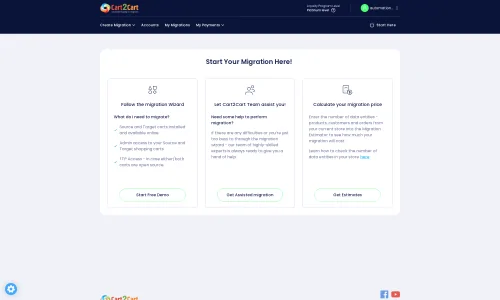
Step 1: Export Data from Mailchimp Stores
As Mailchimp Stores doesn't typically offer a direct API connection for automated migration tools, you'll need to export your store's data manually into CSV files. Focus on obtaining comprehensive exports for:
- Products: Including product names, descriptions, SKUs, prices, images, variants, and stock levels.
- Customers: Customer names, email addresses, billing and shipping addresses, and any associated customer groups.
- Orders: Order IDs, purchase dates, customer details, product lists, order statuses, and pricing information.
- Categories/Collections: Your product organizational structure.
Carefully review your exported CSV files to ensure data quality and correct formatting. This step is critical as the quality of your source data directly impacts the success of the import into Shopify. If you require assistance with formatting or processing your CSV files, consider utilizing a CSV.File Data Migration service.
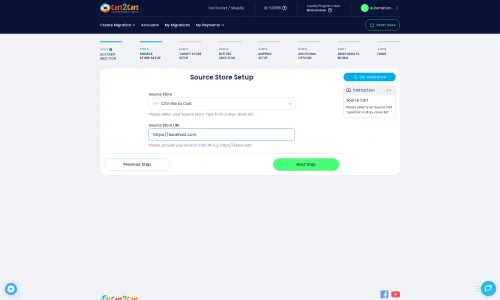
Step 2: Start the Migration Wizard and Connect Your Source Store
Navigate to your chosen migration tool (e.g., Cart2Cart). You'll begin by setting up your source store details:
Select "CSV File to Cart" from the dropdown list of supported platforms. Then, you'll be prompted to upload your prepared CSV files. The wizard will guide you on how to correctly upload these files, ensuring they are recognized by the migration service.
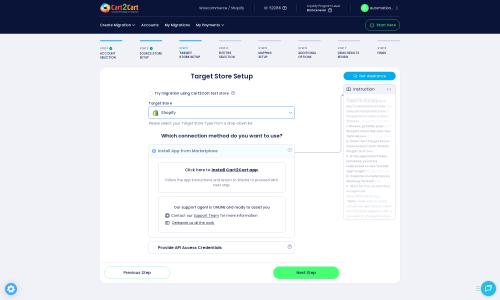
Step 3: Connect Your Shopify Target Store
Next, configure the connection to your new Shopify store:
- Select "Shopify" as your target shopping cart from the dropdown menu.
- Enter your Shopify store's URL.
- The recommended connection method is to "Install App from Marketplace." Click the provided link to install the Cart2Cart Store Migration App directly from the Shopify App Store. Follow the on-screen instructions in Shopify, then return to the migration wizard to finalize the connection. This method simplifies the process significantly.
- Alternatively, you can choose to "Provide API Access Credentials." This requires generating a custom app within your Shopify admin and configuring specific API scopes to obtain an Admin API access token. For detailed instructions on this, refer to The Short & Essential Guide to Access Credentials for Cart2Cart.
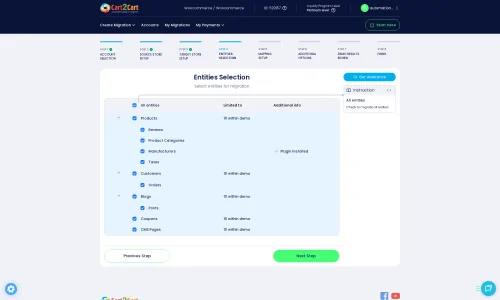
Step 4: Select Data Entities to Migrate
This stage allows you to specify exactly which data entities you want to transfer from your Mailchimp Stores CSV files to Shopify.
You will see a checklist of supported data types, including:
- Products, along with their categories, SKUs, and variants
- Customer accounts and their associated data
- Order history
- CMS Pages
- Gift Cards
- Coupons and Price Rules
- Blogs and Blog Posts
You can choose to migrate "All Entities" or pick specific items based on your needs. Remember that for product reviews, Shopify typically requires a third-party app like AirReviews, so you may need to manage reviews separately.
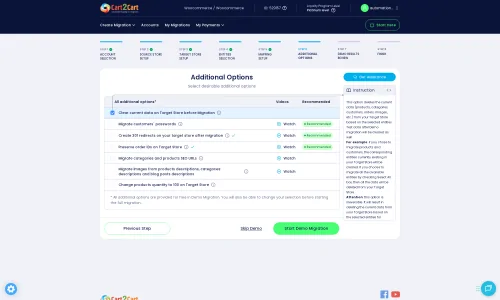
Step 5: Configure Additional Migration Options
The wizard presents several additional options to customize your data transfer and optimize the replatforming process. Carefully select the options that align with your business requirements:
- Clear Target Store Data: If your Shopify store has existing data that you wish to remove before migration, select this option. Read more about clearing target store data.
- Preserve Order IDs: This option ensures your original Mailchimp Stores order IDs are maintained in Shopify, crucial for historical records and accounting. Learn more about preserving IDs.
- Migrate Images in Description: Transfers product images embedded within product descriptions.
- Create 301 SEO URLs: Highly recommended for maintaining your search engine rankings and link equity. This option automatically generates redirects from your old Mailchimp Stores URLs to your new Shopify URLs.
- Migrate All Categories: Ensures your entire category structure is moved.
- Migrate Groups to Tags: Transfers customer groups from your source to Shopify tags.
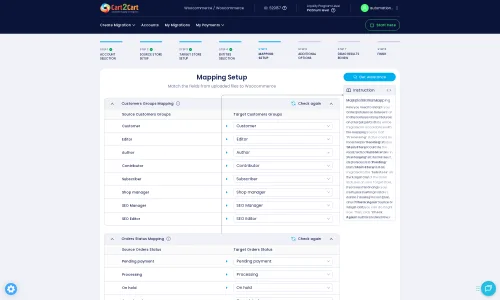
Step 6: Map Customer Groups and Order Statuses
In this critical step, you'll map the customer groups and order statuses from your Mailchimp Stores data (derived from your CSV files) to their corresponding equivalents in Shopify.
For instance, if your Mailchimp data includes customer roles like "Wholesale" or "VIP," you'll need to assign them to existing or newly created customer tags in Shopify. Similarly, order statuses like "Pending payment" or "Processing" must be correctly mapped to Shopify's fulfillment statuses to ensure data consistency and accurate reporting post-migration.
Step 7: Perform the Demo Migration
Before committing to a full data transfer, execute a demo migration. This free trial moves a limited number of entities (e.g., 10 products, 10 customers, 10 orders) to your Shopify store.
The demo migration allows you to:
- Verify the data transfer accuracy and integrity.
- Check how products, customer accounts, and orders appear on your new Shopify platform.
- Identify and address any potential issues or mapping errors before the full migration.
This is an invaluable step for ensuring your complete migration will go smoothly. You can also explore our Migration Preview Service for more comprehensive checks.
Step 8: Launch Your Full Migration
Once you are satisfied with the results of your demo migration and have made any necessary adjustments, you are ready to initiate the full data transfer.
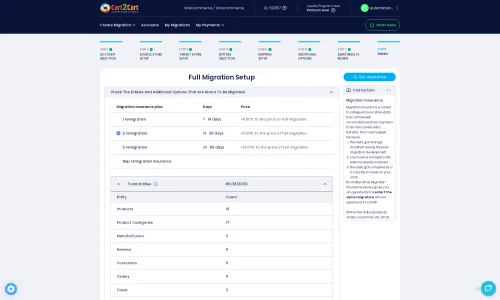
Review the migration summary, which includes the total number of entities to be moved and the final cost. You may also consider adding a Migration Insurance Service, which offers additional remigrations and support. Click the "Start Full Migration" button to begin moving all your Mailchimp Stores data to Shopify.
The migration tool will handle the entire process automatically. You'll receive notifications on its progress, and you can monitor it from your dashboard.
Post-Migration Steps
After your data has successfully been transferred to Shopify, there are several crucial steps to finalize your new store and ensure a seamless experience for your customers:
- Thorough Data Verification: Conduct a detailed review of all migrated data. Check product listings (SKUs, variants, images, descriptions), customer accounts, and order history for accuracy. Ensure all data integrity is maintained.
- Test Store Functionality: Perform comprehensive testing of your Shopify store. This includes:
- Making test purchases to ensure the checkout process, payment gateways, and shipping calculations work correctly.
- Testing search functionality, navigation, and customer account logins.
- Verifying contact forms and other interactive elements.
- Configure 301 Redirects: If you opted to create 301 redirects during migration, verify that they are functioning correctly. If not, manually set up 301 redirects for any old Mailchimp Stores URLs to their new Shopify counterparts to preserve SEO rankings and link equity.
- Update DNS Settings: Point your domain name to your new Shopify store. This step makes your new Shopify site live to the public.
- Install Essential Apps and Plugins: Shopify's strength lies in its app ecosystem. Install any necessary apps for functionalities like product reviews (e.g., AirReviews), advanced SEO, email marketing, or customer support that you previously had on Mailchimp Stores.
- Review Shopify Settings: Double-check all global settings, including taxes, shipping zones, payment methods, notifications, and legal pages, to ensure they are configured correctly for your business operations.
- SEO Optimization: While 301 redirects help, take the opportunity to optimize your new Shopify store for search engines. Update meta titles, descriptions, and image alt texts.
- Monitor Performance: Keep a close eye on your new store's performance, user experience, and any error reports in the initial days and weeks following the migration.
- Consider Recent Data Migration: If new orders or customer data accumulated on your Mailchimp Stores during the migration period, consider using a Recent Data Migration Service to transfer this latest information.
By diligently completing these post-migration tasks, you can ensure your transition from Mailchimp Stores to Shopify is not only successful in terms of data transfer but also in providing an optimal, uninterrupted shopping experience for your customers on your new, more powerful platform.
Ways to perform migration from Mailchimp Stores to Shopify
Automated migration
Just set up the migration and choose the entities to move – the service will do the rest.
Try It Free
Data Migration Service Package
Delegate the job to the highly-skilled migration experts and get the job done.
Choose Package
Custom Migration
Need metafields, SEO URLs, variant rules, or other tailored mapping? Explore customizations built for real merchant demand.
Browse Customizations

Benefits for Store Owners

Benefits for Ecommerce Agencies
Choose all the extra migration options and get 40% off their total Price

The design and store functionality transfer is impossible due to Mailchimp Stores to Shopify limitations. However, you can recreate it with the help of a 3rd-party developer.

Your data is safely locked with Cart2Cart
We built in many security measures so you can safely migrate from Mailchimp Stores to Shopify. Check out our Security Policy
Server Security
All migrations are performed on a secure dedicated Hetzner server with restricted physical access.Application Security
HTTPS protocol and 128-bit SSL encryption are used to protect the data being exchanged.Network Security
The most up-to-date network architecture schema, firewall and access restrictions protect our system from electronic attacks.Data Access Control
Employee access to customer migration data is restricted, logged and audited.Frequently Asked Questions
Should I use an automated tool or hire an expert for my Mailchimp Stores to Shopify migration?
Will my Mailchimp Stores design and theme be transferred to Shopify?
What is the typical timeline for a Mailchimp Stores to Shopify migration?
What data entities can be migrated from Mailchimp Stores to Shopify?
Is my data secure during the Mailchimp Stores to Shopify migration process?
How can I maintain SEO rankings when switching from Mailchimp Stores to Shopify?
How can I ensure data accuracy after migrating from Mailchimp Stores to Shopify?
Can customer passwords be migrated from Mailchimp Stores to Shopify?
Will my Mailchimp Stores go offline during migration to Shopify?
What factors influence the cost of migrating from Mailchimp Stores to Shopify?
Why 150.000+ customers all over the globe have chosen Cart2Cart?
100% non-techie friendly
Cart2Cart is recommended by Shopify, WooCommerce, Wix, OpenCart, PrestaShop and other top ecommerce platforms.
Keep selling while migrating
The process of data transfer has no effect on the migrated store. At all.
24/7 live support
Get every bit of help right when you need it. Our live chat experts will eagerly guide you through the entire migration process.
Lightning fast migration
Just a few hours - and all your store data is moved to its new home.
Open to the customers’ needs
We’re ready to help import data from database dump, csv. file, a rare shopping cart etc.
Recommended by industry leaders
Cart2Cart is recommended by Shopify, WooCommerce, Wix, OpenCart, PrestaShop and other top ecommerce platforms.
Trusted by eCommerce dominators since 2009
















This Shopify Migration App worked great to migrate our store from Volusion to Shopify! It transferred over all product descriptions, photos, categories, etc. seamlessly. It’s very easy to use, and the instructions are very easy to follow. Considering the amount of information that we needed transferred, it did not take as long as we had expected.
We did an initial transfer to test out how things would look and how everything would function. It worked great! We purchased insurance with our migration so that we could re-migrate once our shop was closer to being ready to push live, and customer service has been AMAZING in our requests necessary with our remigration. They are very responsive, very informative, and extremely helpful. I would definitely recommend this service if you are looking to transfer your eCommerce site. Everything has been great! Thank you!
Review source

We had a few false starts, but ultimately I was paired with a great customer service representative who did everything necessary to transfer our products correctly from Wix to Shopify. I will absolutely use this company for future client migrations.
Review source

I contacted Cart2Cart’s help desk (direct chat) and had my questions answered very quickly and very politely. I feel much more confident now with my decision to use Cart2Cart to do the data migration from my existing website to Shopify. I was recommended to Cart2Cart for Shopify Migration by a trusted friend and I will definitely recommend them also to anyone looking to migrate. Moving website providers has been a source of stress for me and at least this is one less thing to worry about.
Review source

I had a great experience with Cart2Cart. Reading some of the negative reviews here says more about how complex ecommerce migration is than anything else. I will say that I highly recommend paying the extra $ for their assisted service, which I did. It is totally work the extra $200 or $300 because you get a project manager who is very available, and you get to tweak your migration settings to make sure everything is just right. With the automated tools they offer, you’re on your own. But their customer support on my project was fast and responsive to my questions, and they were able to make any adjustments I needed. I migrated from Virtuemart to Shopify with over 12,000 orders and 4,000 customers. The migration was smooth. They scheduled the last “new data” import for me at a time I chose (within their working hours). And the migration was a success.
Review source

Fantastic App. We migrated from Volusion to Shopify with no problems. Customer Accounts, Inventory, Sales Orders…everything was transferred over.
The only quirk we had was that passwords didn’t transfer over (I’m sure this is a security issue and I have no problem with it at all). The solution was to just send out a mass e-mail to all of our customers asking them to reset their password. Once they reset their password they would still have their shipping information saved as well as the list of their previous orders.
WOULD HIGHLY RECOMMEND THIS APP…but like any migration process be sure you research & make sure you are doing it the correct way so there are no issues. You can’t blame a vendor for a user mistake 🙂
Review source
My experience with Migration for Shopify was positive. I was explained about the prerequisites and peculiarities for my migration from Magneto to Shopify in a detailed manner. The app is very easy to use. The migration was smooth.
Review source
We migrated a large x-cart site to shopify. This was the only app that could help us migrate hundreds of thousands of orders and customers. They were extremely knowledgeable and responsive. They answered my questions quickly and accurately. The initial migration went smoothly with no errors. The final migration at launch (to bring in the newest orders and customers) went equally as well. Data security was also handled to my satisfaction. Definitely would recommend this app.
Review source
The only company I trust for migrating our websites. We migrated one basic and two plus accounts from Magento to Shopify. The help was amazing. Oleksander was a huge help in making sure everything was right. No reason to do it with any other company. Trust the best.
Review source
Migration for Shopify is exactly what I needed when making the huge decision to migrate my website. By reducing the time needed to import products and orders – I can now focus on design and other very important things to ensure a smooth cart to cart transition.
Review source