

bluCommerce to WooCommerce Migration - Step-by-Step Guide & Expert Services
BluCommerce to WooCommerce migration just got easier. Securely move your bluCommerce store to WooCommerce with Cart2Cart’s industry-leading service. Experience rapid data transfer, guaranteed security, complete SEO preservation, and absolutely zero downtime. Whether you're planning to switch from bluCommerce to WooCommerce using our comprehensive step-by-step guide, or require expert assistance to seamlessly transfer data for you, we simplify your entire bluCommerce to WooCommerce migration journey. Start your free demo now!
What data can be
migrated from bluCommerce to WooCommerce
-
Products
-
Product Categories
-
Manufacturers
-
Customers
-
Orders
- Name, SKU, Short Description, Full Description, Manufacturer , Tax Class, Sort Order.
- Meta Title, Meta Keywords, Meta Description.
- Quantity, Stock Availability.
- Weight, Width, Height.
- Related Products.
- Options(Name, Price).
- Name, Status.
- Meta Title, Meta Description, Meta Keywords.
- Name.
- Customer Billing Address.
- Customer Shipping Address.
- ID, Order Date, Order Status, Order Products(Name, SKU), SubTotal Price, Discount Price, Tax Price, Shipping Price, Total Price.
- Customer Name, Email, Billing Address.
- Shipping Address.
- Name, SKU, Short Description, Full Description, Manufacturer , Tax Class, Sort Order.
- Meta Title, Meta Keywords, Meta Description.
- Quantity, Stock Availability.
- Weight, Width, Height.
- Related Products.
- Options(Name, Price).
- Name, Status.
- Meta Title, Meta Description, Meta Keywords.
- Name.
- Customer Billing Address.
- Customer Shipping Address.
- ID, Order Date, Order Status, Order Products(Name, SKU), SubTotal Price, Discount Price, Tax Price, Shipping Price, Total Price.
- Customer Name, Email, Billing Address.
- Shipping Address.
Products
Estimate your Migration Cost
Cart2Cart will smoothly migrate bluCommerce to WooCommerce store data like products, orders, customers, etc. in a couple of hours with zero influence on your current bluCommerce store performance.
How to Migrate from bluCommerce to WooCommerce In 3 Steps?
Connect your Source & Target carts
Choose bluCommerce and WooCommerce from the drop-down lists & provide the stores’ URLs in the corresponding fields.
Select the data to migrate & extra options
Choose the data you want to migrate to WooCommerce and extra options to customise your bluCommerce to WooCommerce migration.
Launch your Demo/Full migration
Run a free Demo to see how the Cart2Cart service works, and when happy - launch Full migration.
Migrate from bluCommerce to WooCommerce: A Complete Guide for a Seamless Transition
A Comprehensive Guide to Transitioning from bluCommerce to WooCommerce
Embarking on an e-commerce platform migration can be a daunting, yet incredibly rewarding, endeavor. If you're currently running your online store on bluCommerce and considering a move to WooCommerce, you're looking at a powerful upgrade that offers unparalleled flexibility, a vast ecosystem of plugins, and robust scalability. WooCommerce, built on WordPress, empowers millions of online businesses with its open-source nature and strong community support.
While bluCommerce served its purpose, transitioning to WooCommerce can unlock new growth opportunities, enhance user experience, and streamline your operations. This guide will walk you through the entire process of migrating your store's valuable data – including products, customers, orders, and more – from bluCommerce to WooCommerce. Due to the architecture of bluCommerce, this migration will primarily be facilitated through a secure CSV file export and import method, ensuring data integrity every step of the way.
Prerequisites for a Successful Migration
Before you initiate the data transfer, a few preparatory steps are crucial to ensure a smooth and error-free transition:
- Backup Your bluCommerce Data: This is paramount. Before exporting any data, create a complete backup of your existing bluCommerce store. This ensures you have a safety net in case of any unforeseen issues during the export process.
- Set Up Your Target WooCommerce Store: Install WordPress and WooCommerce on your desired hosting environment. It's recommended to start with a fresh installation of WooCommerce, without any existing products or orders, to avoid data conflicts. Read our guide on How to prepare Target store for migration?
- Gather Access Credentials: You'll need administrative access to your bluCommerce store for data export. For your new WooCommerce store, ensure you have your WordPress Admin URL, username, and password readily available. For advanced connections, API credentials might be required. Refer to The Short & Essential Guide to Access Credentials for Cart2Cart for more details.
- Review Hosting Requirements: Ensure your hosting provider for WooCommerce meets all the necessary technical specifications for optimal performance, especially if you anticipate a large volume of products or traffic.
- Inform Your Team and Customers: While the migration process aims for minimal downtime, it's wise to inform your internal team about the upcoming replatforming. For customers, a heads-up about potential brief interruptions or exciting changes to come can be beneficial.
Performing the Migration: A Step-by-Step Guide
Here’s how to seamlessly transfer your store data using an automated migration tool, leveraging CSV for bluCommerce data extraction.
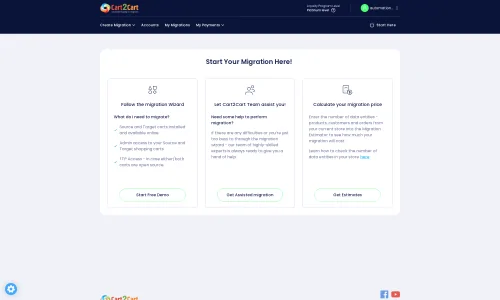
Step 1: Start Your Migration
Begin by navigating to the migration wizard. This is your starting point for setting up the entire data transfer process.
Step 2: Connect Your Source Store (bluCommerce via CSV)
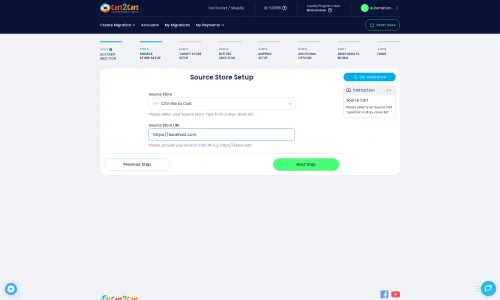
Since bluCommerce typically does not offer direct API or bridge connections for migration tools, the recommended and most reliable method for extracting your store’s data is via CSV files. You will need to export your product, customer, order, category, review, and other relevant data from your bluCommerce administration panel into CSV files. Ensure that your CSV files are well-structured, clearly defining fields such as SKUs, product variants, descriptions, customer addresses, and order details to maintain data integrity.
Once your bluCommerce data is exported, select "CSV File to Cart" as your Source Cart Type in the migration wizard. You will then be prompted to upload your prepared CSV files. This method ensures all your valuable information, from product metadata to customer historical data, is captured for transfer.
For more insights into this method, explore our CSV.File Data Migration service.
Step 3: Connect Your Target Store (WooCommerce)
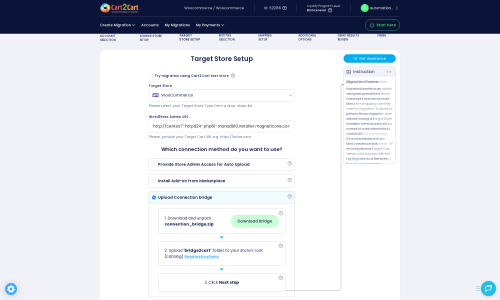
Next, configure your new WooCommerce store. Select "WooCommerce" as your Target Cart Type and provide your WordPress Admin URL. You'll then need to establish a connection method. We recommend using the "Upload Connection bridge" method for a robust and secure data link:
- Download the provided connection bridge file.
- Unpack the `connection_bridge.zip` file.
- Upload the `bridge2cart` folder to the root directory of your WooCommerce installation via FTP. Unsure about the root folder? Check our FAQ: What is a root folder and where can I find it?
Alternatively, you might choose to provide API Access Credentials (Consumer Key and Consumer Secret) or install the Cart2Cart WooCommerce Universal Migration plugin from the WordPress marketplace if prompted.
Step 4: Select Data Entities for Migration
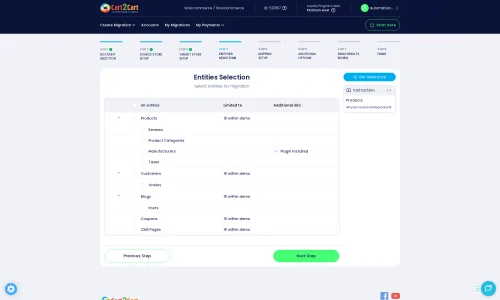
This crucial step allows you to choose exactly what data you want to transfer from your bluCommerce store (via CSV) to WooCommerce. The automated tool supports a wide range of entities, including:
- Products, Product Categories, Products Manufacturers, Products Reviews
- Customers
- Orders
- CMS Pages
- Coupons
- Blogs, Blog Posts
You can select "All entities" for a comprehensive data transfer or pick specific items based on your requirements. This granular control ensures only the desired data moves to your new platform.
Step 5: Configure Additional Migration Options
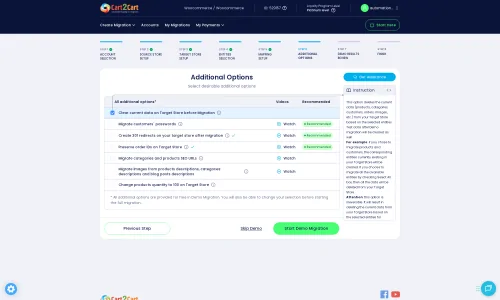
Enhance your migration with a suite of additional options designed to customize the data transfer and preserve critical store elements:
- Clear Target Store Data: Opt to remove all existing data from your WooCommerce store before migration, ensuring a clean slate. Learn more about Clear current data on Target store before migration option.
- Preserve IDs: Maintain original IDs for categories, products, customers, and orders. This is vital for maintaining internal references and potentially for SEO. Read How Preserve IDs options can be used?
- Migrate Images in Description: Ensure product images embedded within descriptions are transferred correctly.
- Create 301 SEO URLs: Automatically generate 301 redirects for your old bluCommerce URLs to their new WooCommerce counterparts. This is critical for preserving your SEO rankings and link equity.
- Migrate Customer Passwords: Transfer customer passwords securely, allowing returning customers to log in without needing to reset their passwords.
- Create Variants from Attributes: If your bluCommerce products use attributes to define variations (e.g., size, color), this option will help create proper product variants in WooCommerce.
Step 6: Data Mapping
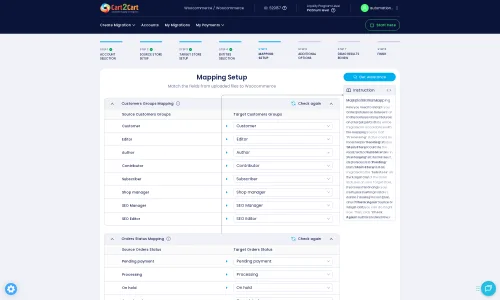
The mapping setup is crucial for ensuring that data fields from your bluCommerce CSV files are correctly aligned with the corresponding fields in WooCommerce. This step typically involves matching customer groups (e.g., "Wholesale" to "Customer"), order statuses (e.g., "Processing" to "Processing"), and potentially other custom fields. Accurate data mapping guarantees consistency and integrity across your new platform.
Step 7: Run a Free Demo Migration
Before committing to the full migration, perform a free demo migration. This allows you to transfer a limited number of entities (e.g., 10-20 products, customers, orders) to your WooCommerce store. Review the migrated data carefully to ensure everything is transferred accurately and appears as expected. This trial run helps identify and resolve any potential issues before the complete data transfer.
Step 8: Perform Full Migration
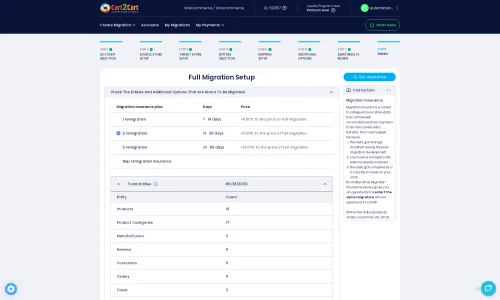
Once you are satisfied with the demo migration results, proceed with the full migration. This will transfer all selected data from your bluCommerce CSV files to your new WooCommerce store. During this final step, you might also consider adding a Migration Insurance Plan, which offers additional remigrations within a specified period, providing extra peace of mind. Find out more about How Migration Insurance works?
Post-Migration Steps
Congratulations, your data has been moved! However, the migration isn't truly complete until you've performed these crucial post-migration tasks:
- Thoroughly Review Migrated Data: Go through your WooCommerce store and meticulously check products (SKUs, descriptions, images, variants), customer accounts, order histories, and CMS pages. Ensure that all elements, including SEO metadata, have transferred correctly.
- Configure WooCommerce Settings: Set up essential WooCommerce settings such as payment gateways, shipping zones, tax rates (WooCommerce supports multi-tax), and store email notifications.
- Install Necessary Plugins: WooCommerce offers extensive customization via plugins. Based on the limitations noted, you may need additional plugins for advanced features like manufacturers management, custom order statuses, or advanced customer groups. Explore the vast WordPress plugin directory for suitable solutions.
- Test All Store Functionality: Act as a customer and perform test purchases. Verify the checkout process, user registration, account management, search functionality, and product filters are all working perfectly.
- Update DNS and Implement 301 Redirects: Once you are fully confident in your new WooCommerce store, update your domain's DNS records to point to the new site. If you didn't enable 301 redirects during migration, implement them manually or via a plugin to ensure that old bluCommerce URLs forward to their new WooCommerce equivalents. This is vital for maintaining your SEO rankings and preserving link equity.
- Notify Customers (Optional, but Recommended): Inform your customer base about your new and improved store. This can be a great opportunity to re-engage them.
- Perform an SEO Audit: After your store is live, it's a good practice to conduct an SEO audit. Monitor your search rankings and traffic to ensure the transition has not negatively impacted your online visibility.
By following these steps, your migration from bluCommerce to WooCommerce will be a strategic and seamless transition, positioning your business for future growth and success on a robust and flexible e-commerce platform.
Ways to perform migration from bluCommerce to WooCommerce
Automated migration
Just set up the migration and choose the entities to move – the service will do the rest.
Try It Free
Data Migration Service Package
Delegate the job to the highly-skilled migration experts and get the job done.
Choose Package
Custom Migration
Need metafields, SEO URLs, variant rules, or other tailored mapping? Explore customizations built for real merchant demand.
Browse Customizations

Benefits for Store Owners

Benefits for Ecommerce Agencies
Choose all the extra migration options and get 40% off their total Price

The design and store functionality transfer is impossible due to bluCommerce to WooCommerce limitations. However, you can recreate it with the help of a 3rd-party developer.

Your data is safely locked with Cart2Cart
We built in many security measures so you can safely migrate from bluCommerce to WooCommerce. Check out our Security Policy
Server Security
All migrations are performed on a secure dedicated Hetzner server with restricted physical access.Application Security
HTTPS protocol and 128-bit SSL encryption are used to protect the data being exchanged.Network Security
The most up-to-date network architecture schema, firewall and access restrictions protect our system from electronic attacks.Data Access Control
Employee access to customer migration data is restricted, logged and audited.Frequently Asked Questions
What determines the cost of migrating from bluCommerce to WooCommerce?
What data entities are migrated from bluCommerce to WooCommerce?
Is my bluCommerce store data secure during the WooCommerce migration?
How long does a bluCommerce to WooCommerce migration typically take?
Should I use an automated tool or hire an expert for bluCommerce to WooCommerce migration?
Will my bluCommerce store go offline during migration to WooCommerce?
How can I verify data accuracy after migrating from bluCommerce to WooCommerce?
Will my bluCommerce store's design and theme transfer to WooCommerce?
How can I keep SEO rankings when switching from bluCommerce to WooCommerce?
Can customer passwords be migrated from bluCommerce to WooCommerce?
Why 150.000+ customers all over the globe have chosen Cart2Cart?
100% non-techie friendly
Cart2Cart is recommended by Shopify, WooCommerce, Wix, OpenCart, PrestaShop and other top ecommerce platforms.
Keep selling while migrating
The process of data transfer has no effect on the migrated store. At all.
24/7 live support
Get every bit of help right when you need it. Our live chat experts will eagerly guide you through the entire migration process.
Lightning fast migration
Just a few hours - and all your store data is moved to its new home.
Open to the customers’ needs
We’re ready to help import data from database dump, csv. file, a rare shopping cart etc.
Recommended by industry leaders
Cart2Cart is recommended by Shopify, WooCommerce, Wix, OpenCart, PrestaShop and other top ecommerce platforms.
Trusted by eCommerce dominators since 2009











So now I have a perfect copy of my Shopify store on my Woocommerce platform. All within 2 days and I didn’t have to code anything – the migration took just a few clicks – fully automated. Ok, that’s it I just like when I see somebody really care about your business so I felt like I’d let the world know about my experience with this company
Review source
My migration from BigCommerce to WooCommerce was so easy, so time-saving, and so successful that I can’t believe all that work was done with one click!
Thanks to Cart2Cart for a fantastic service. Totally recommended!
Review source
I had a lot of pre-sales questions about the plugin and the migration. The service provided was absolutely perfect, quick and in-depth responses. My final migration has just finished and it did so in 27 minutes to be precise. If you are looking for the perfect, headache-free tool for your (in my case Magento to Woocommerce) migration, look no further, THIS IS IT! For those who expected such a plugin to be for free, are you kidding me?!?!
Review source
I’ve used the service/software for two website migrations (ZenCart to WooCommerce). The second one failed, also because of my own error, but the supprt was great and Cart2Cart team helped getting it all working flawless.
Very impressed by this software and even more by the aftersales support. Will use again when needed.
Review source
I moved a site from Jigoshop Version 2 (the jigoshop upgrade from v1 to v2 was poor) to WooCommerce and I am very happy with the results. My original Jigoshop site had been hacked so it wasn’t ideal, but Cart to Cart were very helpful and their support was very good. 🙂
Review source
Excellent Support for the non expert who needs a lot of assistance they spent as much time as I needed to insure I got my migration. The upload went well after the Demo. Customer service was there when I had questions or issues to fine tune after purchase. I would recommend if you need to import / migrate your Products from Shopify to Woocommerce in Word Press as I did.
Review source
Company went above and beyond to handle the migration, even doing 2 additional trials to get it right.
The project was involved as it had a large product count, user count, and orders going back 5 years. This involved doing the CMS and Shopping cart migration from Drupal / Ubercart to WordPress / Woocommerce.
I had the new site up the same day as the migration and only had to do some fine tuning, menus setup, and correct some links.
Pleasure to have a second migration done with this company.
Review source
Tried to do the data migration myself and failed even after spending so many hours attempting different things. With Cart2Cart the data import from 3dcart to WooCommerce was quick and easy. Support response time was great and replies were really helpful. Definitely worth the cost and it saved me many more headaches
Review source
I needed to migrate a lot of product data (title, price, description, images) from an old Mojishop installation on Joomla to a new shop system based on Woocommerce on WordPress. The setup was very easy (you need FTP access on your webspace).
Before you pay for the great service you can make several test migrations. It turned out there were some product information missing on the new system, because my data base had a custom name. I did not find out this by my own.
So I contacted the customer support of Cart2Cart. I got immediately help and two days later a custom solution for my problem.
This is a service! Thanks a lot.
Review source