
How can we help you?
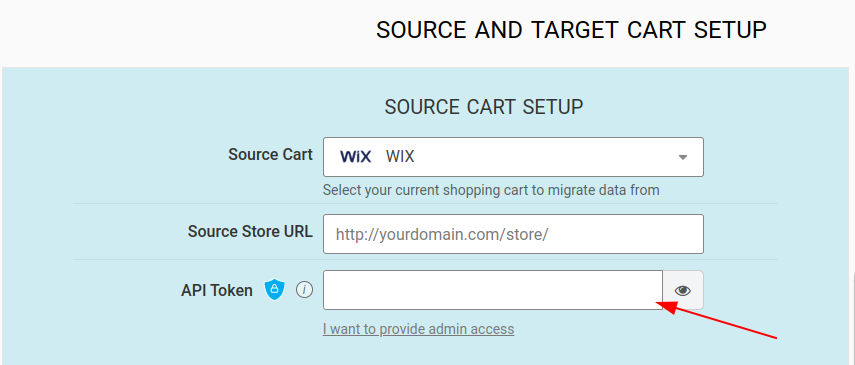
To migrate to or from Wix with Cart2Cart, generate an account API key (sometimes called an API token) and provide it in the Migration Wizard together with your site identity when asked.
1. Open the API Keys Manager in your Wix Account Settings (account owner or co-owner).
2. Click Generate API Key.
3. Enter a name under key details (for example Cart2Cart Migration).
4. Choose which sites the key can access. Prefer limiting the key to the store you are migrating when the manager allows site selection.
5. In Permissions, enable the permissions Cart2Cart needs for catalog, orders, and customers (use broad / all permissions if the wizard requires full store access).
6. Click Generate Key, complete email verification if prompted (Send Code → enter the code → Verify & Generate Key).
7. Click Copy Token & Close and store the key securely—it is shown once.
8. If the wizard asks for a Site ID, copy it from your site dashboard URL after /dashboard/. An Account ID is available in the API Keys Manager when required.
9. Paste the API key (and IDs if requested) into the Cart2Cart Migration Wizard.
Official references: Wix — Generate an API Key; Managing your Wix API keys.
Do you need help? Contact our support team
Just set up the migration and choose the entities to move – the service will do the rest.
Try It FreeDelegate the job to the highly-skilled migration experts and get the job done.
Choose Package