
How can we help you?
Before a Cart2Cart migration involving Squarespace, prepare the account so the Wizard can authenticate with admin email and password.
1. Use email & password (not social-only login)
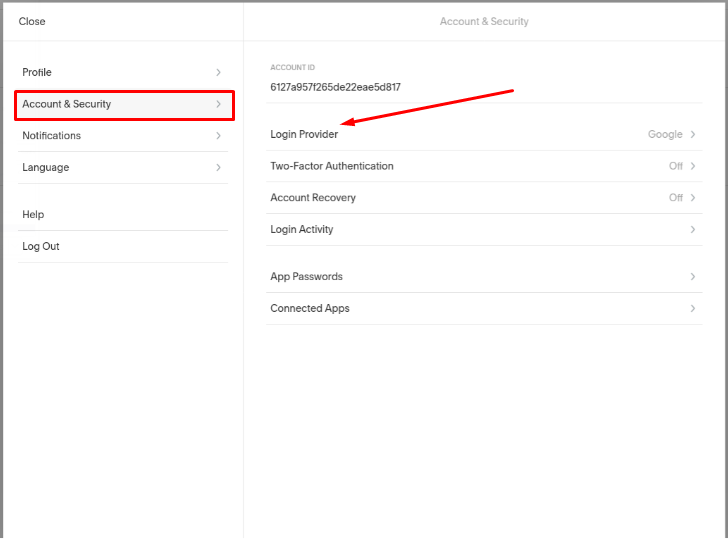
Sign in at account.squarespace.com. If you only use Google/Apple/social login, set up or switch to email and password under account security so Cart2Cart can use those credentials.
2. Disable two-factor authentication (required for Wizard access)
Cart2Cart’s Squarespace connection uses your admin email/password. Leave 2FA off for the duration of Demo and Full Migration, then turn it back on afterward.
1. Open Account & Security (or Account Settings → Account & Security).
2. Open Two-factor authentication.
3. Next to the enabled method (authenticator app, text message, or passkeys), choose Turn off / Delete as shown, reauthenticate, and confirm.
Official reference: Squarespace — Two-factor authentication.
3. Confirm Commerce / store data
Ensure the site has Squarespace Commerce (or an active online store) with the products, customers, and orders you intend to move. You need full admin access to that site.
4. Connect in Cart2Cart
In the Migration Wizard, provide Squarespace Admin URL, administrator email, and password (and follow any app/API prompts shown for your direction). Run a free Demo first.
Do you need help? Contact our support team
Just set up the migration and choose the entities to move – the service will do the rest.
Try It FreeDelegate the job to the highly-skilled migration experts and get the job done.
Choose Package