
How can we help you?
Cart2Cart migrates product images to Shopware, but thumbnails are generated by Shopware from those originals. If thumbnails look missing after migration, generate them in admin (and via CLI if sizes changed).
Shopware 6 (current)
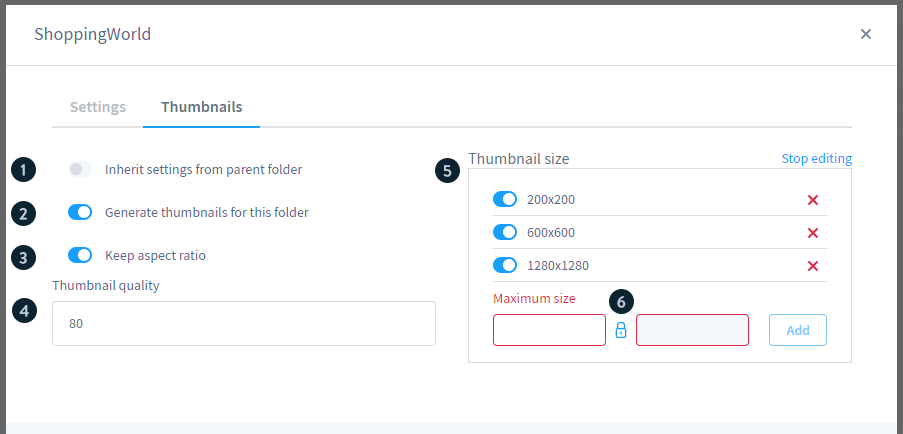
1. Open Content → Media.
2. Open the product media folder (often Product Media) → folder settings → Thumbnail settings.
3. Enable Generate thumbnails for this folder, keep aspect ratio as needed, and ensure thumbnail sizes exist (defaults commonly include 400×400, 800×800, 1920×1920).
4. If you changed sizes after images were uploaded, regenerate from the shop root: bin/console media:generate-thumbnails (optionally --folder-name "Product Media").
5. Clear cache and recheck the storefront. Docs: Shopware 6 — Media.
Shopware 5 (legacy)
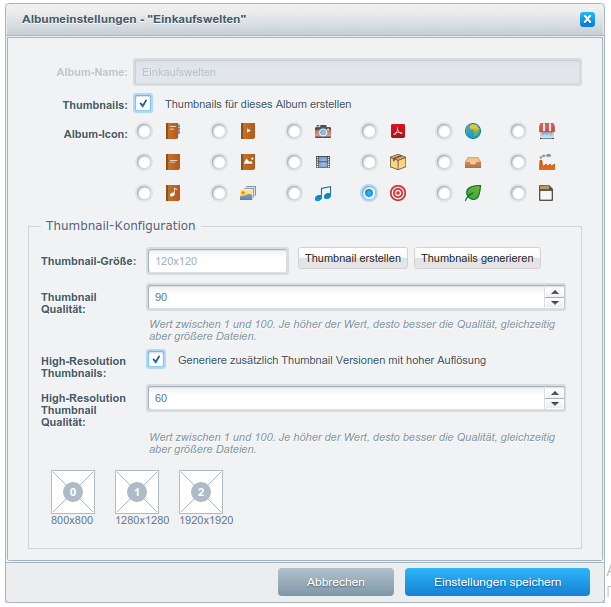
Use the Shopware 5 Thumbnail Generator in the backend to create thumbnails from original product images in the configured sizes. Older FAQ screenshots (~2020) show this Media/thumbnail UI.
Do you need help? Contact our support team
Just set up the migration and choose the entities to move – the service will do the rest.
Try It FreeDelegate the job to the highly-skilled migration experts and get the job done.
Choose Package