
How can we help you?
To migrate Miva Merchant with Cart2Cart via API, create an API token in Miva admin and enter Access Token, Signature, Store Code, and store URL in the Migration Wizard.
Miva 9 / 10 (current)
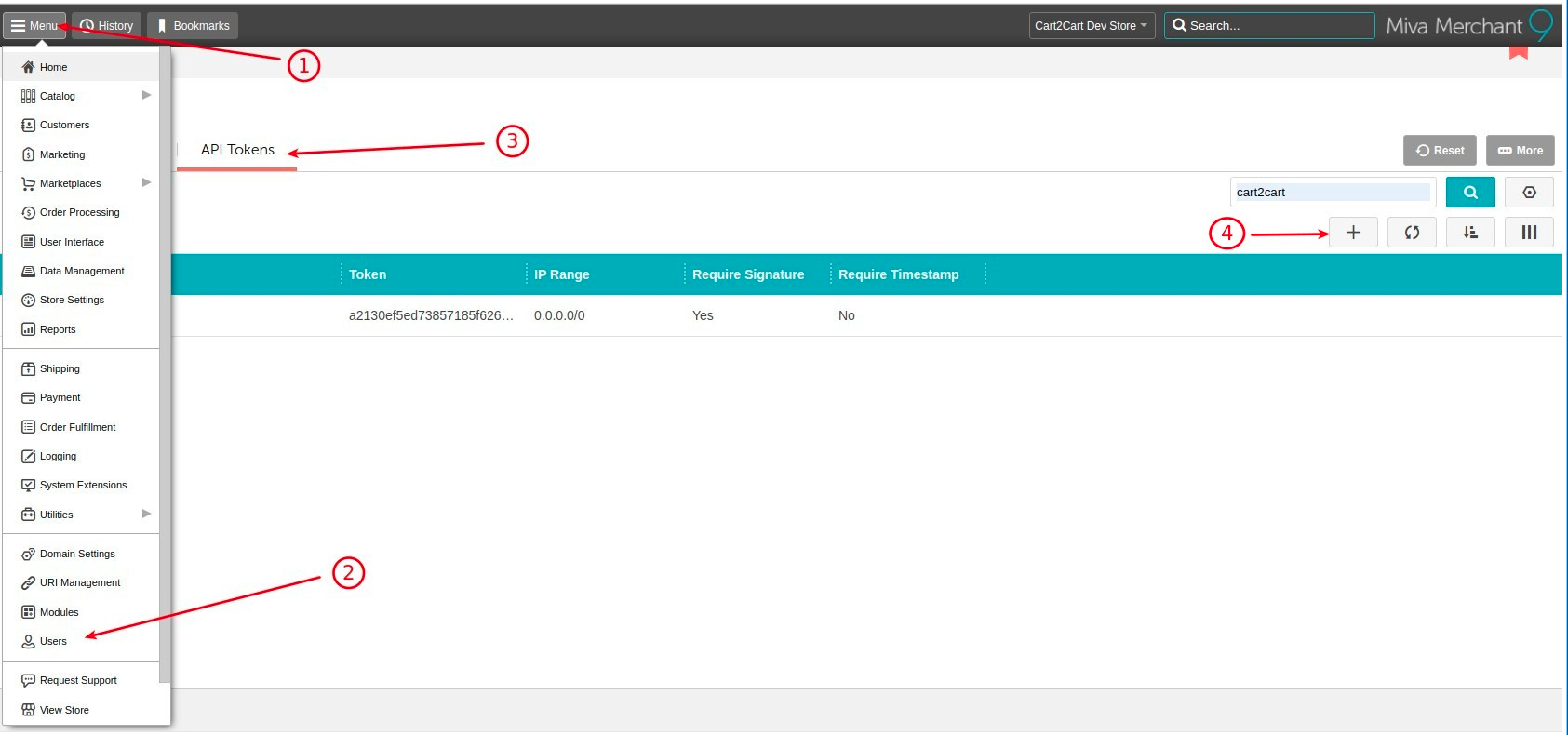
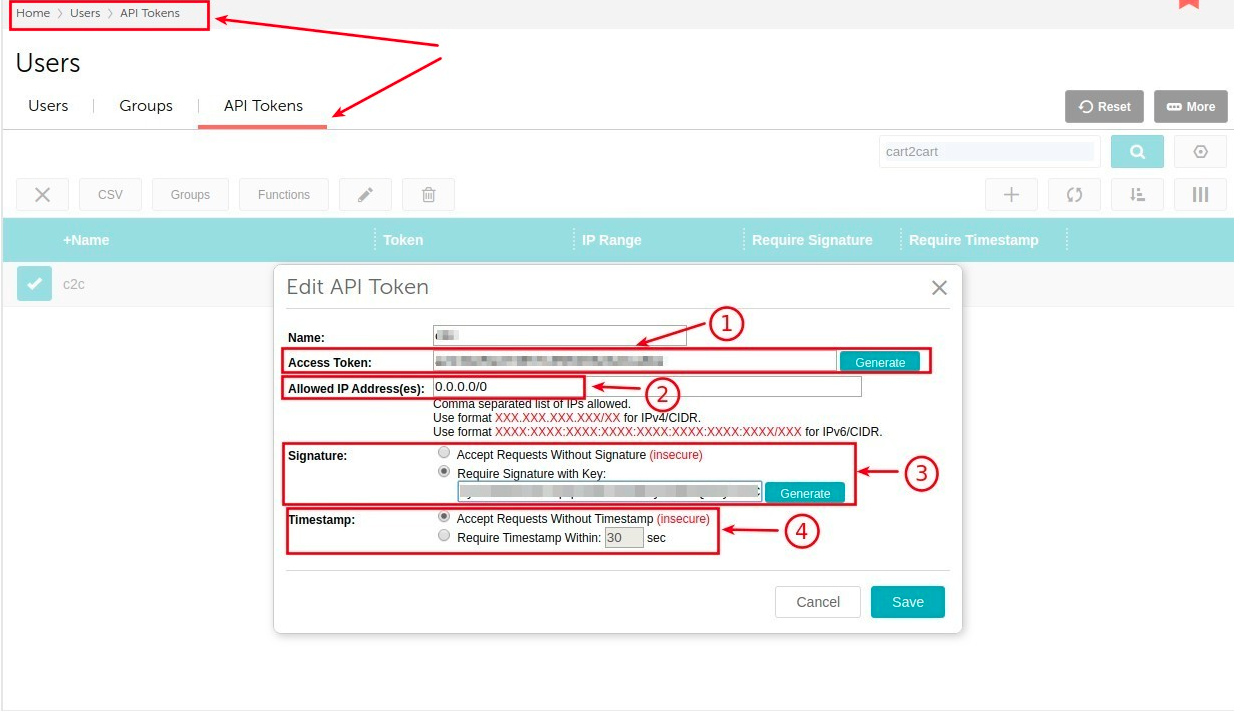
1. Log in to Miva admin. Open Settings (bottom-left) → User Management → API Tokens tab. (Some docs still label this area Users → API Tokens.)
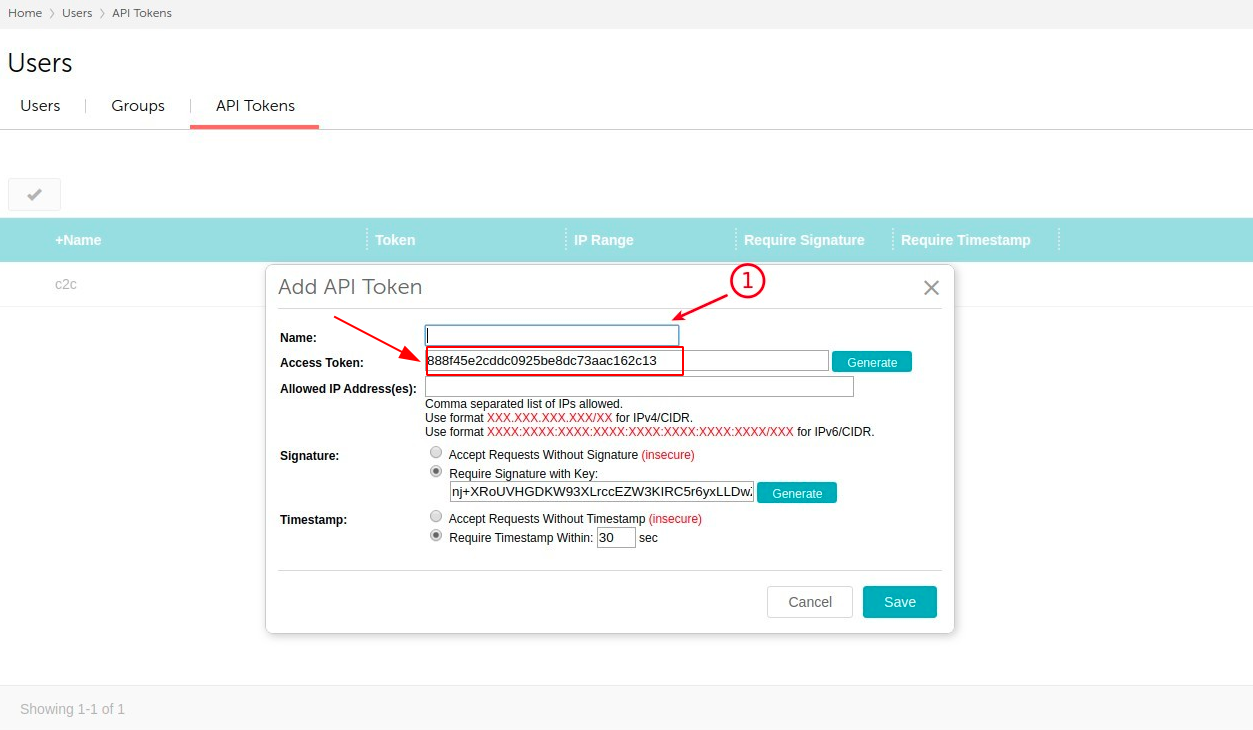
2. Click Add API Token. Enter a Name (for example Cart2Cart Migration).
3. Copy the generated Access Token (and note the API endpoint URL if shown).
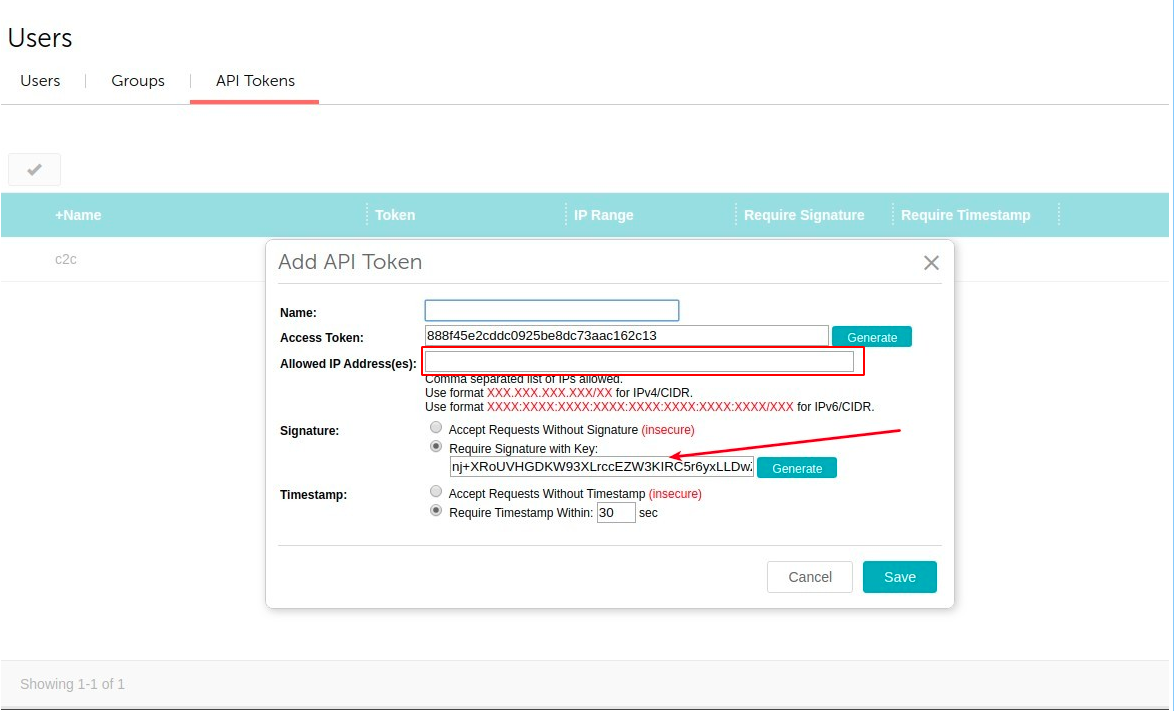
4. Set Allowed IP Address(es) to 0.0.0.0/0 (and ::/0 if needed for IPv6) unless Cart2Cart provides a fixed IP list to whitelist.
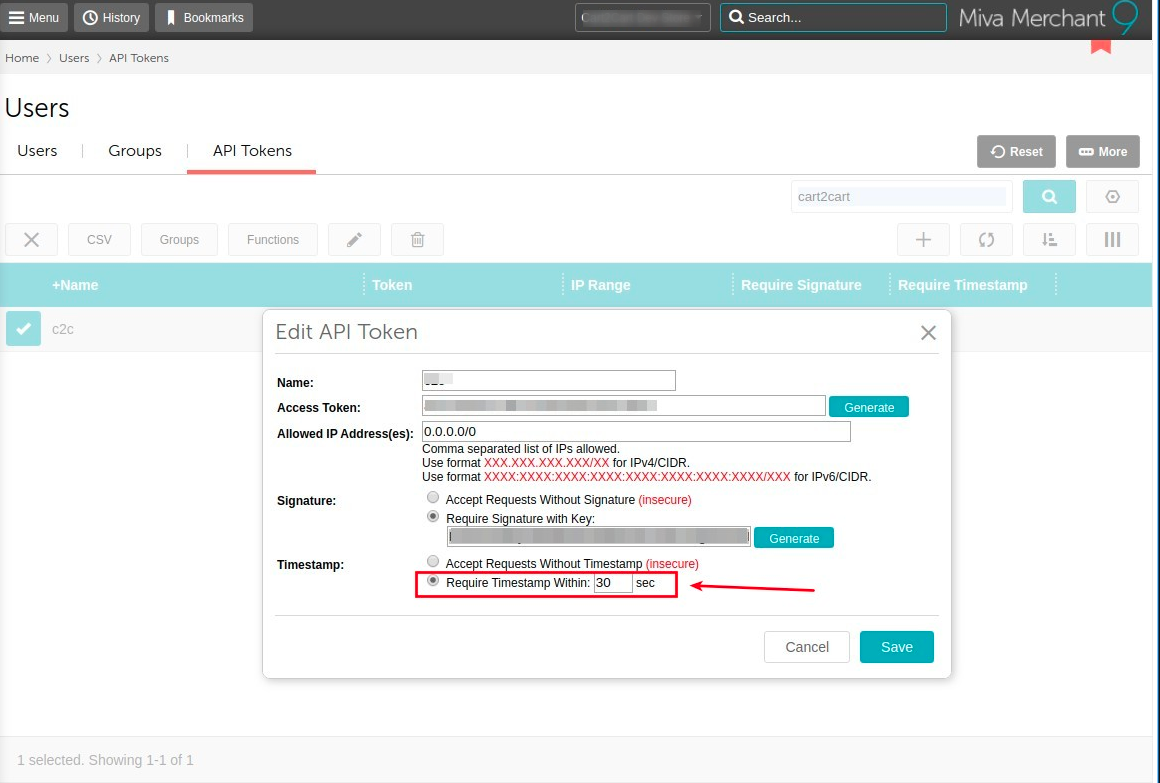
5. Configure Signature / HMAC and Timestamp as required by the wizard (Cart2Cart will tell you whether signature/timestamp must be required or accepted without). Copy the Signature key when generated.
6. Save the token. Select it in the list → ⋯ (more) → Groups, and assign groups covering catalog, customers, and orders (for example Product Management, Customer Service & Sales, Order Processing & Fulfillment—match what your migration needs).
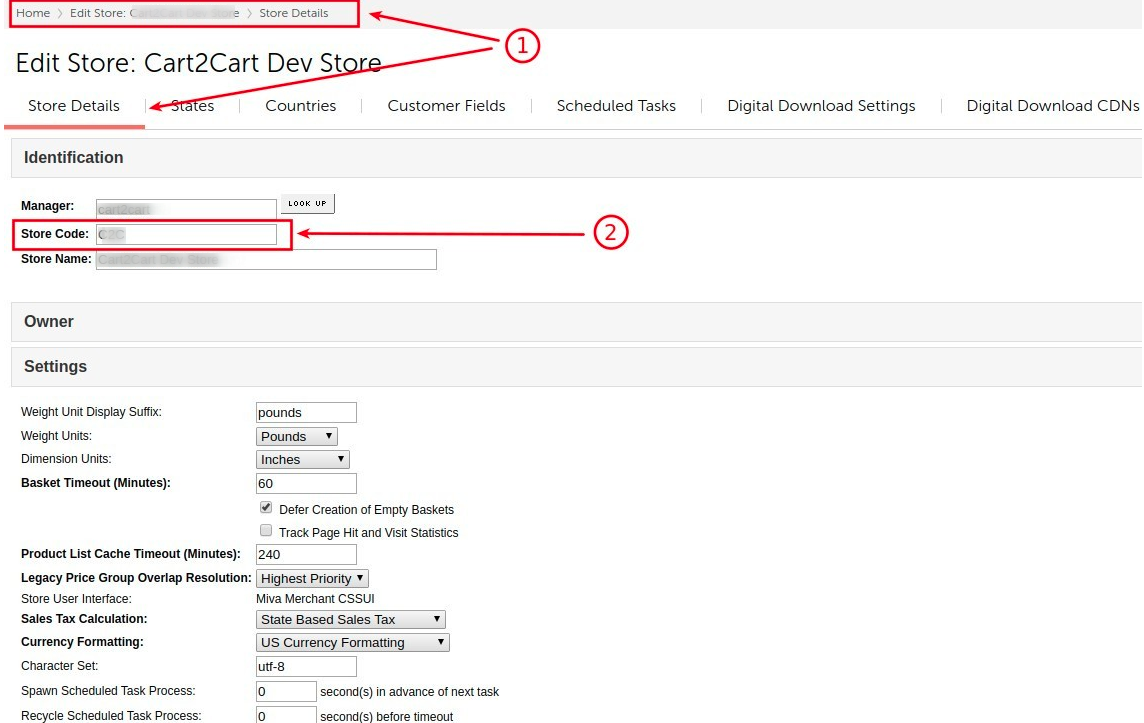
7. Copy Store Code from Store Settings / Store Details.
8. Paste Access Token, Signature, Store Code, and store URL into the Cart2Cart wizard.
Official reference: Miva JSON API — Getting Started.
Earlier screenshot guide (legacy)
Older articles showed Users → API Tokens → Add API token, IP 0.0.0.0/0, Signature + Timestamp options, then Store Code from Store Settings, with 2019 admin screenshots. Prefer the Settings → User Management path on current Miva 10 admin builds.
Do you need help? Contact our support team
Just set up the migration and choose the entities to move – the service will do the rest.
Try It FreeDelegate the job to the highly-skilled migration experts and get the job done.
Choose Package