
How can we help you?
During a WooCommerce migration, Cart2Cart can create product 301 redirects so old URLs keep working. Install the free Redirection plugin on the target WordPress site before Full Migration.
WordPress / WooCommerce (current)
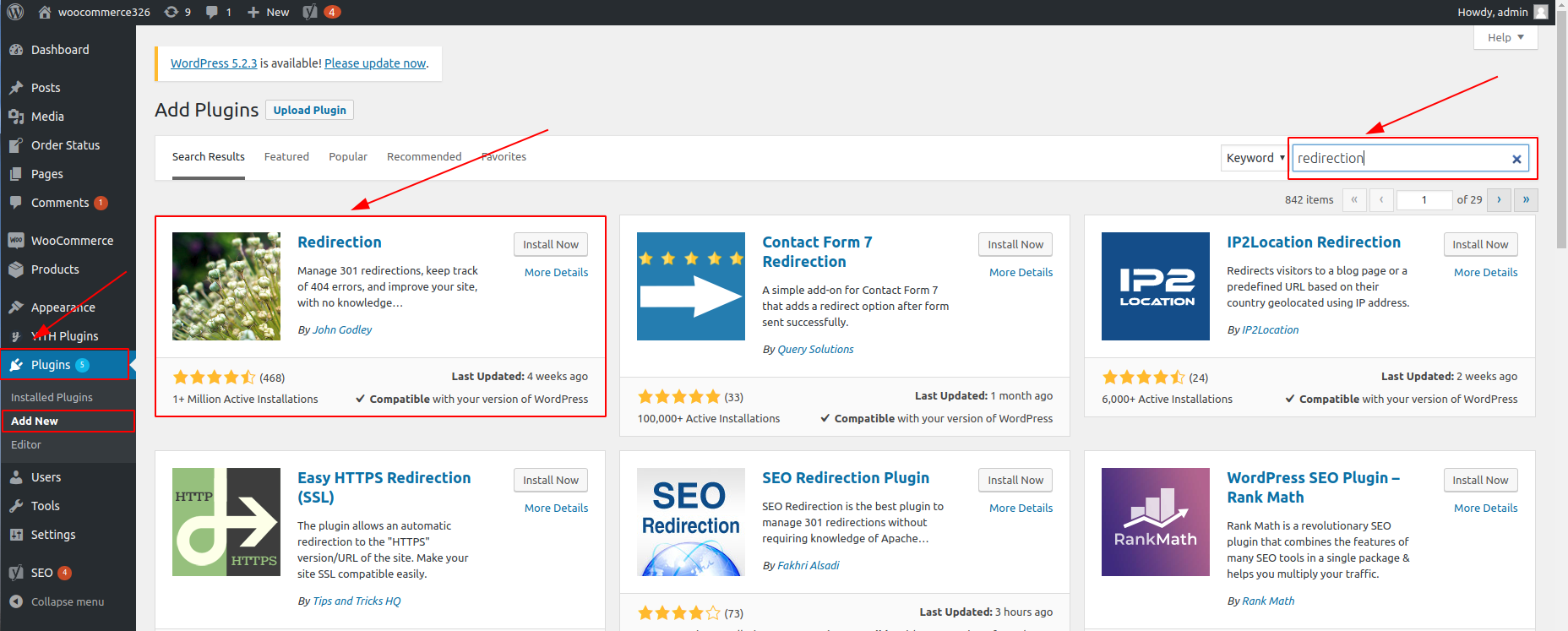
1. In WP-Admin go to Plugins → Add New Plugin.
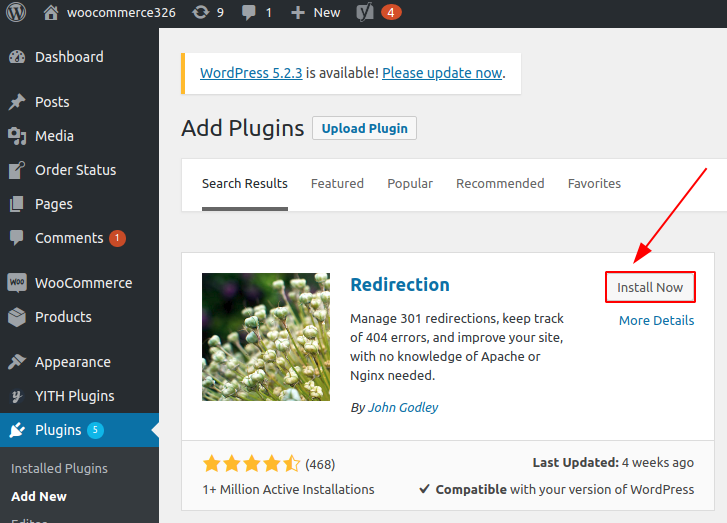
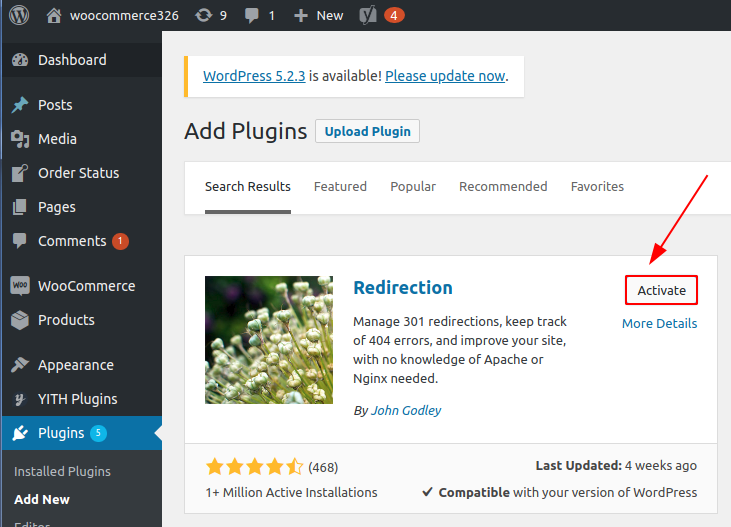
2. Search for Redirection (by John Godley), click Install Now, then Activate.
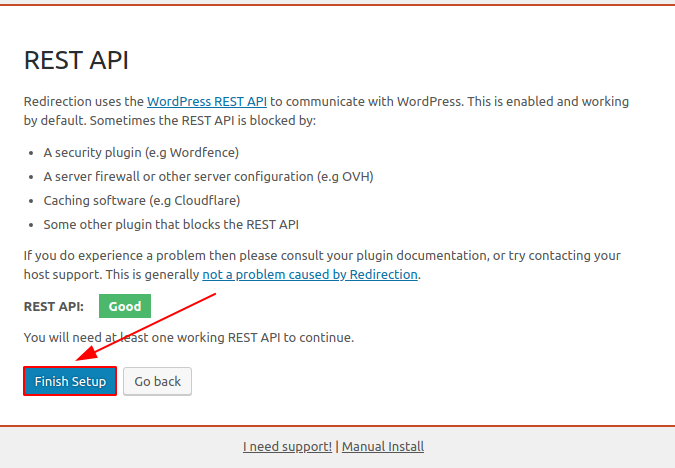
3. Open Tools → Redirection and complete the setup wizard (you can enable permalink monitoring and 404 logging).
4. In Cart2Cart Migration Wizard, enable the additional option to create 301 redirects on the target store, then run Demo and Full Migration.
5. Recommended permalinks: Settings → Permalinks → Common Settings Post name; under Product permalinks use your preferred product base (often the default WooCommerce option).
Older WP-Admin wording (legacy)
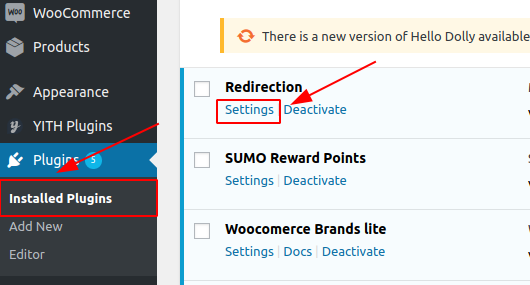
Earlier screenshots showed Plugins → Add New, searching “Redirection”, then Settings on the installed plugin and a Start Setup button. The current entry point after activation is Tools → Redirection.


Do you need help? Contact our support team
Just set up the migration and choose the entities to move – the service will do the rest.
Try It FreeDelegate the job to the highly-skilled migration experts and get the job done.
Choose Package