
How can we help you?
Metafields migrated to Shopify with Cart2Cart are not always visible on the storefront until you connect them to your theme.
Show metafields on the storefront (current)
1. Confirm definitions exist under Settings → Custom data and that products have values.
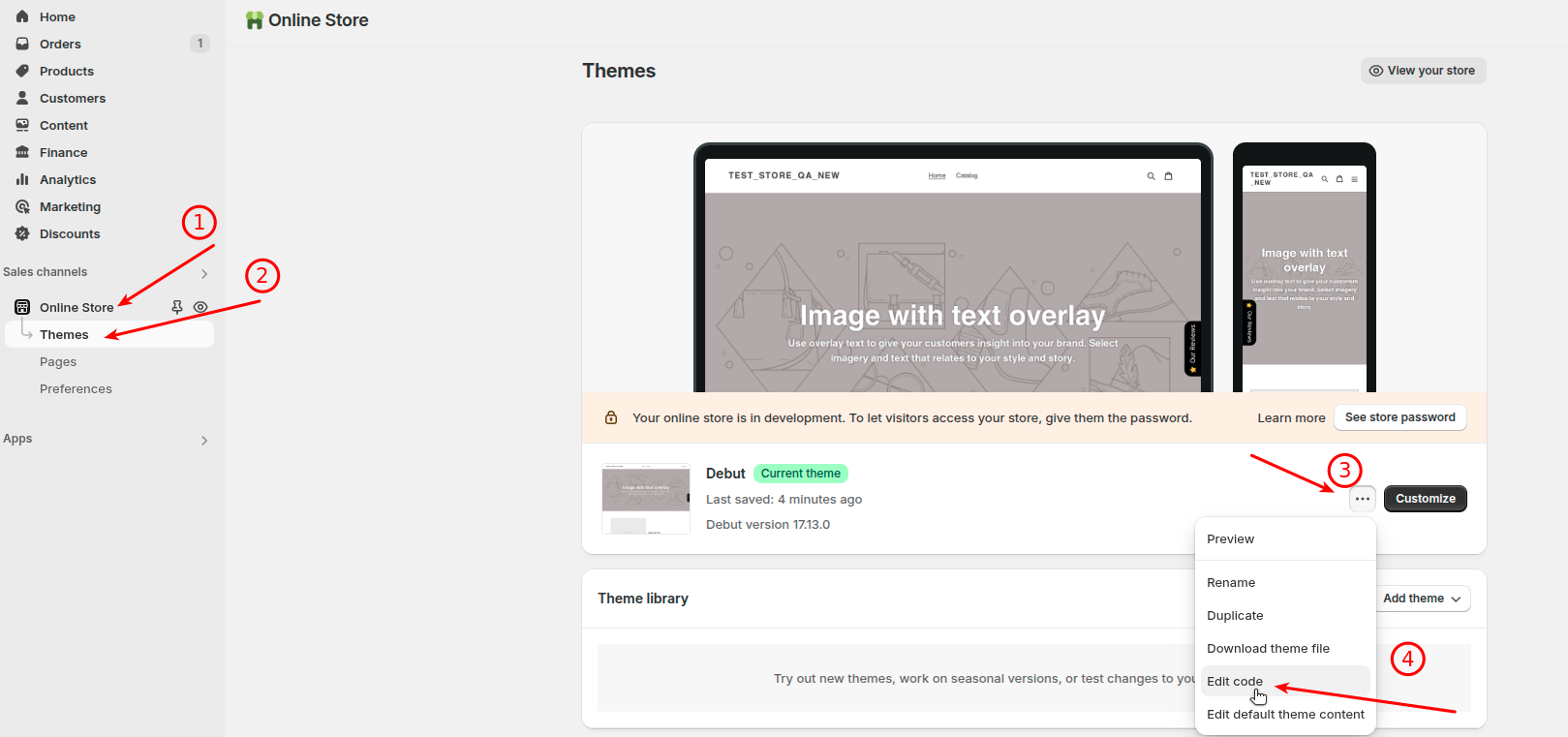
2. In the theme editor (Online Store → Themes → Customize), open the product (or relevant) template.
3. Add a block or section that supports dynamic sources / metafields, or connect a text/rich-text setting to the metafield via the dynamic source icon.
4. Save and preview the storefront.
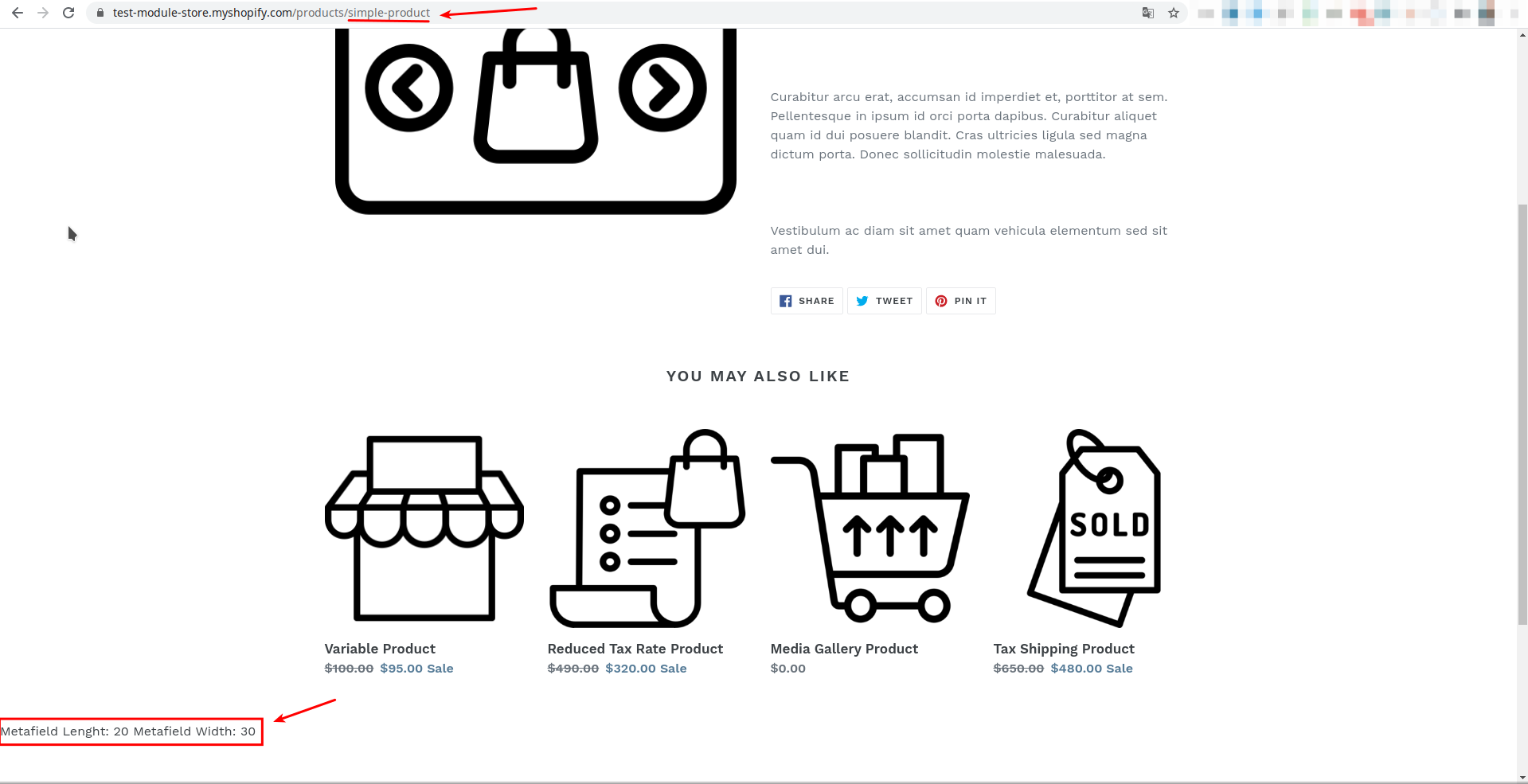
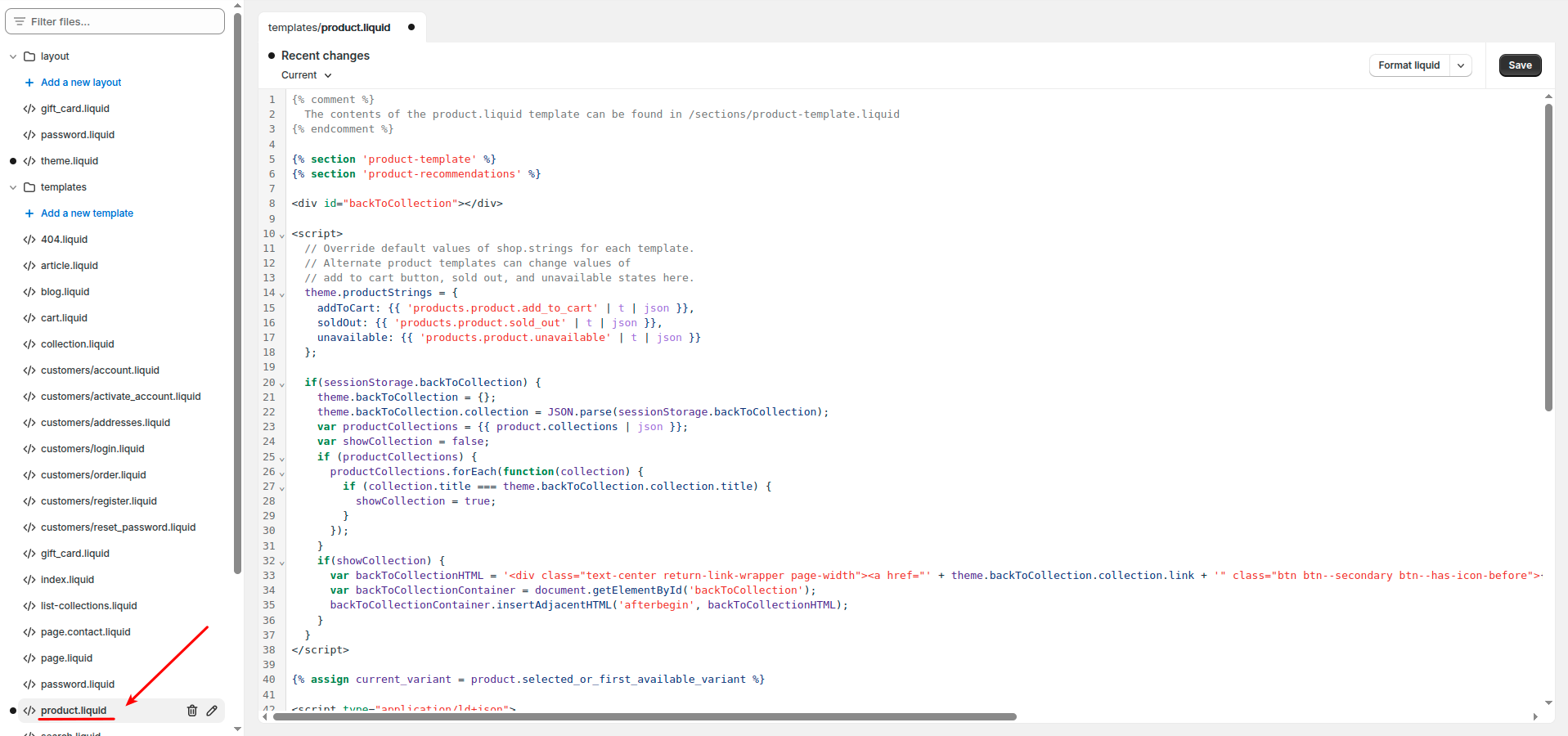
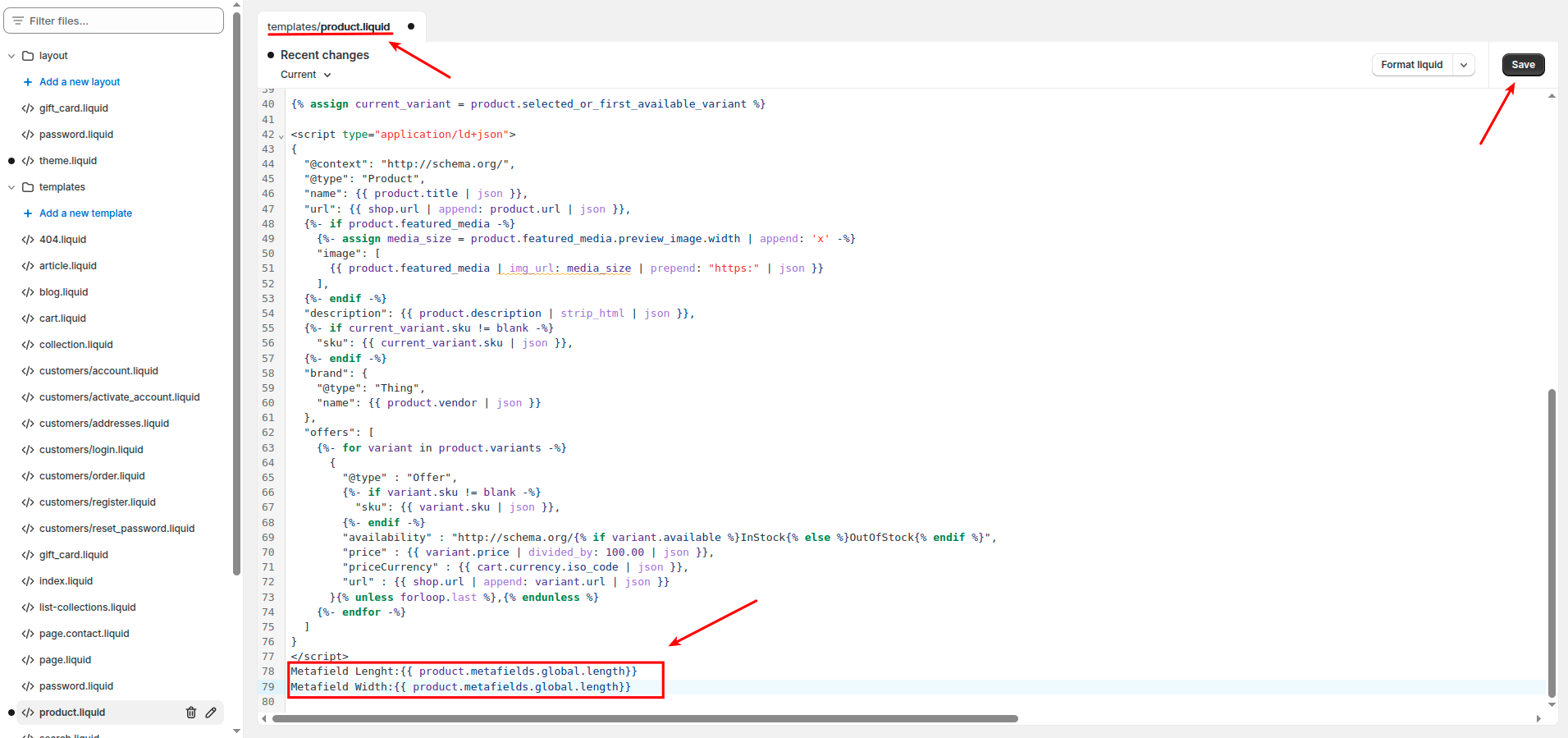
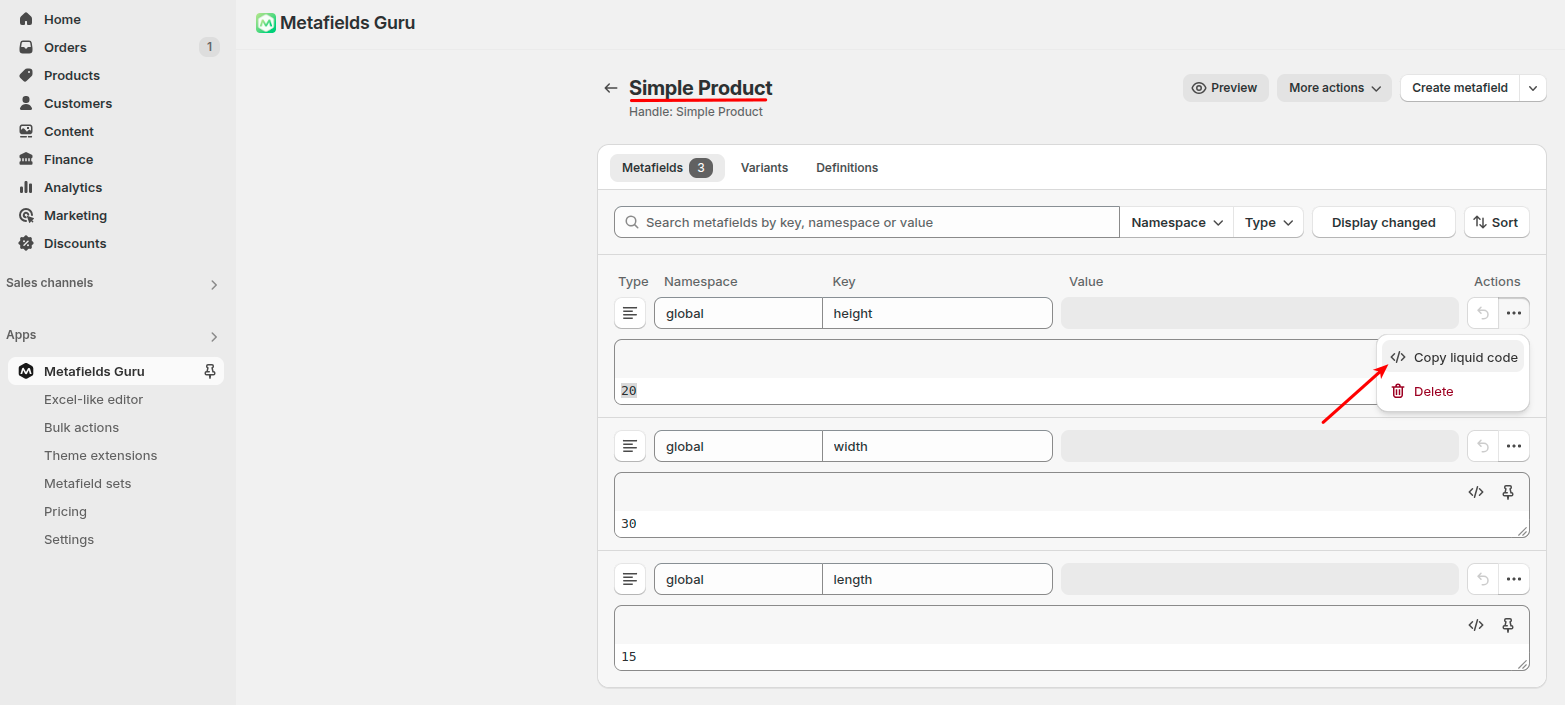
5. Advanced: edit theme Liquid to output {{ product.metafields.namespace.key.value }} (namespace/key from your definition).
See Shopify metafields help for connecting metafields to themes. Third-party metafield apps are optional.
Do you need help? Contact our support team
Just set up the migration and choose the entities to move – the service will do the rest.
Try It FreeDelegate the job to the highly-skilled migration experts and get the job done.
Choose Package