
How can we help you?
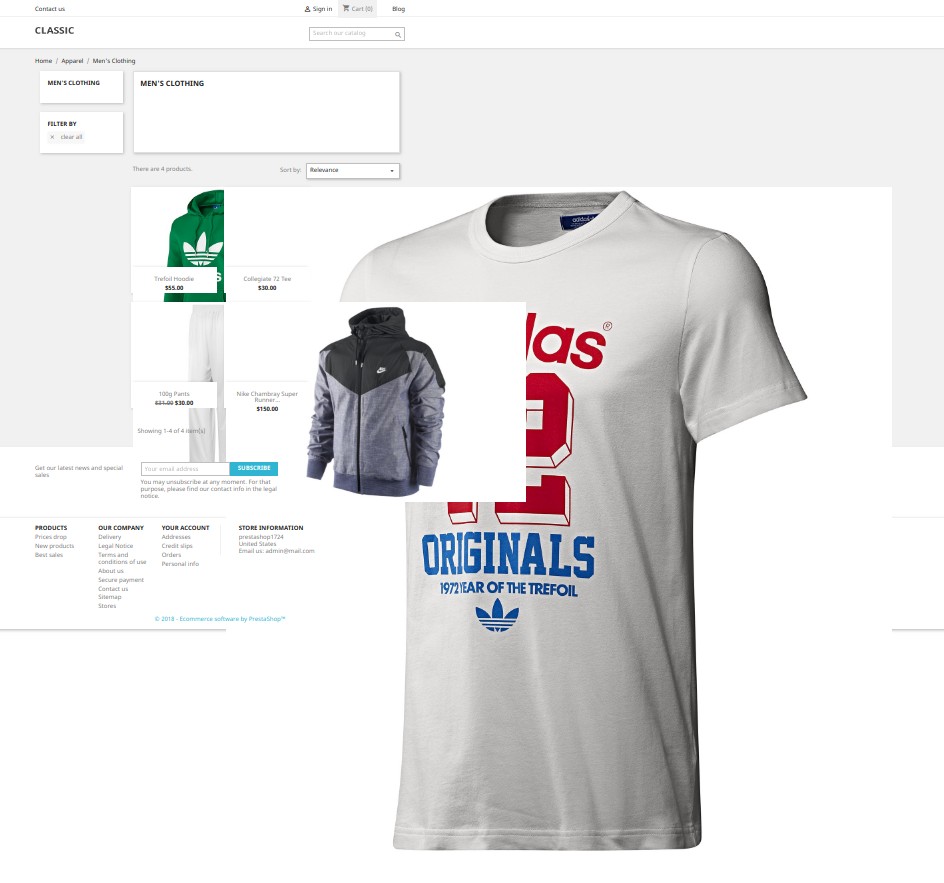
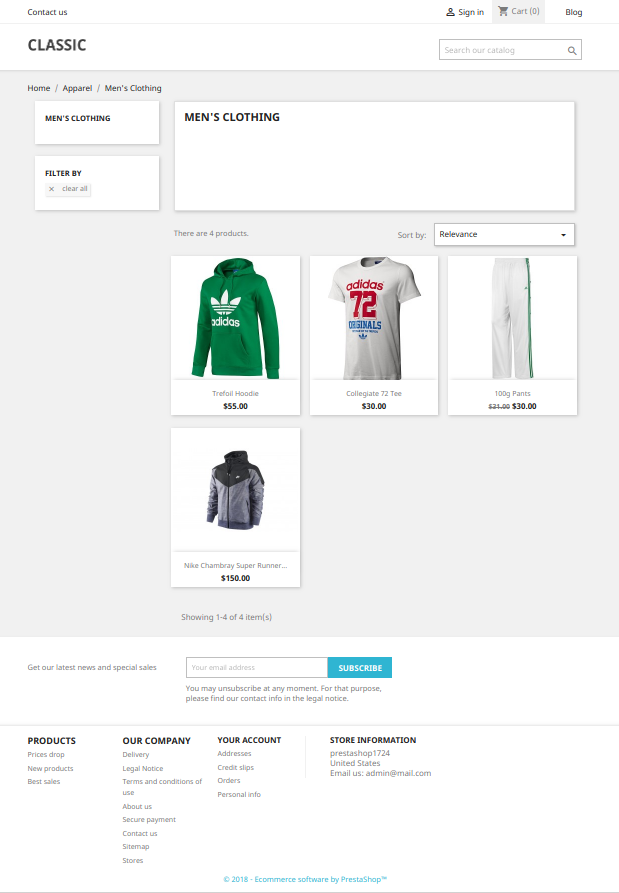
If product images look broken or oversized after a Cart2Cart migration to PrestaShop, regenerate thumbnails in the Back Office.
PrestaShop 1.7 / 8.x / 9.x (current)
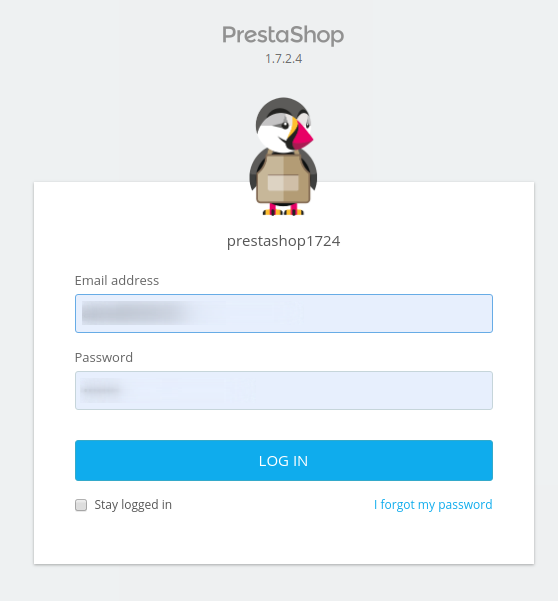
1. Log in to the Back Office.
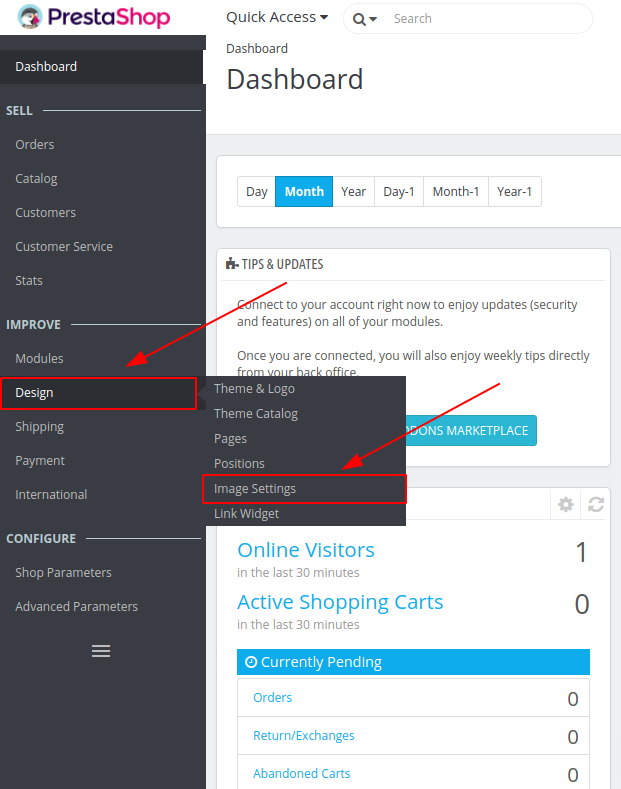
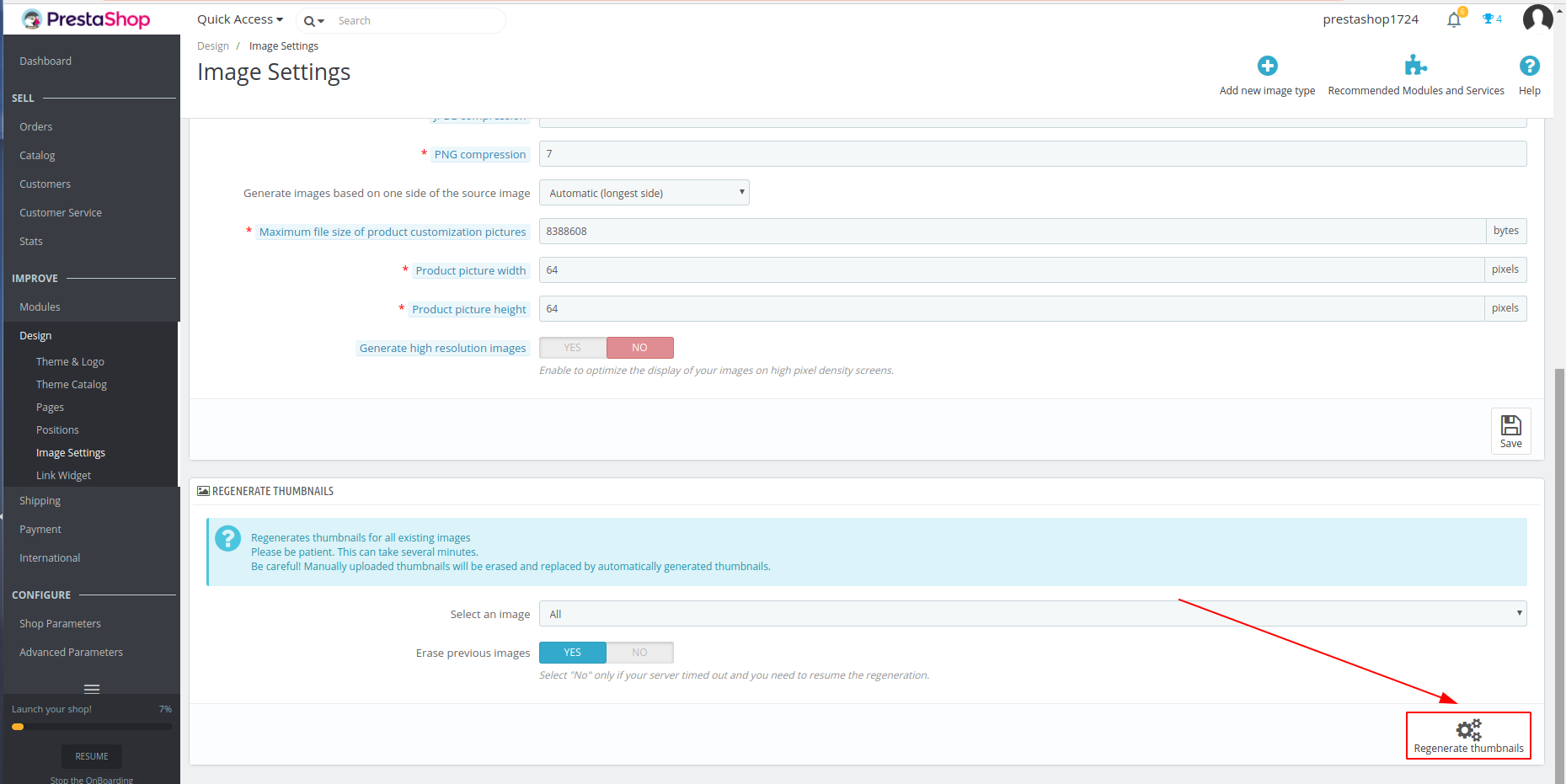
2. Go to Design → Image Settings (under Improve).
3. Scroll to Regenerate thumbnails.
4. Choose the image type (for example products) and whether to erase previous thumbnails.
5. Click Regenerate thumbnails. For large catalogs this can take several minutes; avoid interrupting the request.
6. Clear cache: Advanced Parameters → Performance → Clear cache, then hard-refresh the storefront.
Docs: PrestaShop 8 — Image Settings.
PrestaShop 1.6 (legacy)
On 1.6, open Preferences → Images (wording varies by theme/pack), use Regenerate thumbnails for products/categories, then clear Smarty cache under Advanced Parameters / Performance or by clearing cache/smarty carefully as in older guides.
Do you need help? Contact our support team
Just set up the migration and choose the entities to move – the service will do the rest.
Try It FreeDelegate the job to the highly-skilled migration experts and get the job done.
Choose Package