
How can we help you?
Use Cart2Cart to migrate into PrestaShop 1.7 / 8.x. The wizard connects to your stores, then you choose entities, map statuses, run a Demo, and start Full Migration.
PrestaShop 1.7 / 8.x via Cart2Cart (current)
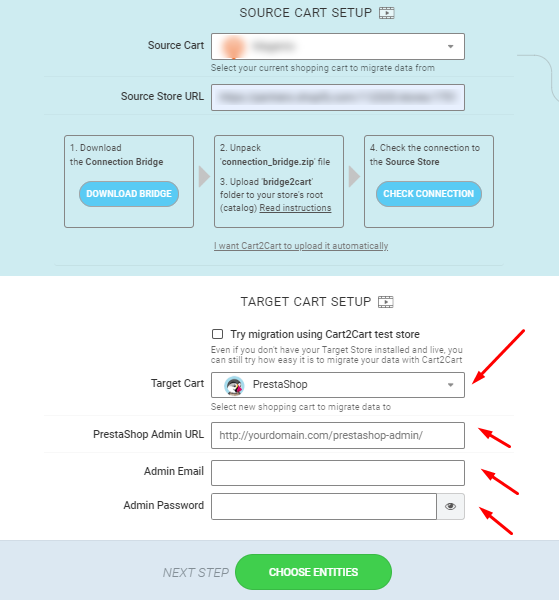
1. Open the Migration Wizard. Select your Source cart and provide URL/API credentials as required.
2. Set Target to PrestaShop and enter the store URL plus Back Office admin login (and Connection Bridge or module connection method when the wizard requests it).
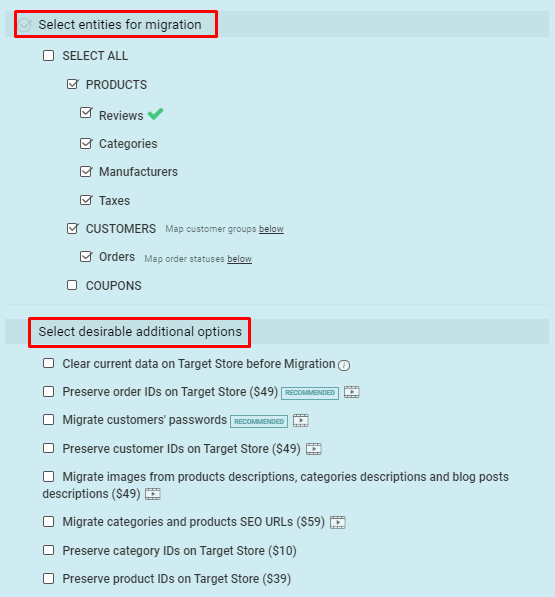
3. Choose entities (products, customers, orders, etc.) and additional options, then continue.
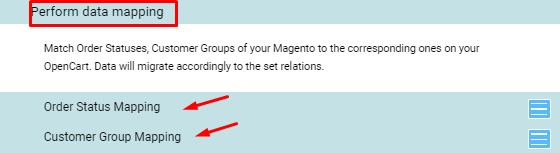
4. Map order statuses and customer groups from Source to PrestaShop equivalents.
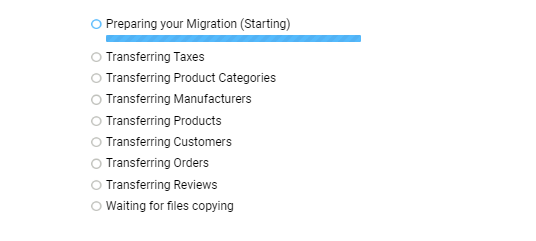
5. Run a Demo Migration, review results in the PrestaShop BO/storefront, then start Full Migration.
6. After migration, clear cache (Advanced Parameters → Performance → Clear cache) and regenerate thumbnails if images look wrong (Design → Image Settings).
Older wizard screenshots (legacy)
Guides from ~2020 show the same five steps (carts → entities → mapping → demo → full) with an older Cart2Cart UI. Entity selection and mapping behavior are unchanged on the current wizard.
Do you need help? Contact our support team
Just set up the migration and choose the entities to move – the service will do the rest.
Try It FreeDelegate the job to the highly-skilled migration experts and get the job done.
Choose Package