


Goodsie to WooCommerce Migration - Step-by-Step Guide & Expert Services
Goodsie to WooCommerce migration made easy. Experience a fast, secure, and SEO-friendly move Goodsie store to WooCommerce with zero downtime. Seamlessly switch from Goodsie to WooCommerce and effortlessly transfer data, preserving your store's integrity and SEO. Whether you need a detailed step-by-step guide to migrate yourself or prefer our experts handle the entire process for you, we ensure a smooth, worry-free transition. Achieve a perfect Goodsie to WooCommerce migration today!
What data can be
migrated from Goodsie to WooCommerce
-
Products
-
Product Categories
-
Manufacturers
-
Customers
-
Orders
- Name, SKU, Short Description, Full Description, Manufacturer , Tax Class, Sort Order.
- Meta Title, Meta Keywords, Meta Description.
- Quantity, Stock Availability.
- Weight, Width, Height.
- Related Products.
- Options(Name, Price).
- Name, Status.
- Meta Title, Meta Description, Meta Keywords.
- Name.
- Customer Billing Address.
- Customer Shipping Address.
- ID, Order Date, Order Status, Order Products(Name, SKU), SubTotal Price, Discount Price, Tax Price, Shipping Price, Total Price.
- Customer Name, Email, Billing Address.
- Shipping Address.
- Name, SKU, Short Description, Full Description, Manufacturer , Tax Class, Sort Order.
- Meta Title, Meta Keywords, Meta Description.
- Quantity, Stock Availability.
- Weight, Width, Height.
- Related Products.
- Options(Name, Price).
- Name, Status.
- Meta Title, Meta Description, Meta Keywords.
- Name.
- Customer Billing Address.
- Customer Shipping Address.
- ID, Order Date, Order Status, Order Products(Name, SKU), SubTotal Price, Discount Price, Tax Price, Shipping Price, Total Price.
- Customer Name, Email, Billing Address.
- Shipping Address.
Products
Estimate your Migration Cost
To estimate your Goodsie to WooCommerce migration price, click the button below. The migration price varies in accordance with the number of data types and the additional migration options selected.
How to Migrate from Goodsie to WooCommerce In 3 Steps?
Connect your Source & Target carts
Choose Goodsie and WooCommerce from the drop-down lists & provide the stores’ URLs in the corresponding fields.
Select the data to migrate & extra options
Choose the data you want to migrate to WooCommerce and extra options to customise your Goodsie to WooCommerce migration.
Launch your Demo/Full migration
Run a free Demo to see how the Cart2Cart service works, and when happy - launch Full migration.
Goodsie to WooCommerce Migration: Your Complete How-To Guide
Seamlessly Migrate Your Online Store from Goodsie to WooCommerce
As an e-commerce merchant, the decision to replatform your online store is often driven by the need for greater flexibility, scalability, and enhanced features. If you're currently operating on Goodsie and looking to transition to a more robust, open-source solution, WooCommerce stands out as an excellent choice. This comprehensive guide will walk you through every step of moving your store's vital data from Goodsie to WooCommerce, ensuring a smooth and successful data transfer.
Given Goodsie's platform structure, the most effective method for migrating your store data to WooCommerce will involve exporting your Goodsie information into CSV files. These files will then serve as the source for importing your products, customer details, orders, and other crucial entities into your new WooCommerce store. This approach ensures data integrity and allows for a structured transition to your new, powerful e-commerce environment.
Prerequisites for a Successful Migration
Before initiating the data migration process, thorough preparation of both your source (Goodsie) and target (WooCommerce) platforms is essential. This minimizes potential roadblocks and ensures a streamlined transition.
Preparing Your Goodsie Store (Source)
- Data Export: Your primary task will be to export all your Goodsie store data into CSV files. This includes product details (SKUs, variants, descriptions, images), customer records, order history, blog posts, coupons, and any CMS pages you wish to carry over. Focus on exporting as much structured data as possible to facilitate accurate import.
- Data Backup: Always perform a complete backup of your current Goodsie store. While the migration process is designed to be safe, having a backup provides an extra layer of security.
- Review Content: Take this opportunity to review your existing content. Update product descriptions, remove outdated listings, and ensure all information is current and accurate before export.
For more details on preparing your source store, read our guide on How to prepare Source store for migration?
Preparing Your WooCommerce Store (Target)
- WordPress & WooCommerce Installation: Ensure you have a fresh installation of WordPress and the WooCommerce plugin activated on your hosting. This provides the foundational environment for your new store.
- Hosting Environment: Verify that your web hosting meets WooCommerce's recommended specifications for optimal performance, especially if you anticipate a large catalog (e.g., 10,000+ products, which can affect performance on WooCommerce if not well-optimized).
- Theme Selection: Choose and install your desired WooCommerce-compatible theme. While data migration is separate from design, having your theme ready helps visualize the final store.
- Install Migration Plugin: For the migration tool to connect and interact effectively with your WooCommerce store, you will need to install the Cart2Cart WooCommerce Universal Migration plugin. This plugin facilitates the secure data transfer.
For comprehensive instructions on setting up your new platform, consult our How to prepare Target store for migration? guide.
Performing the Migration: A Step-by-Step Guide
With your preparations complete, you're ready to initiate the data transfer. This process leverages a specialized migration wizard to guide you through each stage.
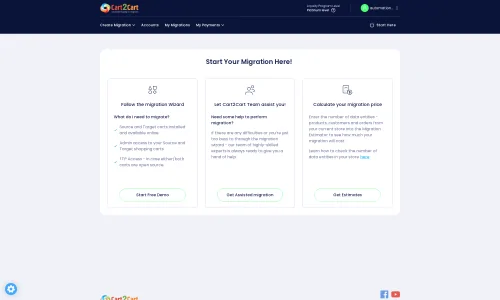
Step 1: Start Your Migration
Begin by navigating to the migration service provider's website. You'll typically find an intuitive interface to start your migration journey.
Step 2: Connect Your Source Store (Goodsie via CSV)
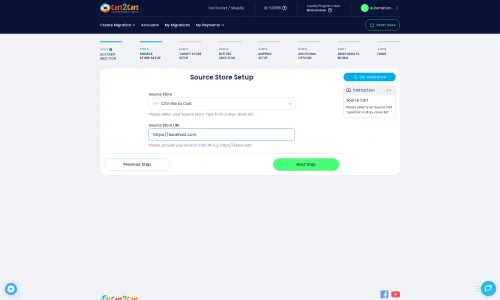
Since Goodsie does not offer a direct API for third-party migration tools, you will connect your source store by selecting 'CSV File to Cart' as your platform type.
Upload the CSV files containing your exported Goodsie data for products, customers, orders, and any other entities you wish to transfer. Ensure your CSV files are well-structured and accurate to preserve data integrity.
If you encounter challenges with CSV preparation, consider leveraging a CSV.File Data Migration service for expert assistance.
Step 3: Set Up Your Target Store (WooCommerce)
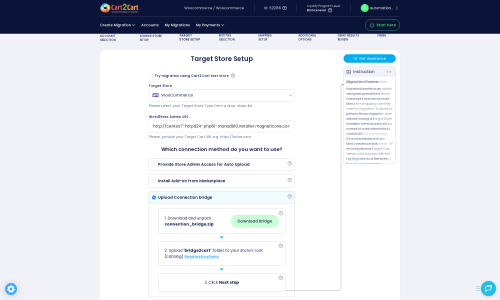
Next, you'll configure your new WooCommerce store as the destination for your data. Follow these substeps:
- Select Platform: From the dropdown menu, choose WooCommerce as your target shopping cart.
- Provide URL: Enter the WordPress Admin URL of your WooCommerce store. This allows the migration tool to locate your new platform.
- Establish Connection: To securely link your WooCommerce store, you'll need to establish a connection. The most common and recommended method is to Upload Connection Bridge. Download the provided
connection_bridge.zipfile, unpack it, and upload thebridge2cartfolder to the root directory of your WooCommerce installation via FTP. This small file acts as a secure data conduit.
For more information on the root folder, refer to What is a root folder and where can I find it? The required Cart2Cart WooCommerce Universal Migration plugin helps facilitate this connection.
Step 4: Select Data Entities for Migration
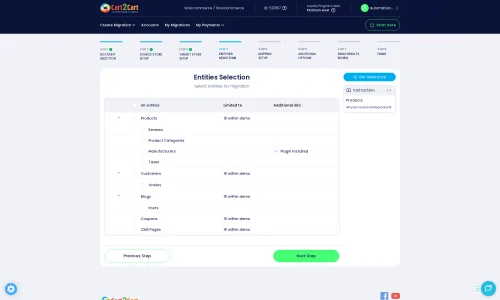
This critical step allows you to specify exactly which data entities you want to transfer from your Goodsie CSV files to WooCommerce.
You can choose to migrate all available data or select specific entities, such as:
- Products (including SKUs, descriptions, variants, images, categories)
- Product Categories
- Customer records
- Order history
- Product Reviews
- CMS Pages
- Coupons
- Blogs and Blog Posts
Step 5: Configure Additional Options & Data Mapping
This stage allows for fine-tuning your data transfer, ensuring maximum data integrity and SEO preservation.
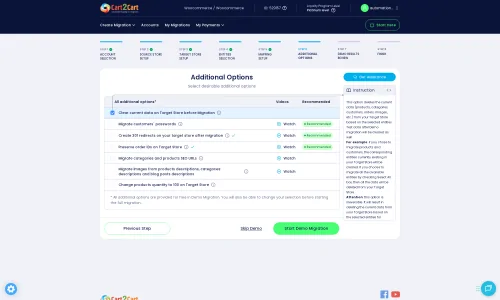
Additional Options
You'll be presented with a range of crucial additional options to tailor your migration:
- Clear Target Store Data: Opt to clear current data on your target store before the migration begins. This is highly recommended for fresh WooCommerce installations.
- Preserve IDs: Select options to preserve Product IDs, Category IDs, Customer IDs, and Order IDs. This is vital for maintaining existing links and records.
- Migrate Images in Descriptions: Ensure product images embedded within descriptions are transferred.
- Create 301 Redirects: Crucial for maintaining your SEO rankings and link equity, automatically setting up redirects for old Goodsie URLs to their new WooCommerce counterparts.
- Migrate Customer Passwords: Enable this to allow customers to log in with their existing credentials on your new WooCommerce store.
Data Mapping
The mapping setup ensures that your Goodsie data fields correctly correspond to WooCommerce's structure. You'll map:
- Customer Groups: Match customer roles from your Goodsie data to WooCommerce's customer groups. Note that WooCommerce may require additional plugins for advanced customer group functionalities.
- Order Statuses: Align Goodsie order statuses (e.g., 'Pending', 'Shipped') to their equivalent in WooCommerce. Custom order statuses in WooCommerce also often require an additional plugin.
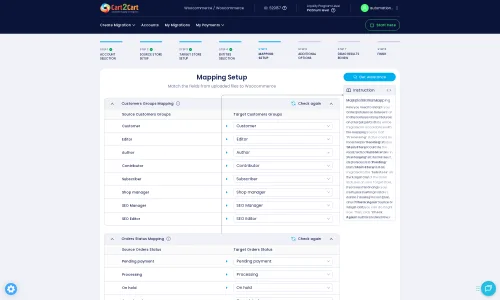
Be aware that WooCommerce requires additional plugins for features like manufacturers and custom order statuses, which might impact how certain entities are mapped and displayed post-migration.
Step 6: Run Free Demo Migration & Full Migration
Before committing to the full data transfer, it's highly recommended to run a free demo migration. This allows you to transfer a limited number of entities (e.g., 10 products, 10 customers, 10 orders) to your WooCommerce store for inspection.
- Review Demo Results: Carefully examine the migrated data on your WooCommerce store. Check product details, customer accounts, and order information for accuracy and completeness.
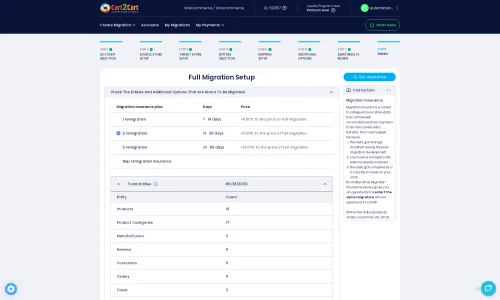
- Initiate Full Migration: Once satisfied with the demo results, proceed with the full migration. Review the total cost and consider adding a Migration Insurance Service, which offers additional remigrations for peace of mind. Learn more about How Migration Insurance works?
Post-Migration Steps
The migration doesn't end when the data transfer is complete. Several crucial post-migration tasks are necessary to ensure your new WooCommerce store is fully operational and optimized.
- Thorough Store Testing: Perform extensive testing on all aspects of your new WooCommerce store. Verify products (SKUs, variants, pricing, images), customer accounts, order history, the checkout process, search functionality, and filters. Ensure all links work correctly.
- Configure SEO & Redirects: Even with 301 redirects enabled during migration, manually check key URLs. Update your sitemap and submit it to search engines. Maintaining your SEO rankings and link equity is paramount.
- Design & Theme Optimization: Customize your WooCommerce theme to reflect your brand identity and optimize the user experience. Ensure responsiveness across all devices.
- Install Essential Plugins: Beyond the migration tool, install and configure essential WooCommerce plugins for SEO, security, caching, marketing, and any specific functionalities (e.g., for manufacturers or advanced customer groups, as noted in WooCommerce's limitations).
- Update DNS Settings: Once you're confident in your new store, update your domain's DNS settings to point to your new WooCommerce store. This is when your new store goes live.
- Inform Your Customers: Announce the launch of your new and improved store. Provide clear instructions for any password resets (if password migration was not possible or enabled) or new account creation.
- Monitor Performance: Keep a close eye on your store's performance, site speed, and user experience. Address any issues promptly.
Should any new orders or customer data appear on your old Goodsie store during the migration window, consider using a Recent Data Migration Service to transfer only the latest updates. If you require specialized assistance or customization during any part of this process, don't hesitate to Contact Us for Migration Customization Service.
Ways to perform migration from Goodsie to WooCommerce
Automated migration
Just set up the migration and choose the entities to move – the service will do the rest.
Try It Free
Data Migration Service Package
Delegate the job to the highly-skilled migration experts and get the job done.
Choose Package
Custom Migration
Need metafields, SEO URLs, variant rules, or other tailored mapping? Explore customizations built for real merchant demand.
Browse Customizations

Benefits for Store Owners

Benefits for Ecommerce Agencies
Choose all the extra migration options and get 40% off their total Price

The design and store functionality transfer is impossible due to Goodsie to WooCommerce limitations. However, you can recreate it with the help of a 3rd-party developer.

Your data is safely locked with Cart2Cart
We built in many security measures so you can safely migrate from Goodsie to WooCommerce. Check out our Security Policy
Server Security
All migrations are performed on a secure dedicated Hetzner server with restricted physical access.Application Security
HTTPS protocol and 128-bit SSL encryption are used to protect the data being exchanged.Network Security
The most up-to-date network architecture schema, firewall and access restrictions protect our system from electronic attacks.Data Access Control
Employee access to customer migration data is restricted, logged and audited.Frequently Asked Questions
Should I use an automated tool or an expert for Goodsie to WooCommerce migration?
Will my Goodsie store experience downtime during migration to WooCommerce?
How to preserve SEO rankings when migrating from Goodsie to WooCommerce?
What data entities can be migrated from Goodsie to WooCommerce?
Is my data secure during the Goodsie to WooCommerce migration?
Will my Goodsie store's theme and design transfer to WooCommerce?
What is the typical timeline for a Goodsie to WooCommerce migration?
What factors determine the cost of a Goodsie to WooCommerce migration?
Can customer passwords be migrated from Goodsie to WooCommerce?
How do I verify data accuracy after my Goodsie to WooCommerce migration?
Why 150.000+ customers all over the globe have chosen Cart2Cart?
100% non-techie friendly
Cart2Cart is recommended by Shopify, WooCommerce, Wix, OpenCart, PrestaShop and other top ecommerce platforms.
Keep selling while migrating
The process of data transfer has no effect on the migrated store. At all.
24/7 live support
Get every bit of help right when you need it. Our live chat experts will eagerly guide you through the entire migration process.
Lightning fast migration
Just a few hours - and all your store data is moved to its new home.
Open to the customers’ needs
We’re ready to help import data from database dump, csv. file, a rare shopping cart etc.
Recommended by industry leaders
Cart2Cart is recommended by Shopify, WooCommerce, Wix, OpenCart, PrestaShop and other top ecommerce platforms.
Trusted by eCommerce dominators since 2009











So now I have a perfect copy of my Shopify store on my Woocommerce platform. All within 2 days and I didn’t have to code anything – the migration took just a few clicks – fully automated. Ok, that’s it I just like when I see somebody really care about your business so I felt like I’d let the world know about my experience with this company
Review source
My migration from BigCommerce to WooCommerce was so easy, so time-saving, and so successful that I can’t believe all that work was done with one click!
Thanks to Cart2Cart for a fantastic service. Totally recommended!
Review source
I had a lot of pre-sales questions about the plugin and the migration. The service provided was absolutely perfect, quick and in-depth responses. My final migration has just finished and it did so in 27 minutes to be precise. If you are looking for the perfect, headache-free tool for your (in my case Magento to Woocommerce) migration, look no further, THIS IS IT! For those who expected such a plugin to be for free, are you kidding me?!?!
Review source
I’ve used the service/software for two website migrations (ZenCart to WooCommerce). The second one failed, also because of my own error, but the supprt was great and Cart2Cart team helped getting it all working flawless.
Very impressed by this software and even more by the aftersales support. Will use again when needed.
Review source
I moved a site from Jigoshop Version 2 (the jigoshop upgrade from v1 to v2 was poor) to WooCommerce and I am very happy with the results. My original Jigoshop site had been hacked so it wasn’t ideal, but Cart to Cart were very helpful and their support was very good. 🙂
Review source
Excellent Support for the non expert who needs a lot of assistance they spent as much time as I needed to insure I got my migration. The upload went well after the Demo. Customer service was there when I had questions or issues to fine tune after purchase. I would recommend if you need to import / migrate your Products from Shopify to Woocommerce in Word Press as I did.
Review source
Company went above and beyond to handle the migration, even doing 2 additional trials to get it right.
The project was involved as it had a large product count, user count, and orders going back 5 years. This involved doing the CMS and Shopping cart migration from Drupal / Ubercart to WordPress / Woocommerce.
I had the new site up the same day as the migration and only had to do some fine tuning, menus setup, and correct some links.
Pleasure to have a second migration done with this company.
Review source
Tried to do the data migration myself and failed even after spending so many hours attempting different things. With Cart2Cart the data import from 3dcart to WooCommerce was quick and easy. Support response time was great and replies were really helpful. Definitely worth the cost and it saved me many more headaches
Review source
I needed to migrate a lot of product data (title, price, description, images) from an old Mojishop installation on Joomla to a new shop system based on Woocommerce on WordPress. The setup was very easy (you need FTP access on your webspace).
Before you pay for the great service you can make several test migrations. It turned out there were some product information missing on the new system, because my data base had a custom name. I did not find out this by my own.
So I contacted the customer support of Cart2Cart. I got immediately help and two days later a custom solution for my problem.
This is a service! Thanks a lot.
Review source