


Teachable to WooCommerce Migration - Step-by-Step Guide & Expert Services
Teachable to WooCommerce migration doesn't have to be complicated. Ready to move Teachable store to WooCommerce effortlessly? Cart2Cart provides the ultimate solution for a swift, secure, and SEO-friendly transfer, ensuring all your crucial data is preserved with zero downtime. Whether you're researching how to switch from Teachable to WooCommerce with our detailed step-by-step guide, or need expert assistance to flawlessly transfer data, we simplify your entire Teachable to WooCommerce migration journey.
What data can be
migrated from Teachable to WooCommerce
-
Products
-
Product Categories
-
Manufacturers
-
Customers
-
Orders
- Name, SKU, Short Description, Full Description, Manufacturer , Tax Class, Sort Order.
- Meta Title, Meta Keywords, Meta Description.
- Quantity, Stock Availability.
- Weight, Width, Height.
- Related Products.
- Options(Name, Price).
- Name, Status.
- Meta Title, Meta Description, Meta Keywords.
- Name.
- Customer Billing Address.
- Customer Shipping Address.
- ID, Order Date, Order Status, Order Products(Name, SKU), SubTotal Price, Discount Price, Tax Price, Shipping Price, Total Price.
- Customer Name, Email, Billing Address.
- Shipping Address.
- Name, SKU, Short Description, Full Description, Manufacturer , Tax Class, Sort Order.
- Meta Title, Meta Keywords, Meta Description.
- Quantity, Stock Availability.
- Weight, Width, Height.
- Related Products.
- Options(Name, Price).
- Name, Status.
- Meta Title, Meta Description, Meta Keywords.
- Name.
- Customer Billing Address.
- Customer Shipping Address.
- ID, Order Date, Order Status, Order Products(Name, SKU), SubTotal Price, Discount Price, Tax Price, Shipping Price, Total Price.
- Customer Name, Email, Billing Address.
- Shipping Address.
Products
Estimate your Migration Cost
Due to Cart2Cart`s flexible pricing policy, the migration price depends on the volume of transferred entities and the additional migration options you select. Just choose your Source and Target platforms and get the approximate price of your Teachable to WooCommerce store conversion right after completing the free Demo.
How to Migrate from Teachable to WooCommerce In 3 Steps?
Connect your Source & Target carts
Choose Teachable and WooCommerce from the drop-down lists & provide the stores’ URLs in the corresponding fields.
Select the data to migrate & extra options
Choose the data you want to migrate to WooCommerce and extra options to customise your Teachable to WooCommerce migration.
Launch your Demo/Full migration
Run a free Demo to see how the Cart2Cart service works, and when happy - launch Full migration.
Migrate Your Online School: The Definitive Teachable to WooCommerce Migration Guide
Seamlessly Transition from Teachable to WooCommerce: Your Expert Migration Guide
Are you looking to expand the e-commerce capabilities of your online school? Moving from Teachable, a platform primarily focused on course delivery, to a robust e-commerce solution like WooCommerce can unlock a world of opportunities for greater control, scalability, and enhanced sales features. This definitive guide is designed to provide Teachable merchants with clear, actionable steps for a smooth and efficient platform migration to WooCommerce, ensuring your valuable student data, course information, and orders transition flawlessly.
Given Teachable's specialized nature as a course platform, a direct API connection for a full data transfer isn't typically available as with traditional e-commerce carts. Therefore, this guide outlines a migration strategy using CSV file export from Teachable as the source, combined with a powerful migration tool to import this data into your new WooCommerce store. This method ensures data integrity and comprehensive transfer of your digital products and customer records.
Prerequisites for a Successful Migration
Before embarking on your data migration journey, ensuring both your source (Teachable) and target (WooCommerce) environments are adequately prepared is crucial. This foundational work will significantly streamline the transfer process and minimize potential issues.
- Backup Your Teachable Data: Always create comprehensive backups of all your Teachable content, including courses, student lists, and sales records. This is your safety net.
- Export Teachable Data to CSV: Systematically export all relevant data from your Teachable account into CSV files. This will include:
- Courses/Products: Export course details, pricing, descriptions, and any associated digital files or metadata.
- Students/Customers: Export student names, email addresses, enrollment history, and other customer data.
- Orders: Export order details, purchase history, and transaction information.
- Set Up Your WooCommerce Store:
- Install WordPress: Ensure you have a fresh installation of WordPress on your hosting environment. WooCommerce is a plugin for WordPress, so this is the essential first step.
- Install WooCommerce Plugin: From your WordPress dashboard, navigate to Plugins > Add New, search for "WooCommerce," install, and activate it.
- Install Cart2Cart WooCommerce Universal Migration Plugin: This specific plugin is required for the migration process. Install it via your WordPress admin or by uploading the plugin files directly.
- Meet System Requirements: Verify your hosting provider meets WooCommerce's recommended system requirements for optimal performance, especially if you have a large volume of courses or students (note that 10K+ products can affect performance on WooCommerce).
- Review Connection Credentials: For WooCommerce, you'll need access to your WordPress Admin URL and potentially FTP/SFTP access for uploading connection bridge files. Read our guide on Access Credentials for Cart2Cart for more details.
Performing the Migration: A Step-by-Step Guide
Follow these detailed steps to transfer your online school from Teachable to WooCommerce with precision and care.
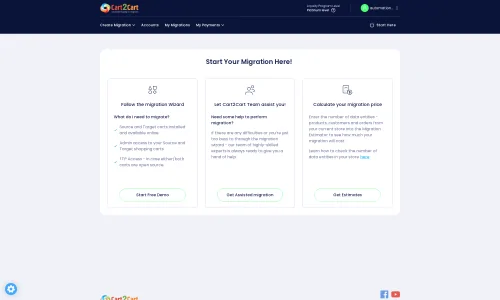
Step 1: Initiate Your Migration Journey
Begin by navigating to the migration service platform. This initial screen allows you to select your migration type and prepare for the wizard-guided process. You can choose to start a do-it-yourself migration or opt for assisted services.
Step 2: Configure Your Teachable Source Store (via CSV Upload)
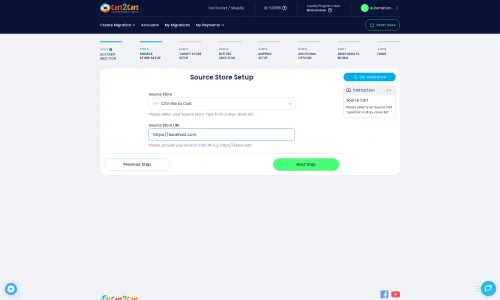
Since Teachable doesn't offer a direct API for comprehensive data export as a traditional e-commerce platform, you will select the "CsvToCart" option as your source cart. This method is designed for migrations where data is supplied through CSV files. Upload the CSV files containing your Teachable course data (products), student information (customers), and order history.
- Source Cart: Select CSVTOCART.
- Upload CSV Files: Upload the prepared CSV files containing all your Teachable data.
- Connection Method: This method exclusively uses file uploads.
Step 3: Connect to Your WooCommerce Target Store
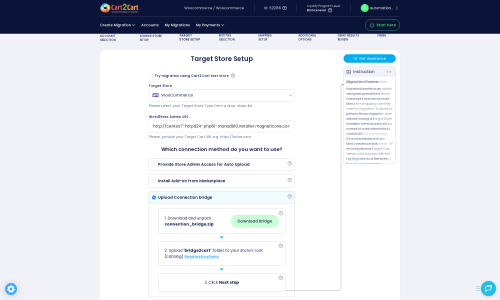
Now, you'll connect your newly set up WooCommerce store. This step establishes the link between the migration service and your target platform, preparing it to receive your Teachable data.
- Target Cart: Select WooCommerce from the dropdown list.
- WooCommerce Admin URL: Enter the WordPress Admin URL of your WooCommerce store.
- Connection Method: The recommended method is to "Upload Connection Bridge." Download the provided `connection_bridge.zip` file, unpack it, and upload the `bridge2cart` folder to your WooCommerce store's root directory via FTP/SFTP. This requires understanding your store's root folder. Alternatively, you can choose to install the add-on from the marketplace. Remember, the security of your access details is paramount.
Step 4: Select Data Entities for Transfer
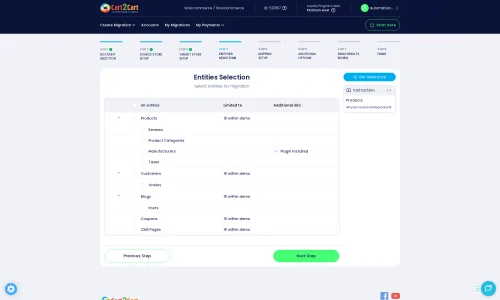
This critical step allows you to specify exactly which data entities you want to migrate from your Teachable CSV files to WooCommerce. You can select all available entities or pick and choose based on your specific needs.
- Products (Courses): Transfer your Teachable courses, including titles, descriptions, pricing, and associated metadata.
- Products Categories: Migrate your course categories to organize them in WooCommerce.
- Customers (Students): Move your student data, ensuring their profiles are re-created.
- Orders: Transfer historical order data to maintain purchasing records.
- Reviews: If available in your CSV, migrate customer reviews.
- CMS Pages & Blog Posts: Transfer any static pages or blog content you wish to retain.
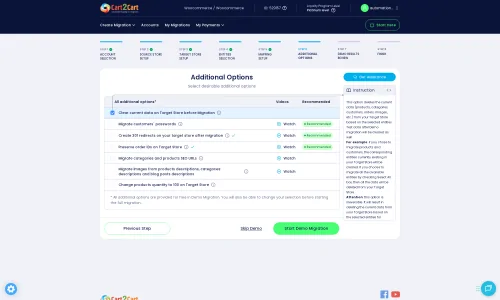
Step 5: Configure Additional Migration Options
Enhance your data transfer with various additional options that refine how data is handled and optimize your new store's performance and SEO. These options can significantly impact the user experience and your store's visibility post-migration.
- Clear Target Store Data: The "Clear current data on Target store before migration" option is often recommended for fresh WooCommerce installations to prevent data conflicts.
- Preserve IDs: Opt to "Preserve Product IDs," "Preserve Customer IDs," and "Preserve Order IDs" to maintain consistency.
- SEO URLs & 301 Redirects: Enable "SEO URLs" and "Create 301 SEO URLs" to preserve your search engine rankings and link equity. This is vital for maintaining traffic flow after your replatforming.
- Migrate Images in Description: Ensure all embedded images within your course descriptions are also transferred.
- Password Migration: If supported by your CSV export, migrate customer passwords securely.
Note on WooCommerce Limitations: Be aware that WooCommerce may require additional plugins for functionalities like specific manufacturers, custom order statuses, or customer groups, as these are not native features.
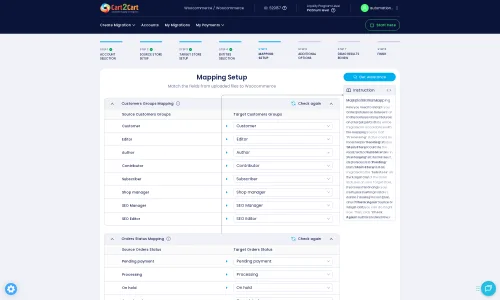
Step 6: Map Data Fields
The data mapping step is crucial for ensuring that your Teachable data fields correctly align with WooCommerce's structure. You will primarily focus on matching customer groups (Teachable's student roles) and order statuses.
- Customer Groups Mapping: Match Teachable student roles to corresponding customer roles in WooCommerce (e.g., student to customer).
- Order Status Mapping: Align Teachable order statuses (e.g., pending, completed) with WooCommerce's order statuses.
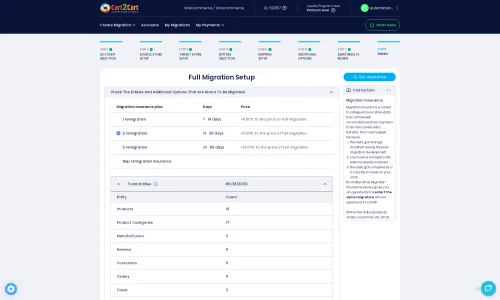
Step 7: Initiate Full Migration
With all configurations set, you are ready to perform the data transfer.
- Free Demo Migration: It's highly recommended to run a free demo migration first. This allows you to review a small subset of your data in the target store and verify settings without commitment.
- Full Migration: Once satisfied with the demo results, proceed with the full migration of all selected data entities.
- Migration Insurance: Consider adding Migration Insurance, which offers additional remigrations within a specific period, providing peace of mind. Learn how Migration Insurance works.
Post-Migration Steps
After your data has successfully transferred to WooCommerce, a few essential post-migration tasks remain to ensure your new store is fully functional and optimized.
- Thorough Data Verification: Rigorously check all migrated data. Verify products (courses), product categories, customer accounts, orders, reviews, and CMS pages to ensure data integrity.
- Configure WooCommerce Settings: Set up essential WooCommerce settings such as payment gateways, shipping zones, tax rates, and email notifications.
- Install Necessary Plugins: Enhance your store's functionality with essential WooCommerce plugins for SEO, security, caching, marketing, and any specific features you need, like those for manufacturers, custom order statuses, or customer groups.
- Design and Theme Customization: Select and customize a responsive WooCommerce theme that reflects your brand and provides an excellent user experience. Adjust branding elements to maintain consistency.
- SEO Optimization:
- 301 Redirects: Double-check that all critical URLs from Teachable are redirecting to their new WooCommerce counterparts. This preserves your SEO rankings and link equity.
- Update Sitemaps: Generate and submit new XML sitemaps to search engines.
- Monitor Search Console: Keep a close eye on Google Search Console for any crawl errors or indexing issues.
- Test All Functionality: Conduct extensive testing of all store functions, including course purchasing, payment processing, user registration, account management, and mobile responsiveness.
- Go Live: Once everything is verified and optimized, update your DNS records to point to your new WooCommerce store. Announce your new and improved online school!
- Consider Recent Data Migration: If there was new data (e.g., new student enrollments, course sales) on Teachable during the migration window, a Recent Data Migration Service can help transfer these latest updates.
Migrating from Teachable to WooCommerce is a strategic move that offers unparalleled flexibility and growth opportunities for your online education business. While the CSV-based approach requires careful preparation, following these steps will ensure a smooth transition. Should you encounter any challenges or require expert assistance, please do not hesitate to Contact Us. Our team is ready to support your successful replatforming.
Ways to perform migration from Teachable to WooCommerce
Automated migration
Just set up the migration and choose the entities to move – the service will do the rest.
Try It Free
Data Migration Service Package
Delegate the job to the highly-skilled migration experts and get the job done.
Choose Package
Custom Migration
Need metafields, SEO URLs, variant rules, or other tailored mapping? Explore customizations built for real merchant demand.
Browse Customizations

Benefits for Store Owners

Benefits for Ecommerce Agencies
Choose all the extra migration options and get 40% off their total Price

The design and store functionality transfer is impossible due to Teachable to WooCommerce limitations. However, you can recreate it with the help of a 3rd-party developer.

Your data is safely locked with Cart2Cart
We built in many security measures so you can safely migrate from Teachable to WooCommerce. Check out our Security Policy
Server Security
All migrations are performed on a secure dedicated Hetzner server with restricted physical access.Application Security
HTTPS protocol and 128-bit SSL encryption are used to protect the data being exchanged.Network Security
The most up-to-date network architecture schema, firewall and access restrictions protect our system from electronic attacks.Data Access Control
Employee access to customer migration data is restricted, logged and audited.Frequently Asked Questions
Should I use an automated tool or hire an expert for Teachable to WooCommerce migration?
How can I ensure data accuracy after migrating from Teachable to WooCommerce?
Is my store data secure during the Teachable to WooCommerce migration?
How long does a Teachable to WooCommerce migration typically take?
Will my Teachable store's design transfer to WooCommerce?
What data can be migrated from Teachable to WooCommerce?
What factors influence the cost of migrating from Teachable to WooCommerce?
Will my Teachable store go offline during migration to WooCommerce?
How can I prevent SEO loss when migrating from Teachable to WooCommerce?
Can customer passwords be migrated from Teachable to WooCommerce?
Why 150.000+ customers all over the globe have chosen Cart2Cart?
100% non-techie friendly
Cart2Cart is recommended by Shopify, WooCommerce, Wix, OpenCart, PrestaShop and other top ecommerce platforms.
Keep selling while migrating
The process of data transfer has no effect on the migrated store. At all.
24/7 live support
Get every bit of help right when you need it. Our live chat experts will eagerly guide you through the entire migration process.
Lightning fast migration
Just a few hours - and all your store data is moved to its new home.
Open to the customers’ needs
We’re ready to help import data from database dump, csv. file, a rare shopping cart etc.
Recommended by industry leaders
Cart2Cart is recommended by Shopify, WooCommerce, Wix, OpenCart, PrestaShop and other top ecommerce platforms.
Trusted by eCommerce dominators since 2009











So now I have a perfect copy of my Shopify store on my Woocommerce platform. All within 2 days and I didn’t have to code anything – the migration took just a few clicks – fully automated. Ok, that’s it I just like when I see somebody really care about your business so I felt like I’d let the world know about my experience with this company
Review source
My migration from BigCommerce to WooCommerce was so easy, so time-saving, and so successful that I can’t believe all that work was done with one click!
Thanks to Cart2Cart for a fantastic service. Totally recommended!
Review source
I had a lot of pre-sales questions about the plugin and the migration. The service provided was absolutely perfect, quick and in-depth responses. My final migration has just finished and it did so in 27 minutes to be precise. If you are looking for the perfect, headache-free tool for your (in my case Magento to Woocommerce) migration, look no further, THIS IS IT! For those who expected such a plugin to be for free, are you kidding me?!?!
Review source
I’ve used the service/software for two website migrations (ZenCart to WooCommerce). The second one failed, also because of my own error, but the supprt was great and Cart2Cart team helped getting it all working flawless.
Very impressed by this software and even more by the aftersales support. Will use again when needed.
Review source
I moved a site from Jigoshop Version 2 (the jigoshop upgrade from v1 to v2 was poor) to WooCommerce and I am very happy with the results. My original Jigoshop site had been hacked so it wasn’t ideal, but Cart to Cart were very helpful and their support was very good. 🙂
Review source
Excellent Support for the non expert who needs a lot of assistance they spent as much time as I needed to insure I got my migration. The upload went well after the Demo. Customer service was there when I had questions or issues to fine tune after purchase. I would recommend if you need to import / migrate your Products from Shopify to Woocommerce in Word Press as I did.
Review source
Company went above and beyond to handle the migration, even doing 2 additional trials to get it right.
The project was involved as it had a large product count, user count, and orders going back 5 years. This involved doing the CMS and Shopping cart migration from Drupal / Ubercart to WordPress / Woocommerce.
I had the new site up the same day as the migration and only had to do some fine tuning, menus setup, and correct some links.
Pleasure to have a second migration done with this company.
Review source
Tried to do the data migration myself and failed even after spending so many hours attempting different things. With Cart2Cart the data import from 3dcart to WooCommerce was quick and easy. Support response time was great and replies were really helpful. Definitely worth the cost and it saved me many more headaches
Review source
I needed to migrate a lot of product data (title, price, description, images) from an old Mojishop installation on Joomla to a new shop system based on Woocommerce on WordPress. The setup was very easy (you need FTP access on your webspace).
Before you pay for the great service you can make several test migrations. It turned out there were some product information missing on the new system, because my data base had a custom name. I did not find out this by my own.
So I contacted the customer support of Cart2Cart. I got immediately help and two days later a custom solution for my problem.
This is a service! Thanks a lot.
Review source