Automated migration service is a hand of help for e-merchants who wish to switch their current e-Commerce platform, perhaps to a new solution like Shopify. In a row with this, store owners will get an opportunity to perform a Free Demo Migration to check how the process goes by before paying your money. But sometimes, merchants are wondering how to check the results or can't find some items on a new shopping cart. That is why we will describe how to check Demo Migration Results on a new shopping cart. Understanding the full scope of data migration capabilities is key.
Demo Migration is a demonstration of Cart2Cart’s functionality. It shows you how the service works by moving up to 10 entities to your new store for free. That is why it is important to know how to check entities that were moved to a new shopping cart. Below, you will find out how to see your products, customers, order history and other corresponding data on a new store, often handled through basic data migration services. Moreover, there also are some post-migration tips for Magento, PrestaShop and Shopify. Considering a move to WooCommerce? We have resources for that too.
Demo Is Completed. What’s Next?
When your free Demo migration is done, you will receive an email notification. Right after this, you can check the results on a new store. To do that you have to go back to Migration Wizard where you will see the list of migrated entities. Simply follow provided URLs and you will see the entities on Target store. After that, you will have to check how do they look:
- On the front page of the shop (if migrated entity has to be displayed there)
- In categories that were moved
- In search results by title
Then, login to the admin panel of a new store and look how your entities are displayed from the backend.
In case none of your products are shown on the front end of your store, you will need to perform some additional manipulations by your own, or utilize a migration customization service. The list of these actions strongly depends on the platform you are using, so here is a detailed instruction for the most popular shopping carts.
Adobe Commerce Open Source
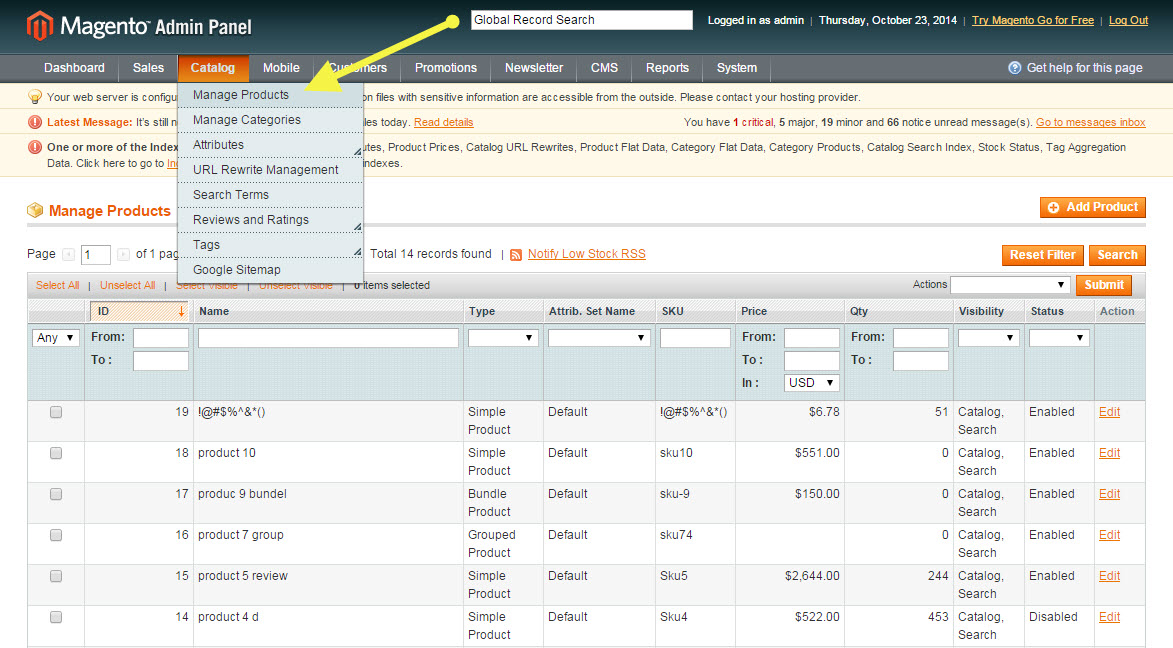
To see your products on a new store, you will need to login to your admin panel and go to Catalog → Manage Products.
For a seamless experience, always consider a migration insurance service.
See Your Demo Migration in Action!
Try Cart2Cart's Free Demo Migration and preview how your store data transfers before committing! Easily check your products, customers, and orders on your new platform with our step-by-step guide. Start your hassle-free migration today!
TRY IT FREE
PrestaShop
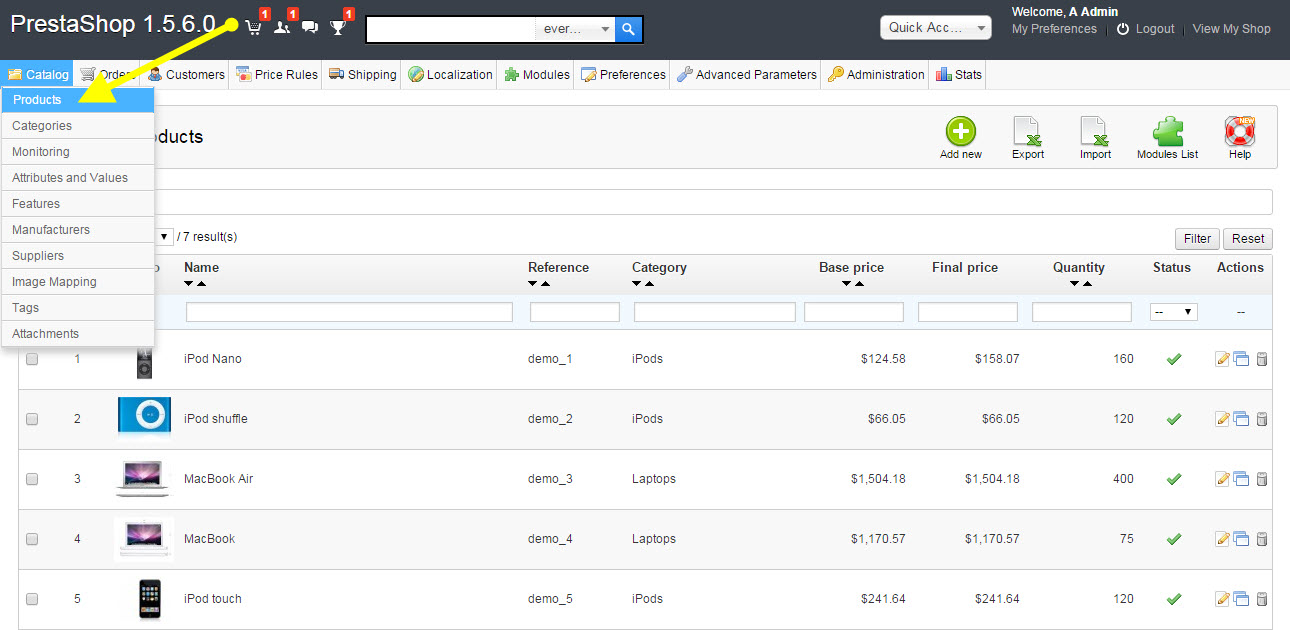
In order to see migrated products, login to PrestaShop back-office and go to Catalog → Products. For a deeper dive into PrestaShop migration, check out our PrestaShop Migration Checklist.
After migration to PrestaShop, you will need to clean cache to see your products on the front-office. But sometimes, your products may not appear in a search results on a site. To fix it, you will need to go to Preferences → Search and click "Re-build entire index" or "Add missing products to index" as appropriate in Indexation section.
Shopify
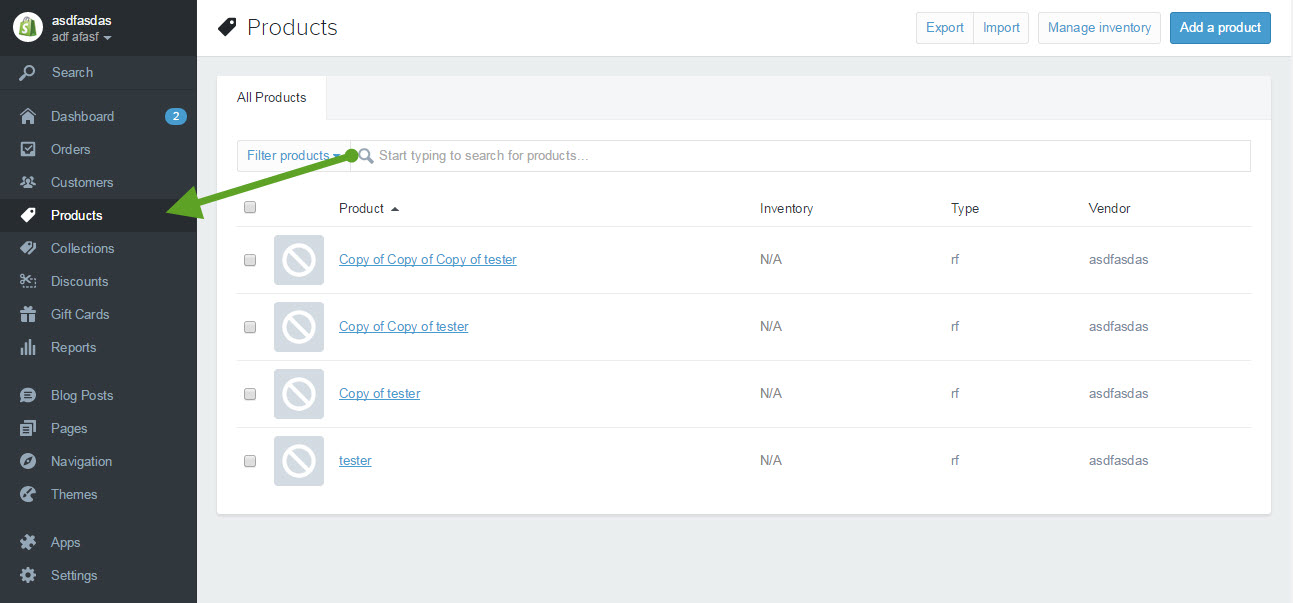
Check migrated products on Shopify can be extremely simple. Login to the admin area and go to Products Tab.
This platform is hosted and has some peculiarities that appears in the structure of categories and subcategories. The first will appear as collections, and the second - as tags, due to SaaS shopping cart structure.
Quite often, store owners can’t see the part of their products on the front of the store while the same items appear in admin area. This happens, if products after migration have “0” quantity in stock and are automatically settled as “Out of Stock”. In accordance with this fact, some shopping carts automatically hide such products from displaying on the frontend of the store.
Hope these recommendations will help you to see the result of your Free Demo Migration to the full extent and get ready to launch Full Migration.
Monthly Update – March 2026
As we conclude the first quarter of 2026, the e-commerce landscape continues its rapid evolution, particularly with advancements in AI-driven personalization and streamlined customer service. For merchants planning or refining their store migrations, March presents an opportune moment to audit the integrity of their customer data, especially focusing on historical interactions and segmentation. A key trend emerging is the strategic consolidation of customer profiles to create a unified view across all touchpoints, enabling more predictive marketing and robust loyalty programs. When performing your migration, pay close attention to how attributes like purchase history, browsing behavior, and customer group assignments are preserved. These details are paramount for leveraging sophisticated marketing automation tools and AI chatbots that enhance the customer journey. Furthermore, ensure that your post-migration strategy includes robust testing of your new platform’s analytics capabilities to accurately track these enriched customer interactions. A successful migration in March means not just a technical transfer, but a strategic repositioning for sustained growth and enhanced customer engagement through intelligent data utilization. Prioritize verifying all custom fields and meta-data that contribute to a holistic customer profile during your demo. For more details, explore our FAQ section or schedule a call with a migration expert.