
How can we help you?
Why do I get the “Invalid credentials” error during data migration with the Migration Wizard?
An "Invalid credentials" error during the data migration setup with the Migration Wizard typically indicates that the provided credentials (store URL, admin email, and admin password) do not match the target store's actual credentials. This prevents the Wizard from accessing the store and performing the data migration.
Troubleshooting Invalid Credentials for WiziShop Data Migration
If you are encountering this error while migrating to WiziShop, follow these steps to ensure you have the correct credentials:
Step 1: Create a Dedicated User with Admin Rights in WiziShop
For a seamless data migration, create a dedicated user account within your WiziShop admin panel specifically for the Migration Wizard. This ensures the tool has the necessary permissions without compromising your primary admin account.
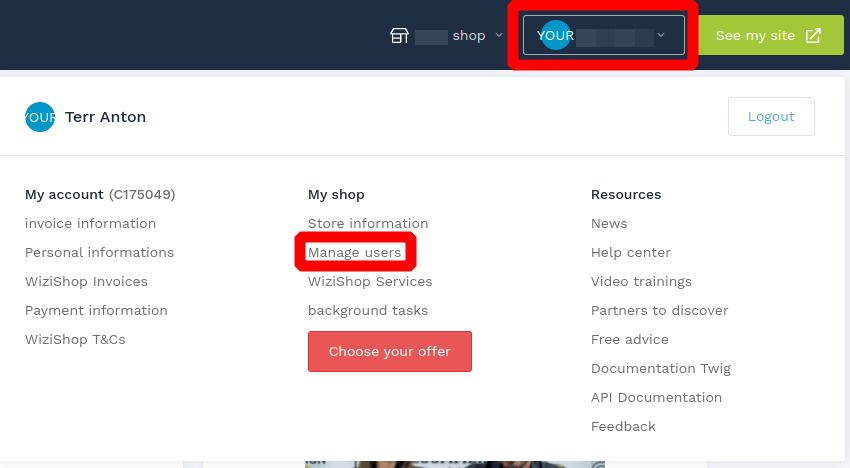
In your WiziShop admin panel, navigate to Manage users -> Add user.
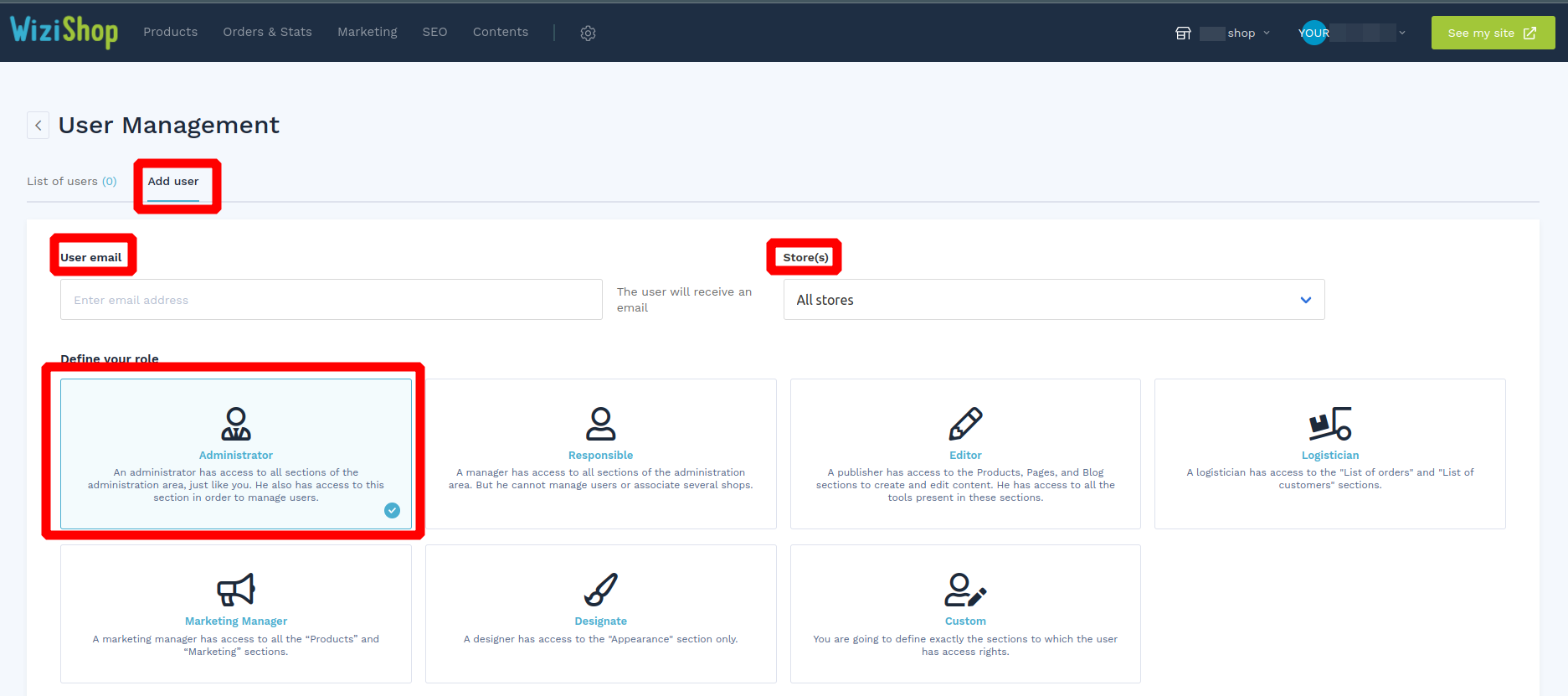
Type in your email address, choose the required store, and grant user admin rights (users possessing the admin/owner rights can go through the Migration Wizard for data migration). When done, press the Record button.
Step 2: Set a Password for the New User
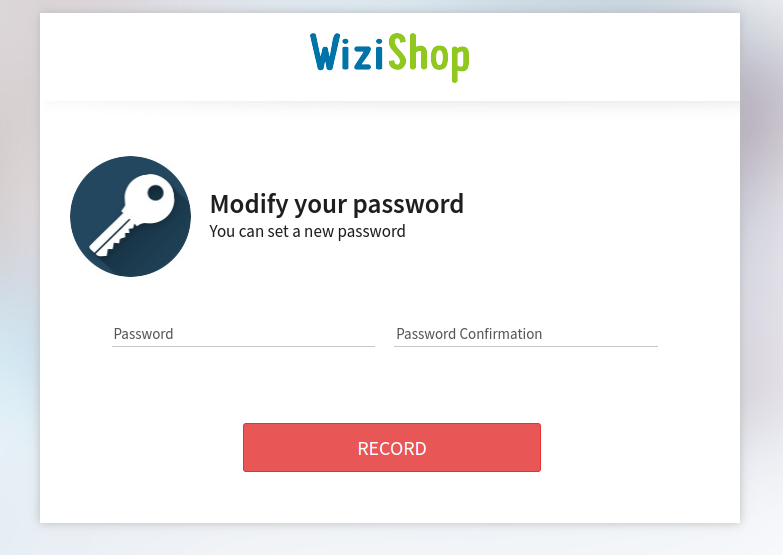
Once you’ve received the email to the provided email address, follow the link and enter a password for the newly created user. This password will be required during the data migration process.
Step 3: Enter Credentials in the Migration Wizard
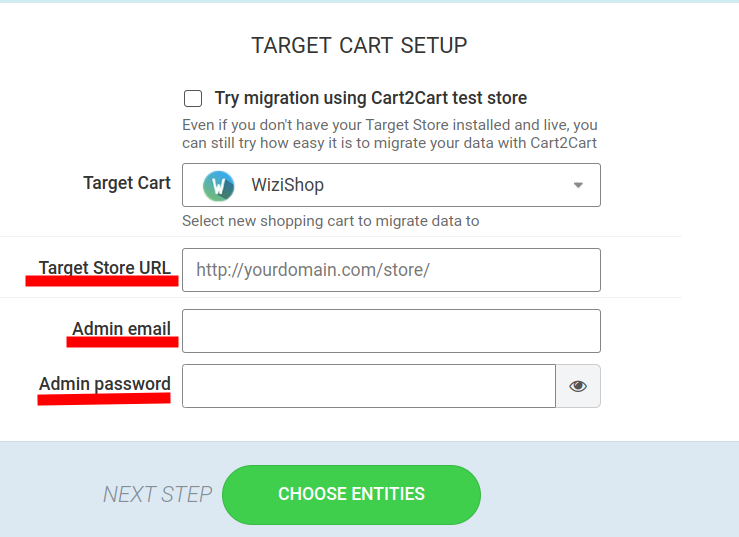
Type in all the required information in the appropriate fields of the Migration Wizard - your Target store URL, admin email, and admin password of the newly-created user. Ensure that the URL is correct, including the https:// or http:// prefix.
General Tips for Resolving "Invalid Credentials" Error During Data Migration
- Double-Check Credentials: Ensure you've accurately entered the store URL, admin email, and password. Pay close attention to capitalization and avoid any leading or trailing spaces.
- Verify User Permissions: Confirm that the user account you're using has full administrative privileges on the target store. This is essential for the Migration Wizard to access and modify data.
- Clear Cache and Cookies: Sometimes, cached data can interfere with the authentication process. Clear your browser's cache and cookies, or try using a different browser.
- Temporarily Disable Security Plugins: Security plugins might block the Migration Wizard's access. Temporarily disable them to see if this resolves the issue. Remember to re-enable them after the migration.
- Contact Support: If you've tried all the above steps and are still encountering the error, contact the Cart2Cart support team for assistance. They can help diagnose the issue and provide specific solutions.
By following these steps and ensuring you have the correct credentials, you should be able to resolve the "Invalid credentials" error and successfully migrate your data using the Migration Wizard.
Ready to start your data migration? Start your free demo and see how easy it is to migrate your store with Cart2Cart!
Do you need help? Contact our support team
Just set up the migration and choose the entities to move – the service will do the rest.
Try It FreeDelegate the job to the highly-skilled migration experts and get the job done.
Choose Package