Whether you’re an experienced store owner or a newbie, by now you should’ve already come to terms with having to create backups before each small or significant website modification (e.g., Magento backup and restore). For general guidance on getting started, explore our guide on how to start work with Cart2Cart. It is, in fact, a rule of proper website management. To minimize issues, learn how to prepare your source store for migration. For successful platform transitions, review our Universal eCommerce Migration Checklist.
Table of Contents:
Migration of data, especially for large businesses, is a complicated and, at times, risky procedure. So, Cart2Cart takes the security aspect of it very seriously. We create backups on your source and target stores before each Magento database migration, or consider an ultimate data migration service for complete peace of mind, and even before the free Demo migration (if you choose so). For a comprehensive trial, explore our Migration Preview Service.
However, some might still want to go the extra mile and create database backups independently. Understandably - that’s the one kind of paranoia we fully endorse. If you happen to be a Magento running security freak, for more on secure migration practices, consider reading our security policy. The following post is just for you. It describes two simple ways of making data backups and restoring stores from them properly, which helps preserve relations between entities during the Magento database migration.
| Magento 1 | Magento 2 (Adobe Commerce) |
| Apache 2.x | Apache 2.4 |
| - | Nginx 1.x or greater |
| Unsupported (EOL) | PHP 8.2 / 8.3 |
| Unsupported (EOL) | MySQL 8.0 / MariaDB 10.6 or greater |
| - | Varnish 7.x |
| - | Redis 7.x or Memcached 1.6.x |
| Unsupported (EOL) | Elasticsearch 8.x |
| HTML5 | HTML5 |
| JQuery (In latest themes) | JQuery |
| - | RequireJS / Knockout.js |
| Zend Framework 1 | Laminas Project & Symfony |
| - | Symfony |
| - | Composer |
| - | PSR – 0 / 1 / 2 / 3 / 4 |
Magento Database Migration: How to Backup and Restore Files in a Few Simple Steps
Magento 1.x Version
Database Backup
Despite the overall complexity Magento brings, the procedures of backing up and restoring data are relatively straightforward:
- Log in to your Magento admin panel
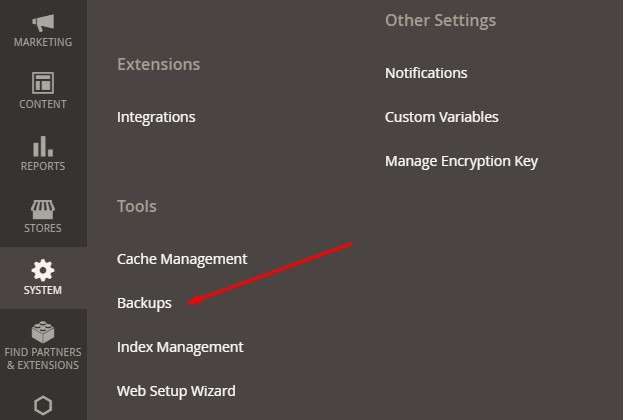
- Step to System → Tools → Backups
- You will see three options there - System Backup, Database and Media backup, Database backup
- See for yourself which option to choose, and click one of the orange buttons.
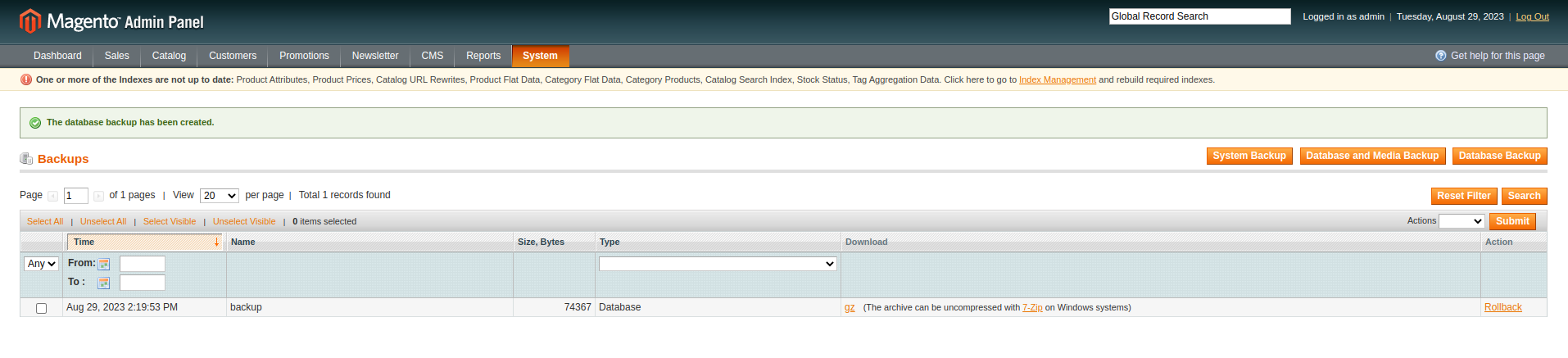
- Confirm your intention in the Warning window and specify the backup name in the box that’ll appear next.
- Wait till the Database backup has been created! message appears on the screen. When it happens, pat yourself on the back - you’ve done well.
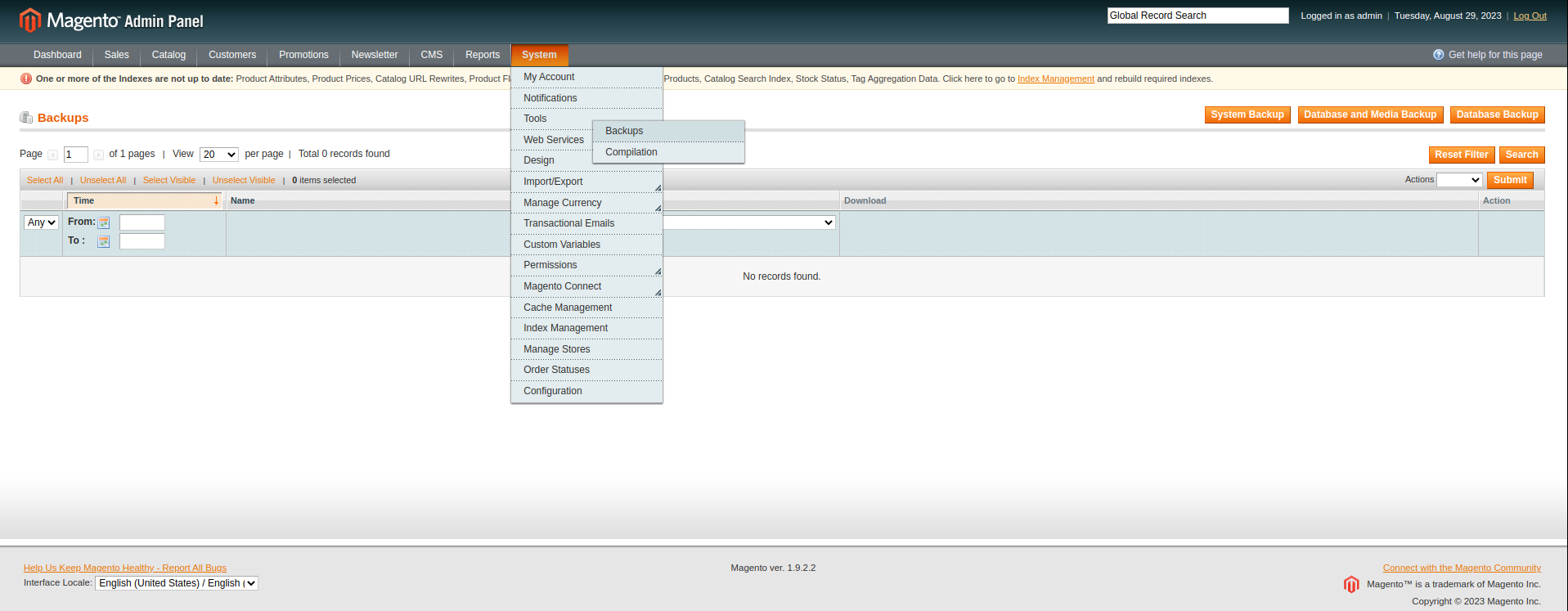
System Backup is the most radical one - it’ll pack your entire source code with database into one tar archive.
Database and Media backup will save your database and media folder’s content. Entities like store themes are not included. To learn about all migration options, refer to our additional options guide. Finally, Database Backup is self explanatory - it will take your Magento store data dump.
One great way to grow your online business is to explore the possibilities of a completely new platform, such as migrating from Magento to PrestaShop. We're here to help you - run a free demo now!
Also, you can turn the maintenance mode on while the procedure is in progress. We recommend putting a tick next to it so that no database changes happen while you are backing it up.
Besides Magento’s dashboard, you can log in to your hosting admin panel and backup database from there.
Since lots of our users seem to use cPanel, we’ll take it as an example:
- Log in to admin panel, find the Files section and press Backups
- Again, choose for yourself what kind of website backup to create - full, partial, or just the database backup. In case of the most later option - click on on the name of the needed database.
- That’s it, in a few minutes look for the database archive in your Downloads folder.
Restore Data from Database Backup
Restoring Magento databases doesn’t deserve a separate instruction since the entire procedure consists of one step.
In Magento admin panel:
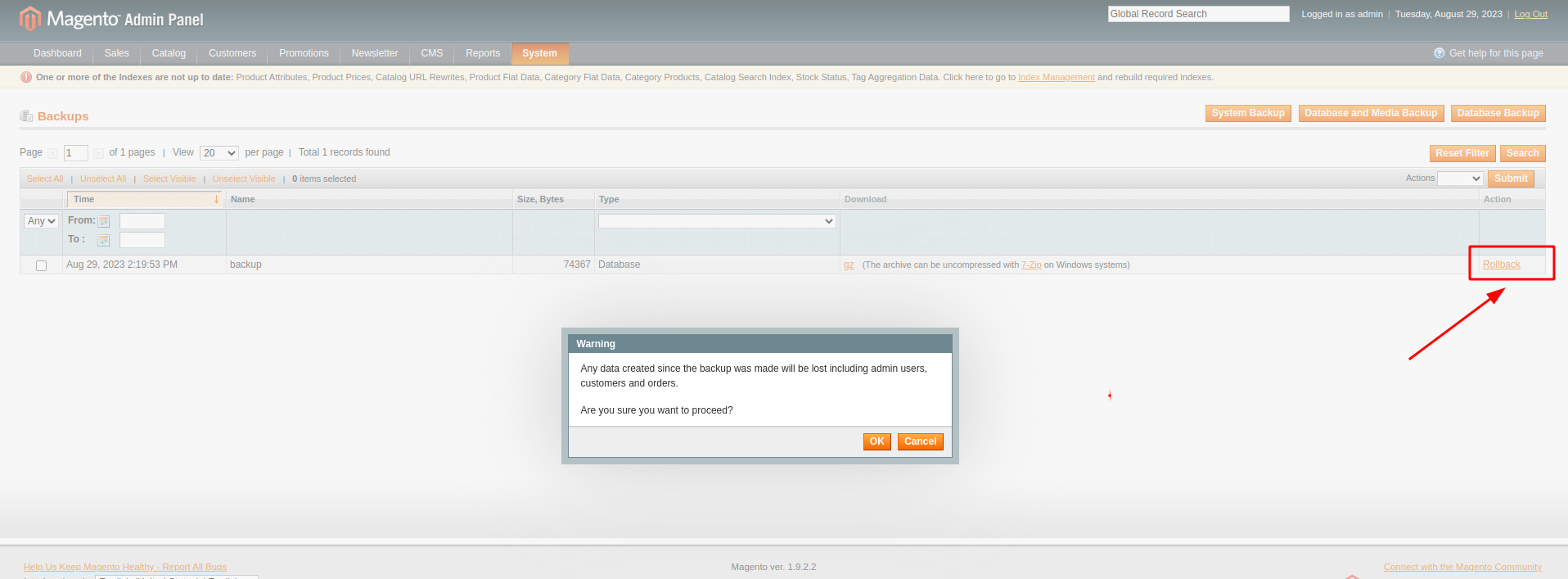
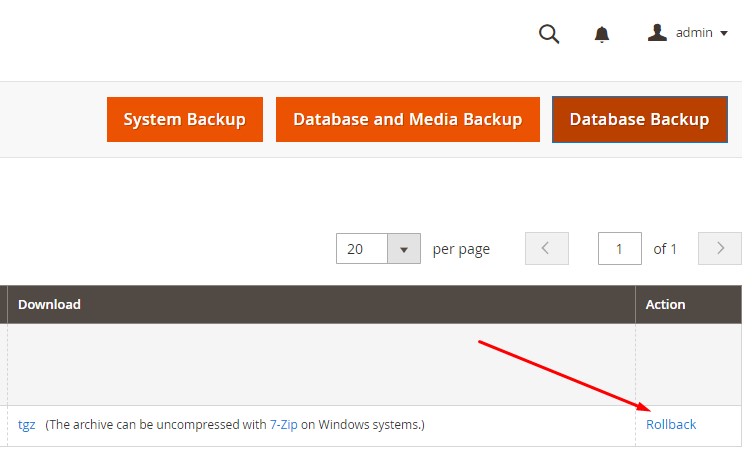
Navigate to System → Tools → Backups, pick the needed backup from the list and click Rollback
In your hosting’s cPanel:
Go to Backups in the Files section, under Restore a Database MySQL Backup, upload your backup archive.
Magento 2.x Version
How to Backup the Database?
- Open your Magento admin panel
- Go to System → Tools → Backups
- Choose the type of backup you wish to create (i.e., System Backup, Database and Media backup, Database backup) and tap on the corresponding button in the right upper corner
- Set the backup name. Also, we recommend you to put your store to the maintenance mode.
- Once done, click the Ok button
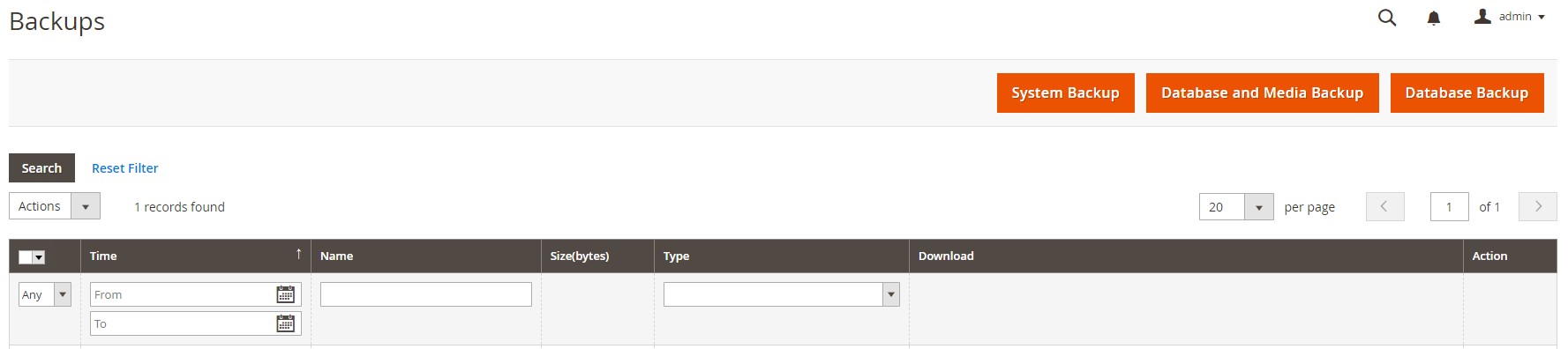

Note: Magento database backup may take from 20 sec. up to a few minutes. It usually depends on the database size, server capabilities, etc.
How to Restore the Database?
- Go to the Backups menu in the Admin panel
- Select the necessary backup file you wish to restore and click on the Rollback link
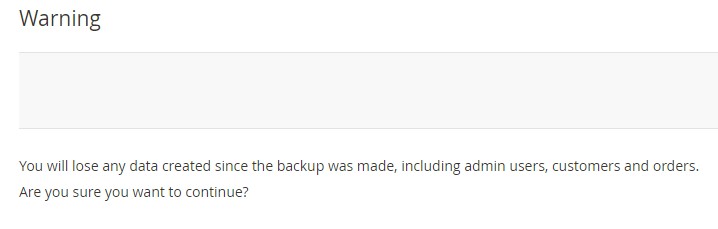
- After that you will receive the system warning. Tap Ok to proceed with the rollback
- Fill in your User password and put the store into the maintenance mode by ticking the corresponding box
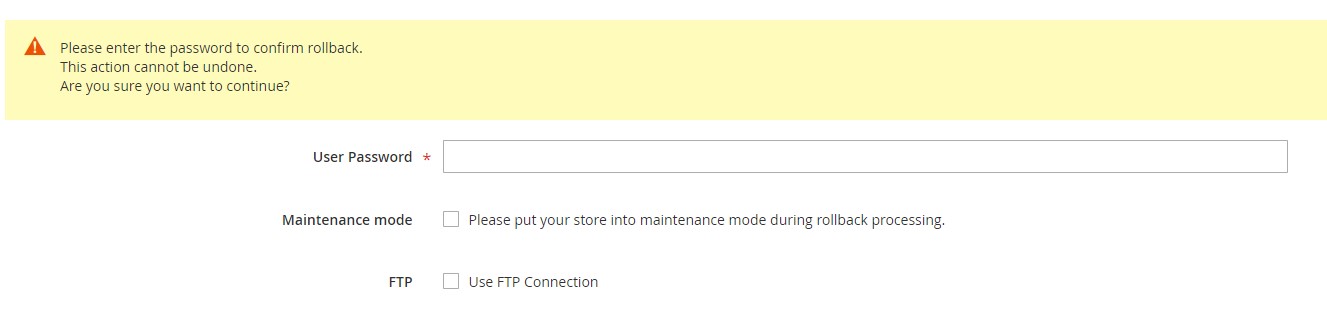
- Click the Ok button to start the rollback
These are not the only methods to backup and restore the Magento database but certainly the easiest ones. Should you have other suggestions on the subject, please share them in the comment box.
Don't miss the opportunity!
Level up your store with any of the top popular shopping carts by automatedly migrating data via Cart2Cart, like transitioning to Shopify.
Migrate nowMagento Backup and Restore - FAQs
How do I backup my Magento site?
To backup your Magento store, go to the Magento Admin Panel and navigate to System > Tools > Backups> сhoose the backup type you want (System Backup, Database and Media Backup, or Database Backup). With System Backup, you create a backup of the database and file system.
How long does it take to make a Magento backup?
It may take from 20 seconds to a few minutes to backup a Magento database. The amount of time usually depends on the size of the database and the server's capabilities. For a deeper dive into optimal server configurations for migration, check our technical requirements FAQ.
If you'd like to perform the Magento database migration, Cart2Cart will gladly lend you a helping hand. Do not hesitate to run a free Demo now!
Monthly Update – March 2026
As we step into March 2026, the focus for e-commerce businesses, particularly those leveraging platforms like Magento (Adobe Commerce), shifts towards spring campaigns and advanced personalization. This month, consider refining your customer segmentation strategies to deliver highly targeted promotions and content. Utilize AI-driven analytics to identify emerging shopping patterns and adjust your inventory accordingly. With mobile commerce continuing its rapid ascent, ensuring your Magento store offers a flawless, fast, and intuitive mobile experience is paramount. Evaluate your checkout process for any friction points and implement one-click purchase options or simplified guest checkouts. Furthermore, explore sustainable practices within your supply chain and product offerings, as consumers are increasingly valuing eco-conscious brands. March is also an ideal time to review your SEO performance from Q4 and Q1, making necessary adjustments to keywords and content to stay ahead of competitors. Embracing these proactive measures will position your store for significant growth throughout the remainder of the year.
For more details, explore our FAQ section or schedule a call with a migration expert.