

QuickBooks to Shopify Migration - Step-by-Step Guide & Expert Services
QuickBooks to Shopify migration can seem daunting, but Cart2Cart makes it swift, secure, and seamless. Ready to move your QuickBooks store to Shopify? Our powerful service helps you effortlessly transfer data, preserving SEO and ensuring zero downtime. Whether you're looking for a detailed guide to switch from QuickBooks to Shopify yourself, or prefer our experts to handle your entire QuickBooks to Shopify migration, we provide the reliable solution you need for a smooth transition.
What data can be
migrated from QuickBooks to Shopify
-
Products
-
Product Categories
-
Manufacturers
-
Customers
-
Orders
- Name, SKU, Full Description, Manufacturer.
- Meta Title, Meta Description.
- Quantity.
- Weight.
- Options(Name).
- Name, Status.
- Meta Title, Meta Description.
- Name.
- Newsletter.
- Customer Billing Address.
- Customer Shipping Address.
- Order Date, Order Status , Order Products(Final Price, Tax Value, Name, SKU), Discount Price, Tax Price, Shipping Price.
- Customer Name, Email, Billing Address.
- Shipping Address.
- Name, SKU, Full Description, Manufacturer.
- Meta Title, Meta Description.
- Quantity.
- Weight.
- Options(Name).
- Name, Status.
- Meta Title, Meta Description.
- Name.
- Newsletter.
- Customer Billing Address.
- Customer Shipping Address.
- Order Date, Order Status , Order Products(Final Price, Tax Value, Name, SKU), Discount Price, Tax Price, Shipping Price.
- Customer Name, Email, Billing Address.
- Shipping Address.
Products
Estimate your Migration Cost
The price of your migration depends on the volume of data to migrate and the additional migration options you pick. To check the price for QuickBooks to Shopify conversion, click “Get estimates” and follow the suggested steps.
How to Migrate from QuickBooks to Shopify In 3 Steps?
Connect your Source & Target carts
Choose QuickBooks and Shopify from the drop-down lists & provide the stores’ URLs in the corresponding fields.
Select the data to migrate & extra options
Choose the data you want to migrate to Shopify and extra options to customise your QuickBooks to Shopify migration.
Launch your Demo/Full migration
Run a free Demo to see how the Cart2Cart service works, and when happy - launch Full migration.
Migrate Your E-commerce Store from QuickBooks to Shopify: A Complete How-To Guide
Migrate Your E-commerce Store from QuickBooks to Shopify: A Complete How-To Guide
In today's fast-paced digital commerce landscape, transitioning your online store to a more robust and scalable platform is often a necessary step for growth. While QuickBooks is an excellent tool for accounting and inventory management, it's not designed as a full-fledged e-commerce storefront. Moving your critical e-commerce data – including products, customer information, and order history – from QuickBooks to a dedicated platform like Shopify can unlock a wealth of new features, improve user experience, and streamline your operations.
This guide will walk you through the entire replatforming journey, from preparing your QuickBooks data for export to configuring your new Shopify store. We'll leverage a powerful migration wizard to ensure a smooth and accurate data transfer, allowing you to focus on growing your business on its new, modern foundation. Let's explore how to effectively switch, move, and transfer your valuable business assets to Shopify.
Prerequisites for Migration
Before embarking on your data transfer, some crucial preparations are necessary to ensure a smooth and successful transition. By setting the stage correctly, you can minimize potential issues and downtime.
- QuickBooks Data Export: Since QuickBooks is not a direct e-commerce platform, your data will need to be exported into CSV (Comma Separated Values) files. This includes product listings (SKUs, variants, descriptions), customer records (names, addresses, order history), and order details. Ensure your data is clean and organized before export. Read our guide on CSV.File Data Migration for best practices.
- New Shopify Store Setup: Have a Shopify store already set up. You'll need admin access to install the necessary migration app and configure your new store. Consider a basic plan to start, which can be upgraded later. It's also recommended to disable notifications on your Shopify target store during the migration to prevent an influx of automated emails.
- Review Shopify Limitations: Be aware of Shopify's specific considerations. For instance, a 'Pause and Build' plan blocks orders, and customer reviews require a dedicated app like AirReviews. Familiarize yourself with how to prepare your target store for migration.
- Choose a Migration Tool: This guide assumes the use of a reliable migration wizard (like Cart2Cart) that supports CSV file imports for source data and direct API/App connections for Shopify.
- Backup Your Data: Always create comprehensive backups of all your QuickBooks data before initiating any migration process. This safeguards your information against unforeseen circumstances.
Performing the Migration: A Step-by-Step Guide
Once your preparations are complete, you're ready to begin the migration process using a dedicated e-commerce migration tool. The steps below outline a typical workflow using a migration wizard.
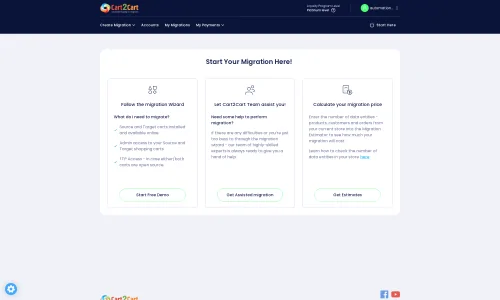
Step 1: Prepare QuickBooks Data for Export
Your QuickBooks data, while rich in detail, needs to be formatted for e-commerce. You'll need to export your products (with all relevant attributes, images, prices, and inventory levels), customer information (names, emails, addresses, purchase history), and order records (order IDs, items purchased, totals, statuses) into well-structured CSV files. Ensure that fields are correctly aligned for eventual mapping in the migration wizard. This crucial step is performed within QuickBooks and your spreadsheet software, outside the migration wizard itself.
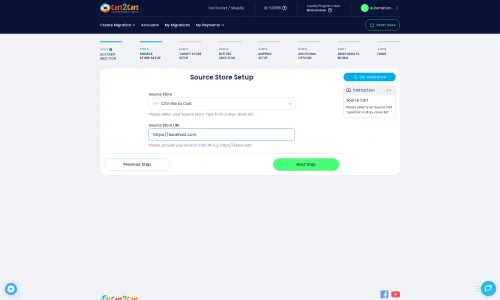
Step 2: Connect Your Source (QuickBooks via CSV)
Begin by selecting 'CSV File to Cart' as your source platform in the migration wizard. You will then be prompted to upload the CSV files containing your exported QuickBooks data. Make sure to upload all relevant files (products, categories, customers, orders, etc.) to ensure a complete data transfer.
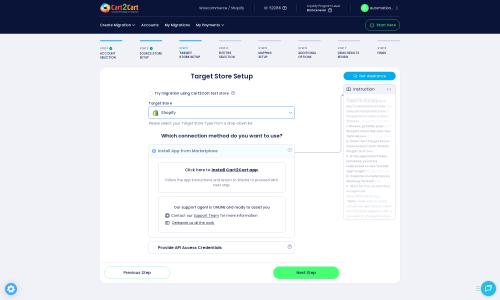
Step 3: Connect Your Target (Shopify)
Next, select 'Shopify' as your target e-commerce platform. The recommended and most straightforward connection method is to 'Install App from Marketplace.' This will direct you to the Shopify App Store to install the Cart2Cart Store Migration App, which facilitates a secure and seamless link between the migration tool and your new Shopify store. Alternatively, you can opt to 'Provide API Access Credentials' if you prefer a manual setup, referring to The Short & Essential Guide to Access Credentials for Cart2Cart for detailed instructions.
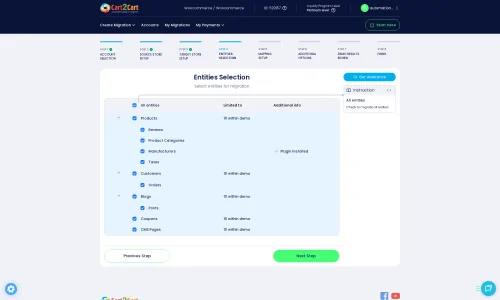
Step 4: Select Data Entities for Transfer
At this stage, you'll choose precisely which data entities you wish to move from your QuickBooks CSV files to Shopify. The migration wizard supports a wide range of data, including products, product categories, customers, orders, CMS pages, and blogs. You can select all available entities or hand-pick specific ones based on your needs. For a comprehensive store transition, it's generally recommended to transfer all relevant data.
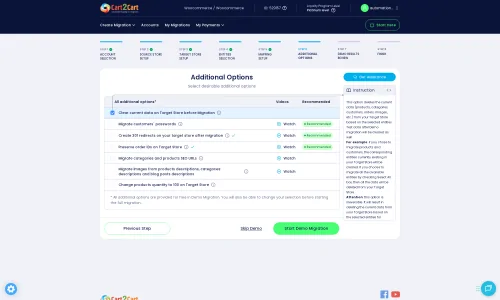
Step 5: Configure Additional Migration Options
This step allows you to fine-tune your data transfer with various optional settings. These can significantly impact the data integrity and SEO performance of your new Shopify store:
- Preserve Order IDs: This option ensures your existing order numbers from QuickBooks are retained in Shopify. Learn more about How Preserve IDs options can be used?
- Create 301 SEO URLs: Essential for maintaining your search engine rankings and link equity by redirecting old QuickBooks product and category URLs to their new Shopify counterparts.
- Migrate Images in Description: Ensures all embedded product images within descriptions are transferred.
- Clear Target Store Data: If your Shopify store has existing demo data, this option (often recommended for fresh migrations) will remove it before the transfer. Read about the Clear current data on Target store before migration option.
- Other Shopify-specifics: Be mindful that customer reviews may require a separate app (like AirReviews) after migration, and disabling notifications on Shopify is generally advised during the process.
Step 6: Map Data Fields
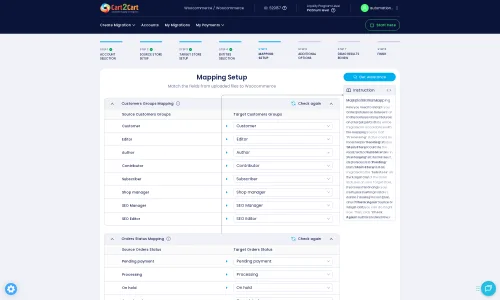
Data mapping is a critical step where you match the fields from your QuickBooks CSV files to the corresponding fields in Shopify. This includes mapping customer groups (if applicable) and order statuses (e.g., 'Pending' in QuickBooks to 'Pending payment' in Shopify). Accurate mapping ensures that your data is correctly categorized and displayed in your new store, preserving consistency and data integrity.
Step 7: Run Demo Migration & Full Migration
Before committing to a full data transfer, perform a free demo migration. This moves a limited number of entities (e.g., 10-20 products, customers, and orders) to your Shopify store. Review the demo results thoroughly to verify that all data, including SKUs, variants, prices, customer details, and order history, has been transferred accurately. This helps identify and resolve any mapping or formatting issues early.
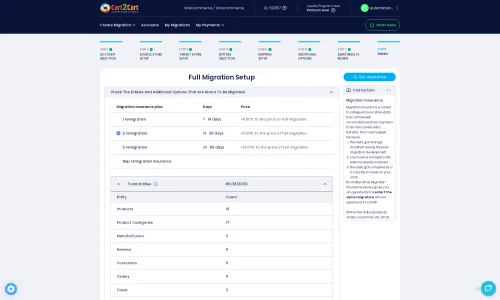
Once satisfied with the demo, proceed with the full migration. You'll review the migration plan and cost. Consider adding a Migration Insurance Service, which offers additional remigrations if needed. Upon confirmation, the wizard will begin transferring all your selected data. The duration depends on the volume of your data.
Post-Migration Steps
Migrating your data is a significant milestone, but the journey doesn't end there. Several essential post-migration tasks are crucial to ensure your new Shopify store is fully functional, optimized, and ready for customers.
- Thorough Data Verification: Rigorously check all migrated data. Verify product listings, images, descriptions, prices, inventory levels, customer accounts, order history, and CMS pages. Ensure metadata is correct and that all variants appear as expected.
- Configure Shopify Settings: Set up your payment gateways, shipping zones and rates, and tax settings. Shopify allows for multi-tax configurations, so ensure these align with your business needs.
- Design and Theme Customization: Customize your Shopify theme to match your brand's aesthetic and ensure a seamless user experience. Leverage Shopify's extensive Theme Store.
- Install Essential Apps: Explore the Shopify App Store for critical integrations. Remember, reviews often require a dedicated app (like AirReviews). Consider apps for SEO, marketing, customer service, and other functionalities that enhance your store.
- SEO Optimization and Redirects: If you utilized the 'Create 301 SEO URLs' option, verify that all redirects from your old QuickBooks URLs to new Shopify URLs are working correctly. Update any internal links within your content. Submit your new sitemap to search engines (Google Search Console, Bing Webmaster Tools) and monitor your SEO rankings to maintain link equity.
- Conduct Test Transactions: Place several test orders, register new customer accounts, and test your entire checkout flow to ensure everything works flawlessly.
- Update DNS Records: Once confident, update your domain's DNS records to point to your new Shopify store. This is the moment your new store officially goes live.
- Ongoing Monitoring: Continuously monitor your store's performance, customer feedback, and analytics.
Migrating from QuickBooks to Shopify is a substantial undertaking, but with careful planning and execution, it can lead to significant improvements in your e-commerce operations. If you encounter complex challenges or prefer expert assistance, consider our Ultimate Data Migration Service or contact us for personalized support. Welcome to your enhanced e-commerce journey on Shopify!
Ways to perform migration from QuickBooks to Shopify
Automated migration
Just set up the migration and choose the entities to move – the service will do the rest.
Try It Free
Data Migration Service Package
Delegate the job to the highly-skilled migration experts and get the job done.
Choose Package
Custom Migration
Need metafields, SEO URLs, variant rules, or other tailored mapping? Explore customizations built for real merchant demand.
Browse Customizations

Benefits for Store Owners

Benefits for Ecommerce Agencies
Choose all the extra migration options and get 40% off their total Price

The design and store functionality transfer is impossible due to QuickBooks to Shopify limitations. However, you can recreate it with the help of a 3rd-party developer.

Your data is safely locked with Cart2Cart
We built in many security measures so you can safely migrate from QuickBooks to Shopify. Check out our Security Policy
Server Security
All migrations are performed on a secure dedicated Hetzner server with restricted physical access.Application Security
HTTPS protocol and 128-bit SSL encryption are used to protect the data being exchanged.Network Security
The most up-to-date network architecture schema, firewall and access restrictions protect our system from electronic attacks.Data Access Control
Employee access to customer migration data is restricted, logged and audited.Frequently Asked Questions
Can customer passwords be migrated from QuickBooks data to Shopify?
Should I use an automated tool or hire an expert for QuickBooks to Shopify migration?
Can my QuickBooks store's design or theme be transferred to Shopify?
What data entities can be migrated from QuickBooks to Shopify?
How can I ensure data accuracy after migrating from QuickBooks to Shopify?
How long does a QuickBooks to Shopify data migration typically take?
What factors influence the cost of migrating data from QuickBooks to Shopify?
Will my QuickBooks data transfer to Shopify cause downtime for my store?
How to avoid losing SEO rankings when migrating from QuickBooks data to Shopify?
Is my QuickBooks data secure during the transfer to Shopify?
Why 150.000+ customers all over the globe have chosen Cart2Cart?
100% non-techie friendly
Cart2Cart is recommended by Shopify, WooCommerce, Wix, OpenCart, PrestaShop and other top ecommerce platforms.
Keep selling while migrating
The process of data transfer has no effect on the migrated store. At all.
24/7 live support
Get every bit of help right when you need it. Our live chat experts will eagerly guide you through the entire migration process.
Lightning fast migration
Just a few hours - and all your store data is moved to its new home.
Open to the customers’ needs
We’re ready to help import data from database dump, csv. file, a rare shopping cart etc.
Recommended by industry leaders
Cart2Cart is recommended by Shopify, WooCommerce, Wix, OpenCart, PrestaShop and other top ecommerce platforms.
Trusted by eCommerce dominators since 2009
















This Shopify Migration App worked great to migrate our store from Volusion to Shopify! It transferred over all product descriptions, photos, categories, etc. seamlessly. It’s very easy to use, and the instructions are very easy to follow. Considering the amount of information that we needed transferred, it did not take as long as we had expected.
We did an initial transfer to test out how things would look and how everything would function. It worked great! We purchased insurance with our migration so that we could re-migrate once our shop was closer to being ready to push live, and customer service has been AMAZING in our requests necessary with our remigration. They are very responsive, very informative, and extremely helpful. I would definitely recommend this service if you are looking to transfer your eCommerce site. Everything has been great! Thank you!
Review source

We had a few false starts, but ultimately I was paired with a great customer service representative who did everything necessary to transfer our products correctly from Wix to Shopify. I will absolutely use this company for future client migrations.
Review source

I contacted Cart2Cart’s help desk (direct chat) and had my questions answered very quickly and very politely. I feel much more confident now with my decision to use Cart2Cart to do the data migration from my existing website to Shopify. I was recommended to Cart2Cart for Shopify Migration by a trusted friend and I will definitely recommend them also to anyone looking to migrate. Moving website providers has been a source of stress for me and at least this is one less thing to worry about.
Review source

I had a great experience with Cart2Cart. Reading some of the negative reviews here says more about how complex ecommerce migration is than anything else. I will say that I highly recommend paying the extra $ for their assisted service, which I did. It is totally work the extra $200 or $300 because you get a project manager who is very available, and you get to tweak your migration settings to make sure everything is just right. With the automated tools they offer, you’re on your own. But their customer support on my project was fast and responsive to my questions, and they were able to make any adjustments I needed. I migrated from Virtuemart to Shopify with over 12,000 orders and 4,000 customers. The migration was smooth. They scheduled the last “new data” import for me at a time I chose (within their working hours). And the migration was a success.
Review source

Fantastic App. We migrated from Volusion to Shopify with no problems. Customer Accounts, Inventory, Sales Orders…everything was transferred over.
The only quirk we had was that passwords didn’t transfer over (I’m sure this is a security issue and I have no problem with it at all). The solution was to just send out a mass e-mail to all of our customers asking them to reset their password. Once they reset their password they would still have their shipping information saved as well as the list of their previous orders.
WOULD HIGHLY RECOMMEND THIS APP…but like any migration process be sure you research & make sure you are doing it the correct way so there are no issues. You can’t blame a vendor for a user mistake 🙂
Review source
My experience with Migration for Shopify was positive. I was explained about the prerequisites and peculiarities for my migration from Magneto to Shopify in a detailed manner. The app is very easy to use. The migration was smooth.
Review source
We migrated a large x-cart site to shopify. This was the only app that could help us migrate hundreds of thousands of orders and customers. They were extremely knowledgeable and responsive. They answered my questions quickly and accurately. The initial migration went smoothly with no errors. The final migration at launch (to bring in the newest orders and customers) went equally as well. Data security was also handled to my satisfaction. Definitely would recommend this app.
Review source
The only company I trust for migrating our websites. We migrated one basic and two plus accounts from Magento to Shopify. The help was amazing. Oleksander was a huge help in making sure everything was right. No reason to do it with any other company. Trust the best.
Review source
Migration for Shopify is exactly what I needed when making the huge decision to migrate my website. By reducing the time needed to import products and orders – I can now focus on design and other very important things to ensure a smooth cart to cart transition.
Review source