
OpenCart to Square Migration - Step-by-Step Guide & Expert Services
OpenCart to Square migration shouldn't be complicated. Ready to effortlessly move OpenCart store to Square? Cart2Cart simplifies the entire process, ensuring a fast, secure, and SEO-friendly switch from OpenCart to Square, with absolutely zero downtime. Access our comprehensive guide to transfer data yourself, maintaining all your precious customer and product information. Or, let our expert team handle your complete, worry-free OpenCart to Square migration. Your store's future is secure and fast.
What data can be
migrated from OpenCart to Square
-
Products
-
Product Categories
-
Customers
Estimate your Migration Cost
To check your OpenCart to Square migration price, click the button below. The migration price varies in accordance with the number of data types and the additional migration options selected.
How to Migrate from OpenCart to Square In 3 Steps?
Connect your Source & Target carts
Choose OpenCart and Square from the drop-down lists & provide the stores’ URLs in the corresponding fields.
Select the data to migrate & extra options
Choose the data you want to migrate to Square and extra options to customise your OpenCart to Square migration.
Launch your Demo/Full migration
Run a free Demo to see how the Cart2Cart service works, and when happy - launch Full migration.
Migrate OpenCart to Square: A Comprehensive Guide for a Seamless E-commerce Transition
A Comprehensive Guide to Transitioning from OpenCart to Square
As your e-commerce business evolves, the need for a more robust, scalable, or user-friendly platform often arises. Migrating your online store from OpenCart to Square can unlock new capabilities, streamline operations, and enhance your overall merchant experience. Square, known for its integrated payment solutions and intuitive interface, offers a powerful ecosystem for growing businesses, while OpenCart has served many merchants well with its open-source flexibility.
This expert guide will walk you through the entire process of moving your valuable data from your existing OpenCart store to a brand-new Square environment. We’ll cover everything from essential prerequisites to post-migration verification, ensuring your transition is as smooth and efficient as possible, preserving your critical customer data, product catalogs, and order history.
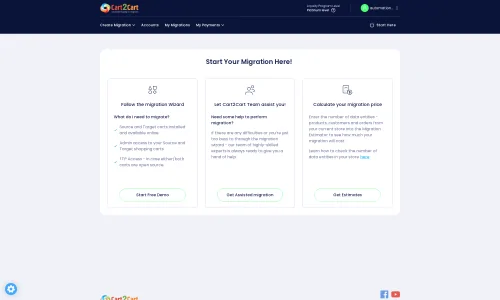
Prerequisites for Migration
Before embarking on your data transfer journey, ensure you have the following in place to guarantee a successful and interruption-free migration:
- For Your OpenCart (Source) Store:
- Admin Access: You will need full administrator access to your OpenCart store, including the admin login, password, and the full store URL. This is crucial for the migration tool to establish a connection. Read our The Short & Essential Guide to Access Credentials for Cart2Cart.
- FTP/SFTP Access: As OpenCart primarily uses a "Bridge only" connection method for advanced migration tools, you may need FTP or SFTP access to your OpenCart server to upload a connection bridge file to your store's root directory.
- Required Extension: The Cart2Cart Universal OpenCart Migration extension is required for a complete data transfer. Ensure this is ready for installation or already installed.
- Data Backup: Always perform a complete backup of your OpenCart store’s database and files. While migration tools are designed for safety, having a backup is a critical safeguard. Learn more about How to prepare Source store for migration?
- For Your Square (Target) Store:
- New Square Account: Set up a new Square account or ensure your existing one is ready to accept e-commerce data.
- Basic Setup: Complete the initial setup steps for your Square online store, such as selecting a template, configuring currency settings, and establishing shipping zones. This provides a clean canvas for your migrated data.
- API Access (Potential): Depending on the migration tool, you may need to generate API keys or tokens from your Square dashboard to grant access for data import.
- Target Store Preparation: Familiarize yourself with How to prepare Target store for migration? to ensure a smooth import.
- General Preparations:
- Reliable Internet Connection: A stable internet connection is vital to prevent any interruptions during the data transfer process.
- Dedicated Time: While the migration tool automates much of the process, allocate sufficient time for monitoring, verification, and post-migration tasks.
Performing the Migration: A Step-by-Step Guide
Migrating your OpenCart store to Square is made straightforward with specialized migration tools. Follow these steps to ensure a smooth and accurate data transfer.
Step 1: Get Started with Your Migration Tool
Begin by signing up or logging into your chosen migration service. This will typically lead you to a migration wizard where you define your source and target platforms.
Step 2: Connect Your OpenCart Source Store
In the migration wizard, select OpenCart as your Source Cart. You will then be prompted to provide your OpenCart store's URL. As OpenCart’s connection method is primarily “Bridge only,” you will need to download and upload a connection bridge file to your OpenCart store's root directory via FTP/SFTP. This bridge acts as a secure gateway, allowing the migration tool to access your store's database securely. Remember that the Cart2Cart Universal OpenCart Migration extension is required to facilitate this process fully.
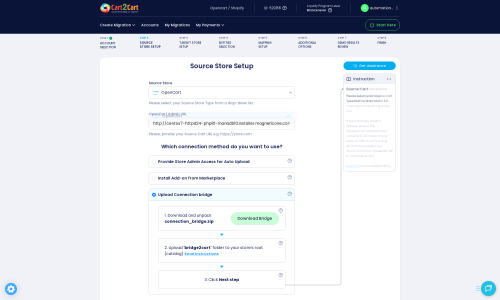
Step 3: Connect Your Square Target Store
Next, select Square as your Target Cart. The migration tool will then guide you through connecting to your Square online store. This usually involves providing your Square store URL and potentially your Square API credentials to authorize the connection. Follow the on-screen instructions carefully to establish a secure link between the migration service and your new Square store.
Step 4: Select Data Entities to Migrate
This critical step allows you to choose exactly what data you want to transfer from OpenCart to Square. You can select all available entities or pick specific ones. OpenCart supports the migration of a comprehensive range of data, including:
- Products (with their variants, SKUs, and images)
- Product Categories
- Product Manufacturers
- Product Reviews
- Customers (including customer groups and billing/shipping addresses)
- Orders (with order statuses, details, and associated data)
- Invoices
- Taxes
- Stores (multi-store specific data)
- Coupons
- CMS Pages
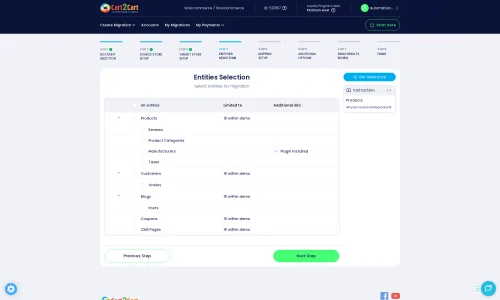
Step 5: Configure Additional Options and Data Mapping
This stage is crucial for customizing your data transfer and ensuring data integrity and SEO preservation.
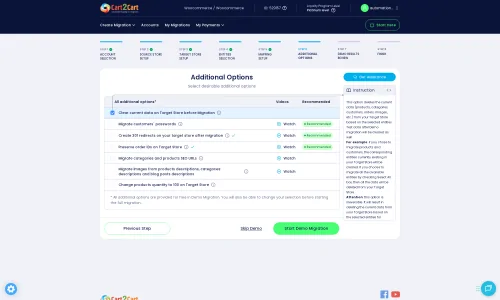
Additional Options:
Review the list of additional options and select those that align with your business needs:
- Migrate Images in Description: Essential for transferring product and category images embedded within descriptions.
- Clear Target: Opt to Clear current data on Target store before migration option if your Square store contains dummy data you wish to remove before the actual transfer.
- Preserve IDs: Select options like How Preserve IDs options can be used? for products, orders, and customers to maintain their original IDs, which can be vital for inventory management and historical data consistency.
- SEO URLs & 301 Redirects: Enable these options to migrate your existing SEO URLs and automatically create 301 redirects. This is paramount for maintaining your search engine rankings and link equity after the replatforming.
- Password Migration: If supported, migrate customer passwords to ensure a seamless login experience for your existing customers.
- Migrate Invoices: Transfer existing invoice records to Square.
- Multi-Tax Support: OpenCart allows for multi-tax configurations, ensure these settings are handled during the migration.
Data Mapping:
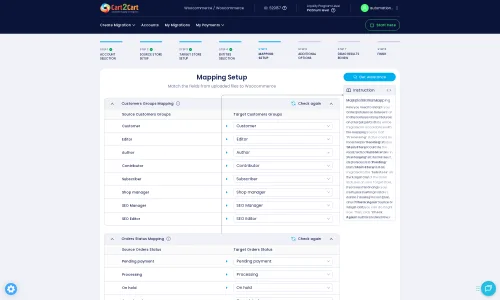
The migration wizard will present you with data mapping options, particularly for customer groups and order statuses. Carefully match the corresponding fields from your OpenCart store to your Square store to ensure consistency in customer roles and order workflows.
Step 6: Run a Free Demo Migration (Optional but Recommended)
Before committing to a full migration, run a free demo migration. This transfers a limited set of your data to Square, allowing you to:
- Verify the accuracy of the data transfer.
- Check how products, customers, and orders appear in your new Square store.
- Identify and resolve any potential issues before the full transfer.
This is an excellent opportunity to utilize a Migration Preview Service.
Step 7: Initiate Full Data Migration
Once you are satisfied with the demo results and have reviewed all your settings, you can proceed with the full data migration. Confirm the final cost and initiate the process. Consider adding a Migration Insurance Service, which offers additional remigrations and support. Learn more about How Migration Insurance works?
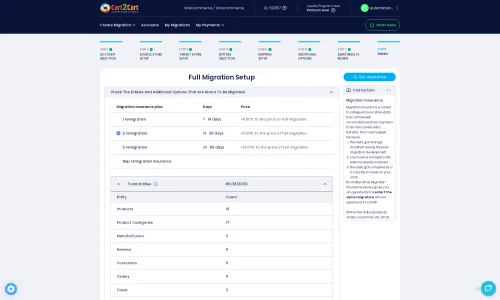
During this stage, the migration tool will transfer all selected data from OpenCart to Square. You will receive notifications on its progress, and you can generally monitor the process from your account dashboard.
Post-Migration Steps
After your data has been successfully transferred to Square, there are several crucial steps to finalize your store's transition and ensure everything is running perfectly.
- Data Verification: Thoroughly check all migrated data in your Square store. Review product listings (SKUs, variants, descriptions, images), customer accounts, order history, and CMS pages. Ensure everything is in its correct place and accurately displayed.
- Website Testing: Conduct comprehensive testing of your new Square store. Test the entire purchasing flow from product browsing to checkout, payment processing, and order confirmation. Check forms, search functionality, and mobile responsiveness.
- SEO Rework and Redirection Check: Verify that all your 301 redirects are correctly implemented and functioning. Update your sitemap and submit it to Google Search Console. Monitor your SEO rankings to ensure minimal impact.
- Update DNS Settings: Once you are confident that your Square store is fully operational, update your domain's DNS settings to point to your new Square store. This makes your new platform live to the public.
- Install Essential Apps & Integrations: Re-integrate any third-party apps, plugins, or services that you previously used on OpenCart and are available or have equivalents in the Square App Marketplace (e.g., email marketing, accounting, analytics).
- Notify Customers: Inform your customers about the platform change. Reassure them that their account data is secure and guide them on any new login procedures (if passwords were not migrated).
- Monitor Performance: Keep a close eye on your store's performance metrics, including traffic, sales, and user behavior. This will help you quickly identify and address any post-migration anomalies.
- Consider Recent Data Migration: If new orders or customer data accumulated on your OpenCart store during the migration period, consider using a Recent Data Migration Service to transfer this latest information.
By following these steps, you can confidently transition your e-commerce business from OpenCart to Square, leveraging Square's powerful features for continued growth and success.
Ways to perform migration from OpenCart to Square
Automated migration
Just set up the migration and choose the entities to move – the service will do the rest.
Try It Free
Data Migration Service Package
Delegate the job to the highly-skilled migration experts and get the job done.
Choose Package

Benefits for Store Owners

Benefits for Ecommerce Agencies
Choose all the extra migration options and get 40% off their total Price

The design and store functionality transfer is impossible due to OpenCart to Square limitations. However, you can recreate it with the help of a 3rd-party developer.

Your data is safely locked with Cart2Cart
We built in many security measures so you can safely migrate from OpenCart to Square. Check out our Security Policy
Server Security
All migrations are performed on a secure dedicated Hetzner server with restricted physical access.Application Security
HTTPS protocol and 128-bit SSL encryption are used to protect the data being exchanged.Network Security
The most up-to-date network architecture schema, firewall and access restrictions protect our system from electronic attacks.Data Access Control
Employee access to customer migration data is restricted, logged and audited.Frequently Asked Questions
Can customer passwords be migrated from OpenCart to Square?
What data entities can be migrated from OpenCart to Square?
How long does it take to migrate an OpenCart store to Square?
Will my OpenCart store's design and theme transfer automatically to Square?
What factors influence the cost of an OpenCart to Square migration?
How can I maintain my SEO rankings after migrating from OpenCart to Square?
Should I use an automated tool or hire an expert for OpenCart to Square migration?
How do I ensure data accuracy after migrating my OpenCart store to Square?
Is my OpenCart store data secure during the migration to Square?
Will my OpenCart store experience downtime during migration to Square?
Why 150.000+ customers all over the globe have chosen Cart2Cart?
100% non-techie friendly
Cart2Cart is recommended by Shopify, WooCommerce, Wix, OpenCart, PrestaShop and other top ecommerce platforms.
Keep selling while migrating
The process of data transfer has no effect on the migrated store. At all.
24/7 live support
Get every bit of help right when you need it. Our live chat experts will eagerly guide you through the entire migration process.
Lightning fast migration
Just a few hours - and all your store data is moved to its new home.
Open to the customers’ needs
We’re ready to help import data from database dump, csv. file, a rare shopping cart etc.
Recommended by industry leaders
Cart2Cart is recommended by Shopify, WooCommerce, Wix, OpenCart, PrestaShop and other top ecommerce platforms.
Trusted by eCommerce dominators since 2009












I tried Cart2Cart Migration services for my Magento2 Store. It was very smooth. The support is friendly and quick. The full data was migrated successfully from OpenCart store without hassle. Truly a surprise. Highly recommended
Review source
No complaints at all with this company. I have used the service a few different times to migrate from Volusion to Opencart and then from Opencart to Shopify and every time the process has been super easy, quick and efficient. Customer service also is excellent. There seems to be someone available on chat to help 24/7 which is extremely helpful!
I even experimented with another migration service, but ended up returning to Cart2Cart as they are simply superior. Thanks!
Review source
It was very quick for me to try the migration from open-cart to Shopify using cart2cart. It hardly took me 30 minutes. I was amazed to see the end-2-end working solution without any issue. good stuff guys.
Review source
We were looking to migrate our e-commerce website from existing platform of Opencart to Shopify. After reviewing multiple options, we decided to try out Cart2Cart. After reading a few tutorials (which are not lengthy BTW) , I decided to talk with rep from Cart2Cart. From that point on, I was provided with step by step instructions and I was migrated to Shopify in less an hour! Super easy .. Rep was helpful and instructions are clear and easy to follow for someone with little to no technical abilities. I highly recommend this tool for your migrations! Keep up the good work Cart2Cart team.
Review source
Cart2Cart is very great product, the automated software saved me lots of time in the process of migrating from Opencart to WooCommerce. All product information, user information and order history are migrated in one go, this is a highly recommended software! And their customer service is superior. Thank you!
Review source
Had a lot of questions and custom things and the people at Cart2Cart made no problem about it. Everything worked out perfectly. Transferring from OpenCart -> WooCommerce. This was our third client migrating. 10/10 would recommend.
Review source
Support excellent and quick. This was my second migration from Opencart to Woocommerce and it works perfectly. Thank you Cart2Cart and in particular Lena and Tania.
Review source
I searched all internet for a solution to migrate my products from opencart to woocomemrce. This seemed the most trustworthy. Now .. i was still a bit afraid. I checked out their demo .. worked flawlessly .. then had a lot of questions .. found them answered on their website .. Still had problems deciding .. and started talking with the chat persons .. They’ve solved my problems in the most professional manner possible. Will use again and totally recommend them to others!
Review source
I have been using this service a handful of times over the years migrating prestashop and opencart shops to woocommerce and it runs without failure every time. It is relatively simple to install. Upload a “bridge” folder on source cart and target cart and you are more or less ready to start migrating. Has excellent 24 hour support ready to answer your questions. Be aware that it does not support ENV variables being used for database credentials
Review source
I used Cart2Cart for my agency as I was performing a mass migration from OpenCart to WooCommerce for a client. It wasn’t cost effective for us to write scripts to perform the migration so we chose Cart2Cart and it worked out very well.
Review source