
Zen Cart to Squarespace Migration - Step-by-Step Guide & Expert Services
Seamless Zen Cart to Squarespace migration awaits! Ready to move Zen Cart store to Squarespace with confidence? Our automated service ensures a lightning-fast, secure transfer data process, preserving all your vital SEO. Switch from Zen Cart to Squarespace with absolutely zero downtime, protecting your sales. Access our comprehensive step-by-step guide for DIY users or choose expert assistance if you want it done for you. Cart2Cart simplifies your complete Zen Cart to Squarespace migration.
What data can be
migrated from Zen Cart to Squarespace
-
Products
-
Product Categories
-
Customers
-
Orders
- Name, ID, SKU, Full Description, Status, Images in Description.
- Price, Special Price.
- Product Image, Additional Images.
- Quantity, Stock Status.
- Weight.
- Options(Name).
- Product Variants(SKU, Quantity, Price, Special Price).
- Name, ID.
- Meta Title.
- First Name, Last Name, Email, Created Date.
- Customer Billing Address(First Name, Last Name, Address 1, Address 2, Country, State, City, Zip Code, Telephone).
- Customer Shipping Address(First Name, Last Name, Address 1, Address 2, Country, State, City, Zip Code, Telephone).
- Payment method name, Shipping method name.
- ID, Order Date, Order Status, Order Products(Name, SKU), Product Price, Quantity, SubTotal Price, Discount Price, Tax Price, Shipping Price, Total Price.
- Customer Name, Email, Telephone, Billing Address(First Name, Last Name, Address 1, Address 2, Country, State, City, Zip Code, Telephone).
- Shipping Address(First Name, Last Name, Address 1, Address 2, Country, State, City, Zip Code, Telephone).
- Name, ID, SKU, Full Description, Status, Images in Description.
- Price, Special Price.
- Product Image, Additional Images.
- Quantity, Stock Status.
- Weight.
- Options(Name).
- Product Variants(SKU, Quantity, Price, Special Price).
- Name, ID.
- Meta Title.
- First Name, Last Name, Email, Created Date.
- Customer Billing Address(First Name, Last Name, Address 1, Address 2, Country, State, City, Zip Code, Telephone).
- Customer Shipping Address(First Name, Last Name, Address 1, Address 2, Country, State, City, Zip Code, Telephone).
- Payment method name, Shipping method name.
- ID, Order Date, Order Status, Order Products(Name, SKU), Product Price, Quantity, SubTotal Price, Discount Price, Tax Price, Shipping Price, Total Price.
- Customer Name, Email, Telephone, Billing Address(First Name, Last Name, Address 1, Address 2, Country, State, City, Zip Code, Telephone).
- Shipping Address(First Name, Last Name, Address 1, Address 2, Country, State, City, Zip Code, Telephone).
Products
Estimate your Migration Cost
To check your Zen Cart to Squarespace migration price, click the button below. The migration price depends on the number of data types and the additional migration options selected.
How to Migrate from Zen Cart to Squarespace In 3 Steps?
Connect your Source & Target carts
Choose Zen Cart and Squarespace from the drop-down lists & provide the stores’ URLs in the corresponding fields.
Select the data to migrate & extra options
Choose the data you want to migrate to Squarespace and extra options to customise your Zen Cart to Squarespace migration.
Launch your Demo/Full migration
Run a free Demo to see how the Cart2Cart service works, and when happy - launch Full migration.
Migrate Zen Cart to Squarespace: Your Essential Guide to a Seamless E-commerce Transition
A Comprehensive Guide to Transitioning from Zen Cart to Squarespace
As your e-commerce business evolves, the need for a more modern, intuitive, and scalable platform often becomes evident. Zen Cart, while a robust solution in its time, may no longer meet the demands of today's competitive online retail landscape. Migrating to Squarespace offers a fresh start with a user-friendly interface, integrated marketing tools, and stunning design capabilities, promising an improved user experience for both you and your customers.
This expert guide will walk you through every critical step of moving your online store, including all your valuable products, customer data, and order history, from Zen Cart to Squarespace. We'll leverage a powerful migration tool to ensure a smooth and efficient data transfer, preserving data integrity and minimizing downtime.
Prerequisites for Migration
Before initiating your store migration, thorough preparation is crucial for a successful data transfer. Follow these steps to ensure both your Zen Cart source store and your new Squarespace target store are ready.
For Your Zen Cart Store (Source)
- Data Backup: Always perform a complete backup of your Zen Cart database and files. This is your safety net in case of any unforeseen issues during the replatforming process.
- Data Audit: Clean up any outdated or unnecessary data. Delete old products, customer accounts, or orders that you no longer need. This streamlines the migration and ensures you only move relevant information.
- Install Migration Module: Zen Cart requires a bridge connection for data extraction. You will need to install the Cart2Cart Zen Cart Migration module on your Zen Cart server. This module facilitates secure communication between your old store and the migration service.
- Access Credentials: Ensure you have full administrative access to your Zen Cart store, including your admin login, password, and the full URL to your store and admin panel. You'll also need to know the location where the bridge file is uploaded. For more details on accessing credentials, refer to The Short & Essential Guide to Access Credentials for Cart2Cart.
For Your Squarespace Store (Target)
- Create Squarespace Account: If you haven't already, sign up for a Squarespace account and set up a new website. Choose a template that aligns with your brand's aesthetic. You don't need to manually add products or content at this stage, as they will be migrated.
- Install Migration App: Squarespace utilizes an API-only connection method. You will need to install the Cart2Cart Squarespace Migration App within your Squarespace account to enable data import.
- API Access: Prepare your Squarespace administrative email and password. Be aware of Squarespace's API rate limits and ensure your site uses HTTPS, which is a requirement for API access. Note that custom app development might be needed for advanced functionalities, but the migration app handles basic data transfer.
- Target Store Preparation: Consider if you want to clear any existing data on your Squarespace target store before migration.
For a comprehensive guide on preparing your stores, consult How to prepare Source store for migration? and How to prepare Target store for migration?.
Performing the Migration: A Step-by-Step Guide
With your stores prepared, let's begin the data transfer process using a dedicated migration wizard.
Step 1: Connect Your Cart2Cart Account
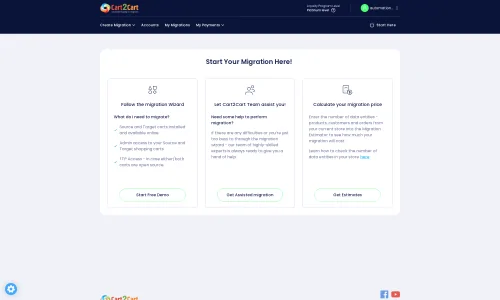
Navigate to the Cart2Cart website. If you're a new user, register for an account; otherwise, log in. Initiate a new migration to begin the setup process. This is where your journey to a new platform starts.
Step 2: Set Up Source Cart: Zen Cart
From the dropdown menu, select 'Zen Cart' as your Source Cart. You will then be prompted to enter your Zen Cart store's URL, your admin URL, and upload the Cart2Cart Zen Cart Migration Module (the bridge file) to the root folder of your Zen Cart installation. This bridge acts as a secure conduit, allowing the migration tool to access your store's database. Click 'Verify Connection' to proceed.
Step 3: Configure Target Cart: Squarespace
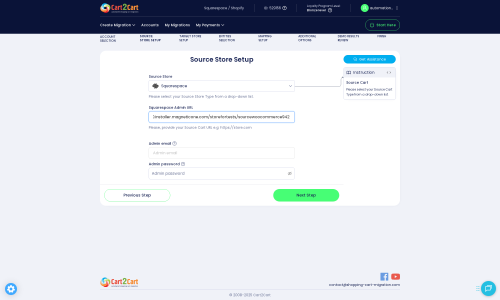
Next, select 'Squarespace' as your Target Cart. Provide the necessary API connection details: your Squarespace Admin URL, the administrator's email, and your admin password. The system will attempt to connect to your Squarespace store via its API. Once the connection is verified, you can move to the next step.
Step 4: Select Data Entities to Migrate
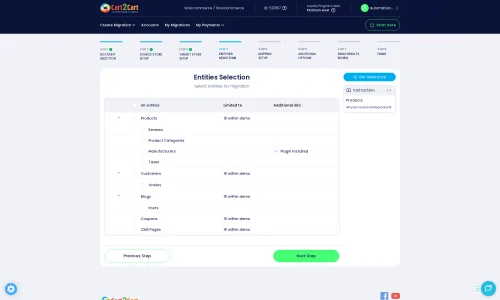
This crucial step allows you to choose exactly which data you wish to transfer from Zen Cart to Squarespace. You can migrate a wide range of entities, including:
- Products: Including SKUs, variants, descriptions, images, prices, and inventory levels.
- Product Categories: Ensuring your store's structure remains intact.
- Products Reviews: Preserving valuable social proof.
- Customers: With their essential details and shipping addresses.
- Orders: Complete with order history, status, and associated customer data.
- CMS Pages: For your static content like 'About Us' or 'Contact Us'.
- Coupons: To maintain your promotional strategies.
Simply check the boxes for the entities you want to move. You can choose to migrate 'All entities' or pick them individually for a more tailored data transfer.
Step 5: Configure Additional Options and Data Mapping
This stage offers powerful customization to fine-tune your migration. Consider the following:
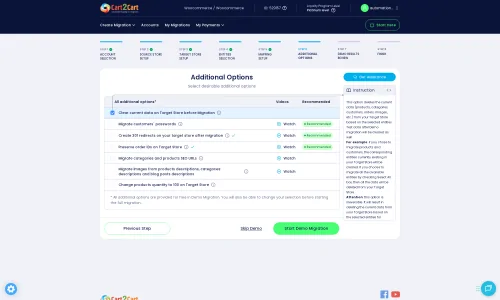
- Additional Options: Select options such as 'Preserve Product IDs', 'Preserve Orders IDs', 'Migrate Images in Description', 'Password Migration' for customer accounts, and crucially, 'Create 301 SEO URLs' to maintain your SEO rankings and link equity from Zen Cart. Other options like 'Clear Target' will remove existing data on Squarespace before the migration.
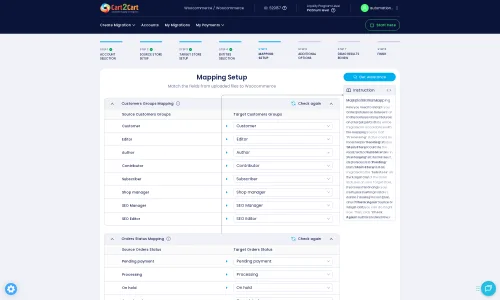
- Data Mapping: Accurately map customer groups and order statuses from your Zen Cart store to their corresponding equivalents in Squarespace. This ensures data consistency and integrity across platforms. For example, map 'Pending' order status in Zen Cart to 'Unfulfilled' in Squarespace, or Zen Cart 'Wholesale Customer' to a specific customer group in Squarespace.
Step 6: Run Demo Migration & Full Migration
Before committing to the full replatforming, it's highly recommended to perform a free demo migration. This transfers a limited number of entities, allowing you to review the transferred data on your Squarespace store and ensure everything looks correct. This step is vital for checking data integrity and confirming your chosen options yield the desired results.
Once satisfied with the demo, proceed with the 'Full Migration'. The system will then transfer all your selected data. During this process, you can monitor the progress or close the browser, as the migration runs on the cloud.
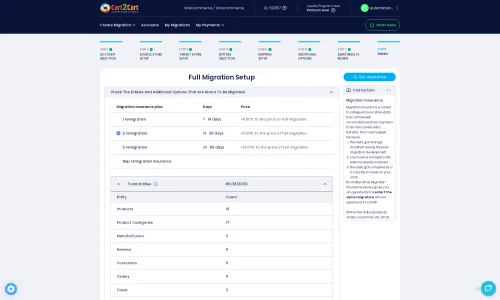
For added peace of mind, you might consider purchasing a Migration Insurance Service, which offers a set number of remigrations within a specific period, allowing you to run the process again if needed.
Post-Migration Steps
After your data has successfully been transferred, several crucial steps remain to fully launch your new Squarespace store and ensure a seamless experience for your customers.
A. Thoroughly Review Your Squarespace Store
Perform a comprehensive audit of your new Squarespace store:
- Products: Check product pages, images, descriptions, pricing, inventory levels, and variants. Ensure all SKUs are accurate.
- Customers: Verify customer accounts, particularly checking if passwords migrated correctly (if that option was selected).
- Orders: Review recent orders and their statuses.
- CMS Pages & Blog Posts: Confirm all static content and blog articles transferred with correct formatting.
- Site Functionality: Test all critical aspects of your store, including search, filters, payment gateways, and shipping calculations. Conduct test purchases to verify the checkout process.
- User Experience: Navigate your site as a customer would, ensuring intuitive design and smooth flow.
B. Implement 301 Redirects
If you didn't enable the 'Create 301 SEO URLs' option during migration, or if you have specific URL changes, set up 301 redirects for any old Zen Cart URLs to their new Squarespace equivalents. This is critical for preserving your SEO rankings, maintaining link equity, and ensuring visitors from old links land on the correct pages, preventing frustrating 404 errors. Squarespace offers built-in tools for managing redirects.
C. Update DNS Settings
Once you are confident in your new Squarespace store, update your domain's DNS settings to point to Squarespace's servers. This is the final step to making your new store live. Plan this carefully to minimize any potential downtime.
D. Decommission Zen Cart Store
After your Squarespace store is fully operational and your DNS has propagated, you can consider decommissioning your Zen Cart store. It's wise to keep a backup of your Zen Cart data for an extended period, even after it's offline.
E. Ongoing Optimization
Take advantage of Squarespace's powerful features:
- SEO Tools: Utilize Squarespace's integrated SEO tools to further optimize your product pages and site content.
- Analytics: Set up Google Analytics or use Squarespace's built-in analytics to monitor traffic and sales performance.
- Marketing Integrations: Explore Squarespace's integrations for email marketing, social media, and other promotional activities.
Migrating from Zen Cart to Squarespace is a strategic move that can revitalize your online business. By following this detailed guide, you can achieve a seamless transition, unlock new growth opportunities, and provide an enhanced shopping experience for your customers. If you encounter any challenges or require additional assistance, remember that expert migration services are available to help you every step of the way. Don't hesitate to Contact Us for professional support.
Ways to perform migration from Zen Cart to Squarespace
Automated migration
Just set up the migration and choose the entities to move – the service will do the rest.
Try It Free
Data Migration Service Package
Delegate the job to the highly-skilled migration experts and get the job done.
Choose Package

Benefits for Store Owners

Benefits for Ecommerce Agencies

The design and store functionality transfer is impossible due to Zen Cart to Squarespace limitations. However, you can recreate it with the help of a 3rd-party developer.

Your data is safely locked with Cart2Cart
We built in many security measures so you can safely migrate from Zen Cart to Squarespace. Check out our Security Policy
Server Security
All migrations are performed on a secure dedicated Hetzner server with restricted physical access.Application Security
HTTPS protocol and 128-bit SSL encryption are used to protect the data being exchanged.Network Security
The most up-to-date network architecture schema, firewall and access restrictions protect our system from electronic attacks.Data Access Control
Employee access to customer migration data is restricted, logged and audited.Frequently Asked Questions
How long does a typical Zen Cart to Squarespace migration take?
Will my Zen Cart store's design and theme transfer to Squarespace?
How can I prevent losing SEO rankings when migrating from Zen Cart to Squarespace?
What factors influence the cost of migrating from Zen Cart to Squarespace?
Should I use an automated tool or hire an expert for Zen Cart to Squarespace migration?
How can I verify data accuracy after migrating from Zen Cart to Squarespace?
What data entities are migrated from Zen Cart to Squarespace?
Will my Zen Cart store experience downtime during migration to Squarespace?
Is my store data secure during the Zen Cart to Squarespace migration?
Can customer passwords be migrated from Zen Cart to Squarespace?
Why 150.000+ customers all over the globe have chosen Cart2Cart?
100% non-techie friendly
Cart2Cart is recommended by Shopify, WooCommerce, Wix, OpenCart, PrestaShop and other top ecommerce platforms.
Keep selling while migrating
The process of data transfer has no effect on the migrated store. At all.
24/7 live support
Get every bit of help right when you need it. Our live chat experts will eagerly guide you through the entire migration process.
Lightning fast migration
Just a few hours - and all your store data is moved to its new home.
Open to the customers’ needs
We’re ready to help import data from database dump, csv. file, a rare shopping cart etc.
Recommended by industry leaders
Cart2Cart is recommended by Shopify, WooCommerce, Wix, OpenCart, PrestaShop and other top ecommerce platforms.
Trusted by eCommerce dominators since 2009













I can’t say anything but EXCELLENT. These guys know their job and do it with perfectness. I was migrating from the ZenCart store to Magento 2, and they helped me through the whole process. Especially, I want to thank Lena and Nina, as they were really helpful with all my concerns and doubts. Support is the best. That’s what I call SUPER CUSTOMER SERVICE!
Review source
This app made moving to Shopify from Zen Cart SO easy! Thanks for a great, easy-to-use app that made new store development a breeze!
Review source
I had close to 8,000 products in a ZenCart store that I needed to migrate to Shopify. C2C did it all for me quickly and inexpensively. It’s the best solution out there that I’ve found to move from one eCommerce platform to another.
Review source
I’ve used the service/software for two website migrations (ZenCart to WooCommerce). The second one failed, also because of my own error, but the supprt was great and Cart2Cart team helped getting it all working flawless.
Very impressed by this software and even more by the aftersales support. Will use again when needed.
Review source
It’s amazing how Cart2Cart was able to move products (many with tons of variants), images, orders, and more flawlessly from ZenCart to Shopify. It saved many many hours of what would have been imperfect and frustrating labor. Bravo!
Review source
We switched from ZenCart to 3DCart and was skeptical about doing the manual migration but Cart2Cart was there with technical online chat every step of the way and it was a smooth, easy and affordable transition. THANK YOU so much! Your support technicians were friendly, knowledgeable and very helpful.
Review source
Great bussiness, and extraordinary on line help, great tech chat, really great service, from old shop Zen cart to a superb prestashop 1.6x. Thanks a lot, save time and money… I recommend for sure
Review source
We’re in the process of migrating from Zen Cart to Magento, and hoping to go live with the new site early in 2012. The shopping cart migration service was excellent. We were able to migrate about 1,000 products and about 2,500 customers within just a few hours (started migrating in the evening, and the migration was complete by the next morning). You should know that you can run the test migration multiple times to allow you to double-check your settings – this is a huge time saver. Also, after your migration has been completed, you can do incremental migrations that will only capture new data. We’ll be using this feature as we get closer to going live. Overall, I give this service a 10 out of 10. It was super easy to set up, and worked exactly as advertised. We’ll definitely be using it again and recommending it to others.
Review source
We were up against the wall on time amd looking for a way to migrate our data from Zen Cart to Magento. We are a small operation and most quotes for the data migration were way more than we could afford. But we couldn’t run the risk of losing customers by forcing them to re register.
The $50 Cart2Cart automated solution looked risky, but we researched the company and saw ALLOT of positive feedback about the service.
Our Migration went perfectly. TWICE. We paid to move the data into a Development server, saw everything the service had to offer. Then, because the service is so stable, we elected to skip moving the data into Dev and then into production, and migrated again DIRECTLY into production (shows you how solid the service is).
I recommend this service to everyone I meet that moving from one eCommerce cart system to another. I use it when I consult on other peoples moves.
It’s a silver bullet solution.
Review source
The bottom line is that Cart2Cart migrated a zen cart store that had 500 products, 30,000+ order records and an excess of 40,000 customers to a new Magento installation. The data was flawless and once it was done the new site picked up RIGHT where the first one left off. Fantastic service and we are beyond pleased.
Review source