


SmartStore to WIX Migration - Step-by-Step Guide & Expert Services
Seamless SmartStore to WIX migration ensures speed, security, and zero downtime. Ready to move your SmartStore store to WIX? Cart2Cart makes it effortless to switch from SmartStore to WIX. Preserve your SEO and securely transfer data, maintaining product integrity and customer history. Access our comprehensive guide for a smooth DIY transition, or let our experts handle your complete SmartStore to WIX migration. Get started confidently today!
What data can be
migrated from SmartStore to WIX
-
Products
-
Product Categories
-
Manufacturers
-
Customers
-
Orders
- Name, SKU, Full Description.
- Quantity.
- Weight.
- Options(Name, Price).
- Name.
- Name.
- Telephone.
- Customer Billing Address.
- Order Status, Order Products(Name, SKU), SubTotal Price, Discount Price, Total Price.
- Customer Name, Email, Billing Address.
- Shipping Address.
- Name, SKU, Full Description.
- Quantity.
- Weight.
- Options(Name, Price).
- Name.
- Name.
- Telephone.
- Customer Billing Address.
- Order Status, Order Products(Name, SKU), SubTotal Price, Discount Price, Total Price.
- Customer Name, Email, Billing Address.
- Shipping Address.
Products
Estimate your Migration Cost
Cart2Cart will seamlessly migrate SmartStore to WIX ecommerce data like products, orders, customers, etc. in a few hours with zero impact on your current SmartStore store performance.
How to Migrate from SmartStore to WIX In 3 Steps?
Connect your Source & Target carts
Choose SmartStore and WIX from the drop-down lists & provide the stores’ URLs in the corresponding fields.
Select the data to migrate & extra options
Choose the data you want to migrate to WIX and extra options to customise your SmartStore to WIX migration.
Launch your Demo/Full migration
Run a free Demo to see how the Cart2Cart service works, and when happy - launch Full migration.
Migrating from SmartStore to WIX: A Comprehensive How-To Guide
A Comprehensive Guide to Transitioning from SmartStore to WIX
Embarking on an e-commerce platform migration can feel like a significant undertaking, but with the right guidance, it can be a smooth and beneficial transition. This guide is designed for merchants looking to move their online store from SmartStore to WIX, a popular platform known for its user-friendly interface and robust features. As SmartStore is not directly supported by all migration tools, this guide will focus on leveraging the power of CSV file export from SmartStore to facilitate a seamless data transfer to your new WIX store.
Switching platforms offers a fresh start, improved scalability, and access to new functionalities that can elevate your business. By following this step-by-step process, you can ensure your products, customer data, orders, and other critical information are moved safely and efficiently, maintaining data integrity throughout the journey.
Prerequisites for Migration
Before you begin the migration process, it’s essential to prepare both your SmartStore and WIX environments. Proper preparation is key to a successful and stress-free data transfer.
- Back Up Your SmartStore Data: Always perform a full backup of your existing SmartStore store. This ensures you have a copy of all your data in case of any unforeseen issues.
- Export SmartStore Data to CSV: Since SmartStore requires a CSV-based migration, you will need to export all relevant data (products, categories, customers, orders, etc.) into well-structured CSV files. Ensure these files are complete and accurately reflect your store's current state. For more details on this method, refer to our CSV.File Data Migration service.
- Set Up Your Basic WIX Store: Create your WIX account and set up a foundational store. Choose your desired template and ensure your WIX store is ready to receive new data.
- Review Your Store Structure: Familiarize yourself with how your products (including SKUs and variants), categories, customer groups, and order statuses are organized in SmartStore, and consider how they will map to WIX.
- Access Credentials: Have all necessary login details for your SmartStore (for data export) and WIX (for connection by the migration tool) readily available. Read our Short & Essential Guide to Access Credentials for more information.
- Understand the Process: Get a clearer picture of what the migration entails. You might find our How to prepare Source store for migration? and How to prepare Target store for migration? FAQs helpful.
Performing the Migration: A Step-by-Step Guide
This section walks you through the migration wizard process, detailing each stage from connecting your stores to launching the full data transfer.
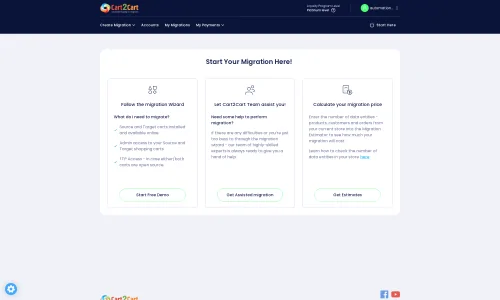
Step 1: Kickstarting Your Migration
Your migration journey begins by initiating the process through the dedicated migration wizard. This user-friendly interface will guide you through each necessary step.
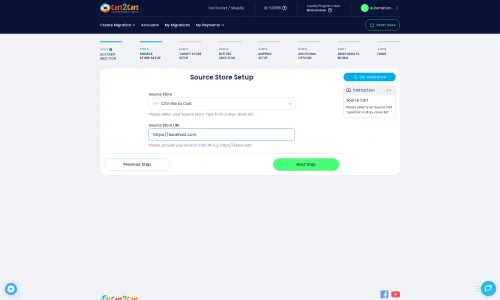
Step 2: Configuring Your Source Store (SmartStore via CSV)
Connecting your SmartStore store is the first major step. Given that SmartStore data will be exported to CSV files, you will select 'CSV File to Cart' as your source platform in the migration wizard.
- Choose Source Cart: From the dropdown menu, select "CSV File to Cart".
- Upload CSV Files: You will then be prompted to upload your prepared CSV files containing your SmartStore data. The migration tool handles the file-based connection, meaning no direct plugin installation is required for your source SmartStore. This method supports migrating various entities, including products, product categories, product manufacturers, product reviews, customers, orders, invoices, taxes, coupons, CMS pages, and blog posts.
Step 3: Connecting Your Target Store (WIX)
Next, you will set up your WIX store as the target for your migrated data.
- Choose Target Cart: Select "WIX" from the list of available target platforms.
- Establish Connection: The migration wizard will then guide you on how to establish a connection to your WIX store. This typically involves providing API credentials or installing a bridge application, allowing the migration tool to securely access and import data into your new WIX store.
Step 4: Selecting Data Entities
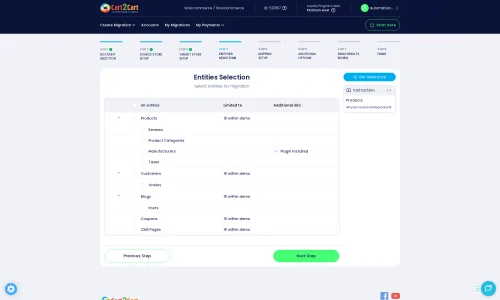
This crucial step allows you to define exactly what data you wish to move from your SmartStore CSV files to WIX. You have granular control over the scope of your migration.
- Choose What to Migrate: Review the checklist of available data entities, which includes: Products, Product Categories, Product Manufacturers, Product Reviews, Customers, Orders, Invoices, Taxes, Stores, Coupons, CMS Pages, and Blog Posts.
- Select All or Specific Items: You can either select "All entities" for a comprehensive data transfer or pick and choose specific items like products, customers, or orders based on your needs.
Step 5: Data Mapping
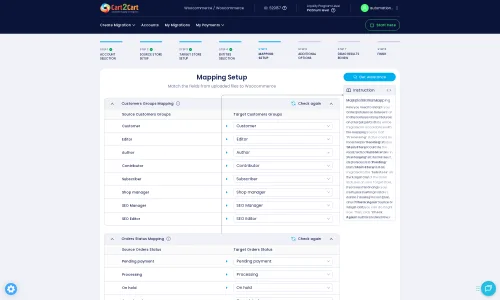
Data mapping is vital for ensuring consistency and integrity between your old SmartStore data and the new WIX structure. This step allows you to align various fields and statuses.
- Match Fields: The wizard will present you with options to map customer groups, order statuses, and potentially other specific attributes from your source CSV to their corresponding fields in WIX.
- Ensure Accuracy: Carefully review each mapping to prevent data discrepancies in your new store. Correct mapping helps maintain a familiar user experience and backend management.
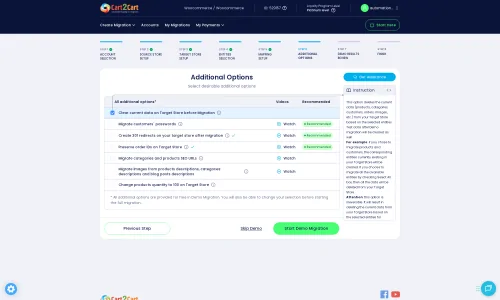
Step 6: Configuring Additional Options
This stage offers powerful tools to customize your migration, optimize SEO, and enhance the overall data transfer process.
- Select Customization Options: You can choose from a range of additional features. These include:
- Preserve IDs: Options like "Preserve Category IDs," "Preserve Product IDs," "Preserve Customers IDs," and "Preserve Orders IDs" help maintain the original identification numbers for easier reference. Learn more about How Preserve IDs options can be used?
- Create Variants from Attributes: Essential for products with multiple options (e.g., size, color).
- SEO URLs: Migrate your existing SEO-friendly URLs to preserve your search engine rankings and link equity.
- Migrate Images in Description: Ensure product images embedded within descriptions are transferred correctly.
- Password Migration: Securely move customer passwords, allowing your existing customers to log in without needing to reset.
- Clear Target: The "Clear current data on Target store before migration" option allows you to remove any existing data in your WIX store prior to migration, ensuring a clean slate. Consult our FAQ on this option.
Step 7: Launching the Migration
With all settings configured, you are ready to initiate the data transfer.
- Run a Free Demo Migration: It's highly recommended to perform a free demo migration first. This allows you to transfer a limited number of entities (e.g., 10-20 products, customers, orders) to see how your data appears on WIX and ensure all settings are correct before committing to the full transfer.
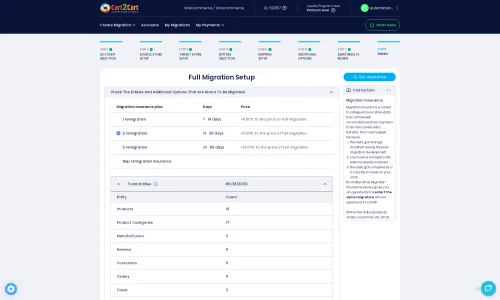
- Start Full Migration: Once satisfied with the demo, proceed with the full migration. You can also select a Migration Insurance Plan at this stage, offering remigrations for future data updates or in case of unforeseen issues. Find out How Migration Insurance works?
Post-Migration Steps
The migration doesn't end when the data transfer is complete. Several crucial steps are required to ensure your new WIX store is fully operational and optimized.
- Thoroughly Verify Data: Systematically check all migrated data on your WIX store. Review products (SKUs, pricing, images, descriptions, variants), product categories, customer accounts, past orders, reviews, and CMS pages to ensure everything is accurate and displays correctly.
- Test Store Functionality: Conduct comprehensive testing of your new WIX store's core functionalities. Place test orders, verify checkout processes, test customer login and account management, search functions, and contact forms.
- Update DNS Settings: Once you are completely satisfied with your WIX store, update your domain's DNS settings to point to your new WIX site. This is when your new store goes live to the public.
- Implement 301 Redirects: If not handled by the migration tool or if you have any custom URLs, set up 301 redirects for any old SmartStore URLs that might have changed on WIX. This is critical for preserving your SEO rankings and ensuring a smooth user experience by preventing broken links.
- Install Necessary Apps & Plugins: Explore the WIX App Market and install any essential applications or plugins for marketing, analytics, shipping, payment gateways, or other functionalities that your business requires.
- Review and Refine Design: Take this opportunity to fine-tune your WIX store's design and user interface. Ensure it is responsive, visually appealing, and provides an excellent shopping experience.
- Inform Your Customers: Announce the launch of your new WIX store to your customer base. Provide clear instructions on any changes they might need to be aware of (e.g., new login procedures if passwords weren't migrated).
- Ongoing Data Sync: For any new data generated on SmartStore during or immediately after the migration, consider using a Recent Data Migration Service to transfer the latest updates.
By following these steps, you can confidently migrate your e-commerce store from SmartStore to WIX, positioning your business for continued growth and success on your new platform. Should you encounter any challenges or require additional assistance, don't hesitate to Contact Us for expert support.
Ways to perform migration from SmartStore to WIX
Automated migration
Just set up the migration and choose the entities to move – the service will do the rest.
Try It Free
Data Migration Service Package
Delegate the job to the highly-skilled migration experts and get the job done.
Choose Package
Custom Migration
Need metafields, SEO URLs, variant rules, or other tailored mapping? Explore customizations built for real merchant demand.
Browse Customizations

Benefits for Store Owners

Benefits for Ecommerce Agencies
Choose all the extra migration options and get 40% off their total Price

The design and store functionality transfer is impossible due to SmartStore to WIX limitations. However, you can recreate it with the help of a 3rd-party developer.

Your data is safely locked with Cart2Cart
We built in many security measures so you can safely migrate from SmartStore to WIX. Check out our Security Policy
Server Security
All migrations are performed on a secure dedicated Hetzner server with restricted physical access.Application Security
HTTPS protocol and 128-bit SSL encryption are used to protect the data being exchanged.Network Security
The most up-to-date network architecture schema, firewall and access restrictions protect our system from electronic attacks.Data Access Control
Employee access to customer migration data is restricted, logged and audited.Frequently Asked Questions
Is my SmartStore store design automatically transferred to WIX?
What is the typical timeline for SmartStore to WIX migration?
Will my SmartStore go offline during migration to WIX?
What data entities are migrated from SmartStore to WIX?
What are the main cost factors for SmartStore to WIX migration?
Can I migrate customer passwords from SmartStore to WIX?
Should I use an automated tool or an expert for SmartStore to WIX migration?
How can I keep SEO rankings when switching from SmartStore to WIX?
How to verify data accuracy after SmartStore to WIX migration?
How is data security ensured during SmartStore to WIX migration?
Why 150.000+ customers all over the globe have chosen Cart2Cart?
100% non-techie friendly
Cart2Cart is recommended by Shopify, WooCommerce, Wix, OpenCart, PrestaShop and other top ecommerce platforms.
Keep selling while migrating
The process of data transfer has no effect on the migrated store. At all.
24/7 live support
Get every bit of help right when you need it. Our live chat experts will eagerly guide you through the entire migration process.
Lightning fast migration
Just a few hours - and all your store data is moved to its new home.
Open to the customers’ needs
We’re ready to help import data from database dump, csv. file, a rare shopping cart etc.
Recommended by industry leaders
Cart2Cart is recommended by Shopify, WooCommerce, Wix, OpenCart, PrestaShop and other top ecommerce platforms.
Trusted by eCommerce dominators since 2009
















Great Solution! Excellent Support team which helped to migrate my store data from Magento to Bigcommerce in no time. Cart2Cart developed a custom solution to which helped me to Migrate my Blog Data too. I will surely use their service on my upcoming projects.
Review source

Migration from Shopify to BigCommerce was exactly what I need it. Customers information, orders, products description and images were displayed in my new platform perfectly. Additionally, the support team were very helpful and patience while I was doing all of this process. I highly recommend it!
Review source

Working with Cart2Cart on a recent Yahoo Store to BigCommerce Store migration was a pleasure. The support was very helpful in getting to my end solution. I would definitely recommend their service for anyone looking to migrate data between these platforms.
Review source

Solid work on the cart2cart migration from Magento to BigCommerce! Also, they helped me a lot for the data re-migration due to an accidental deletion on BigCommerce I definitely would recommend Cart2Cart 🙂
Review source

I have been very happy with the service and support of Cart2Cart in migrating from an older WebAsyst based e-commerce site to a much more modern CS-Cart based one. Worked perfectly!
Review source

Very good support. They migrated our store from Big Cartel to Magento, and were very cooperative during all this process. Thank you team. I recommend them to everyone
Review source
I have successfully used Cart2Cart to migrate products & categories from DrupalCommerce to Magento. It’s easy, affordable and they offer decent support (no I’m not affiliated with them).
Review source
we have already contracted the service three times to migrate from prestashop to magento. We were very well catered for. I recommend!
Review source
Many of my customers have Magento 1 stores. This year Magento will stop supporting this system and because of this these customers need to migrate to another system. Migration can be difficult and very time consuming process. But then i found Cart2Cart. There solution is the best and affordable. With the first migration there where some problems, but i did made some mistakes with filling in the correct fields to get a connection between the current and the target store. After starting a chat these problems where fixed very quickly. Support is very good and there solution is very affordable. The perfect solution!
Review source
We were in need of migrating 10.000 orders & customers from a PrestaShop site to a Magento site, already being in use. We therefore needed to be extra careful not to erase any of the existing data, which is why we seeked out the service of Cart2Cart. With a readily available customer service providing guidance and support during the entire process, we felt secure in the choice of Cart2Cart. We also enjoyed the possibility to do a test migration to be able to verify the values, before going ahead with a full migration. The full migration was surprisingly quick, within just a couple of minutes we had successfully transfered all the data, without experiencing any issues on the site. I’d recommend Cart2Cart to anyone who are looking to simplify the process of migrating.
Review source