Quick Demo Tourcart2cart demo, shopping cart migration demo, cart2cart tour, demo migration
US&Canada
Toll Free
1-800-224-1462
Mon. – Fri.:
(For sales and general questions only)
Cart2Cart  This service is amazing, it save me so much time. I had a minor problem with migration but the support team help me right away and solve the issue. I am very satisfied Cart2Cart
Bobi
http://www.webarts.com.cy

Quick Demo Tour

Migration Estimator Start the migration now!


1Register an Account

Fill in the simple registration form to create your Cart2Cart account. It would only take a couple of minutes to get you started.

Register an Account

2Create New Migration

To start your migration, log in to your Cart2Cart account and go to "Create Migration" tab within your admin panel. You will be taken to the next step to proceed.

Create New Migration


3Specify Migration Type

To setup your migration, you'd first need to specify your migration type. You can create either a completely new migration or, if you've already made a migration you want to proceed with, you can migrate only new entities following the previous migration.

Specify Migration Type


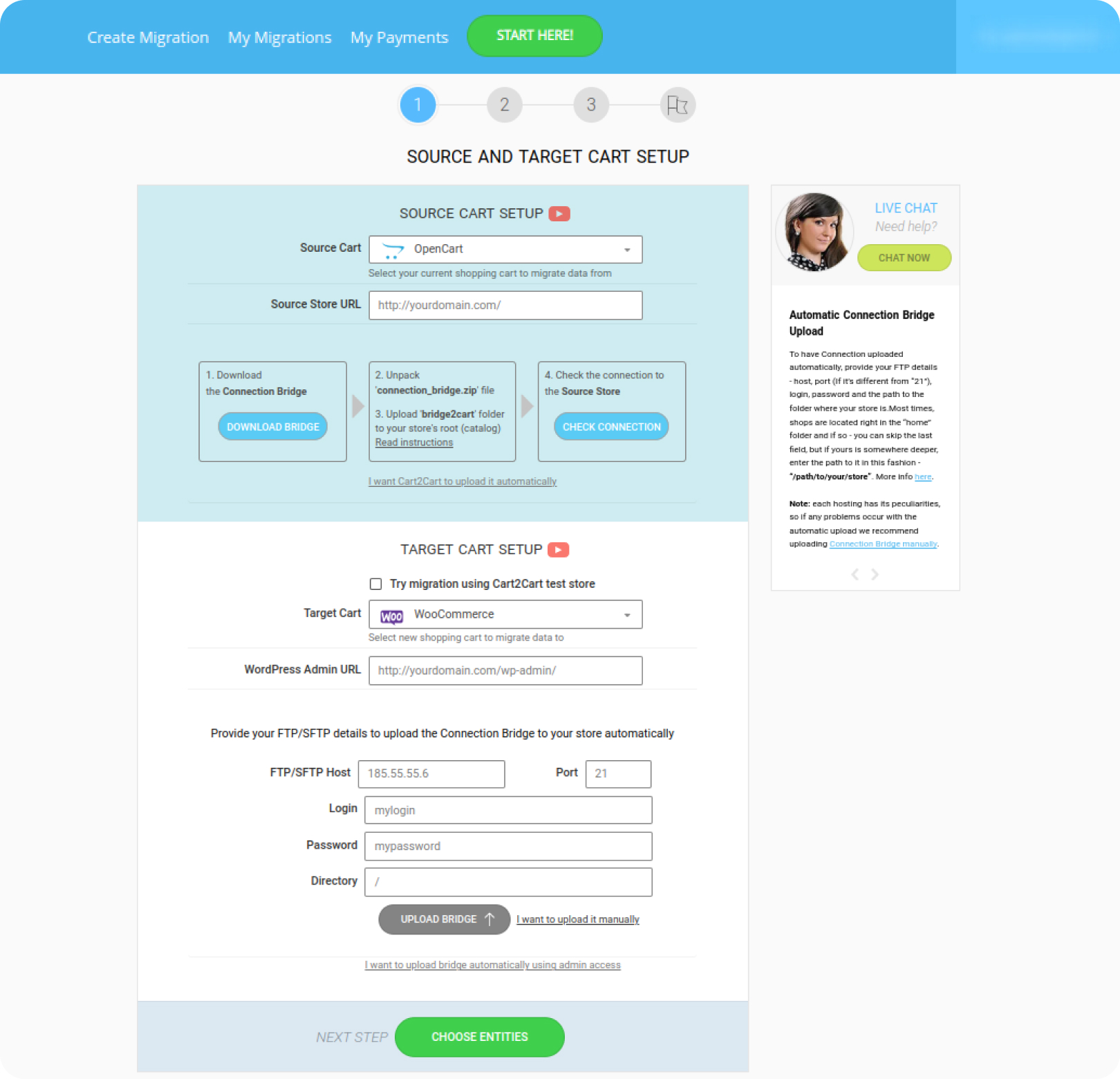
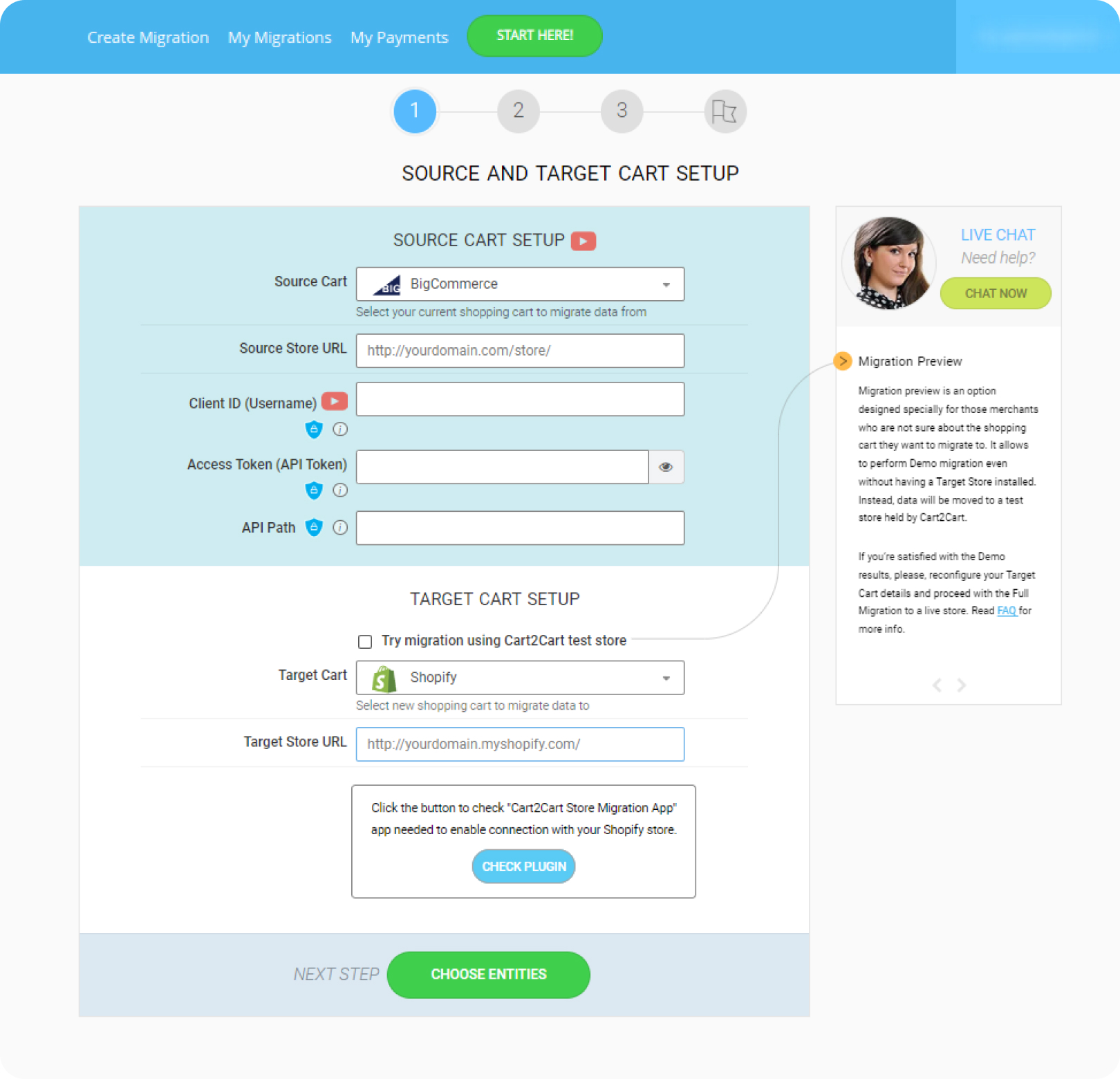
4Setup Source Shopping Cart

Specify the details about your Source Cart, the shopping cart you want to migrate data from. This would include cart type, name, URL, security token and DB table prefix. Before proceeding, make sure to include the Source Cart connection bridge.

Setup Source Shopping Cart


5Setup Target Shopping Cart

Specify the details about your Target Cart, the shopping cart you want to migrate data to. This would include cart type, name, URL, security token and DB table prefix. Before proceeding, make sure to include the Target Cart connection bridge.

Setup Target Shopping Cart

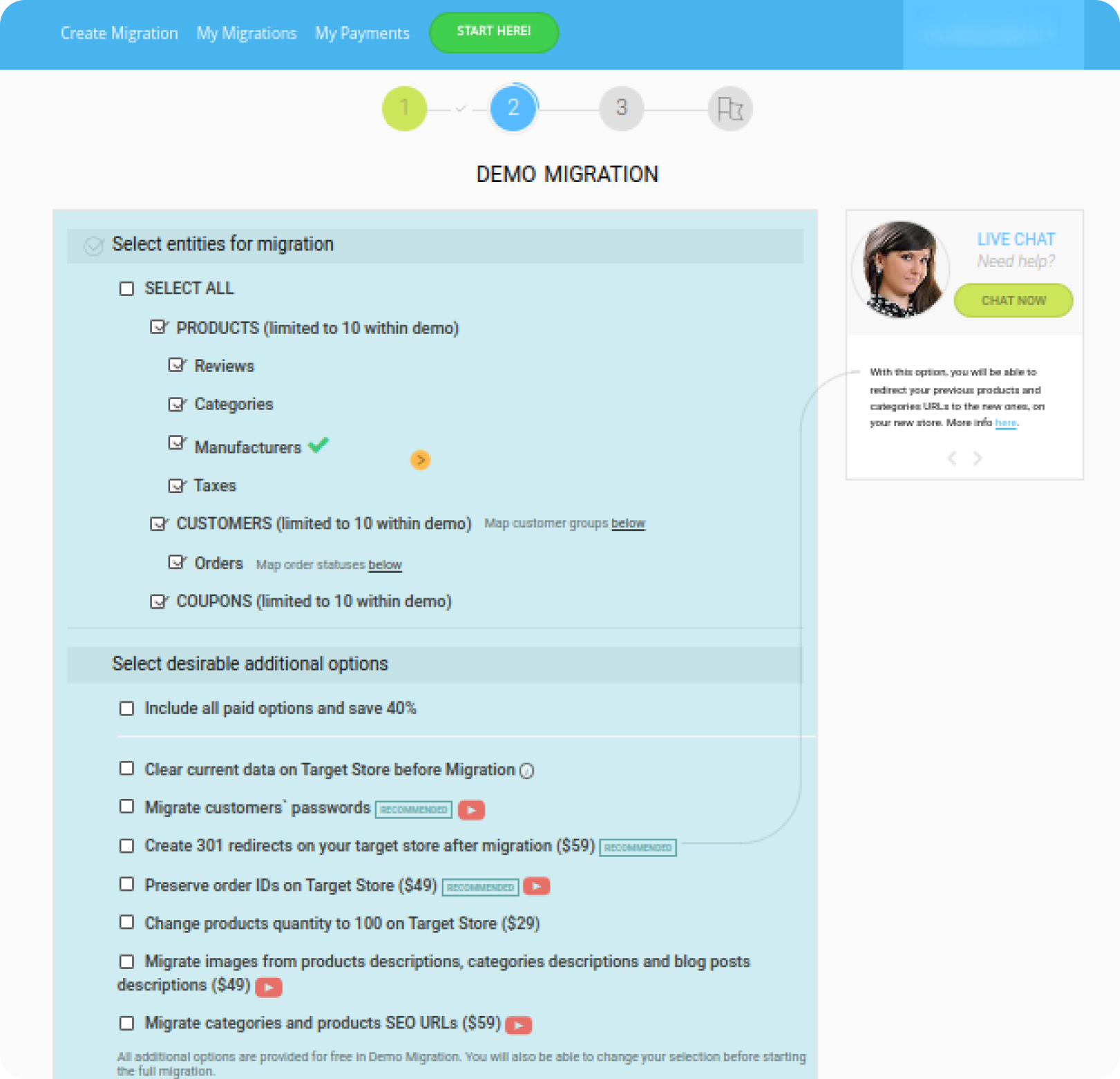
6Select Entities for Migration

Select the items you'd like to migrate, i.e. products, customers, orders, etc. Use the additional migration options, if needed.

Select Entities for Migration

7Map Currencies

At this point, you need to assign currencies on your Source Cart to the appropriate currencies on the Target Cart. If needed, you can create or rename the necessary currencies.

Map Currencies


8Map Order Statuses

You need to assign order statuses on your Source Cart to the appropriate order statuses on the Target Cart to either pending, processing or delivered. If needed, you can create or rename the necessary order statuses.

Map Order Statuses

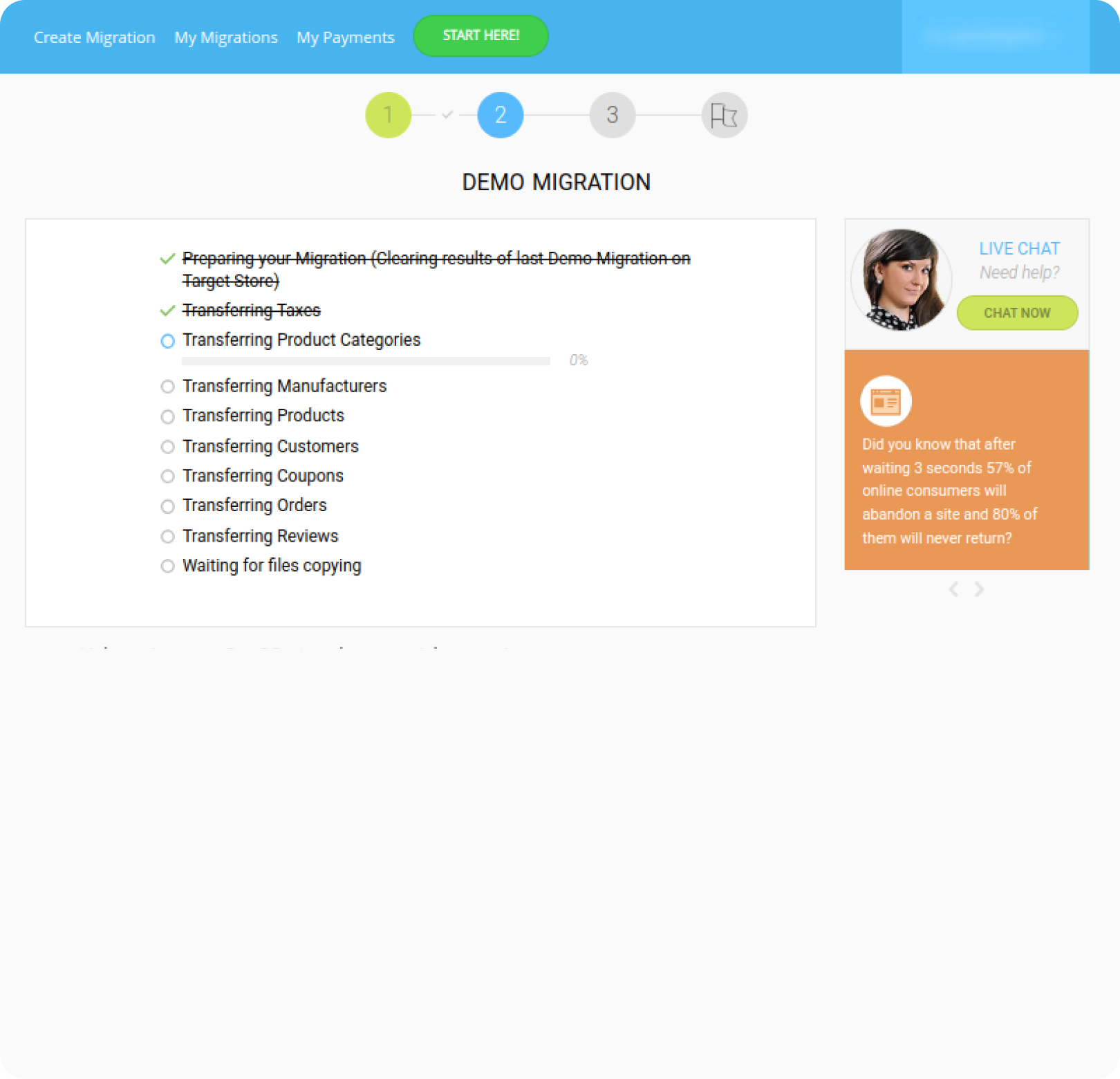
9Start Free Demo Migration

Try out the free migration of 10 products/customers to see Cart2Cart in action. Only this limited number of entities will be migrated on this step. You can skip the Demo Migration, if necessary, however it is highly recommended you perform the free migration to ensure service accuracy.

Start Free Demo Migration


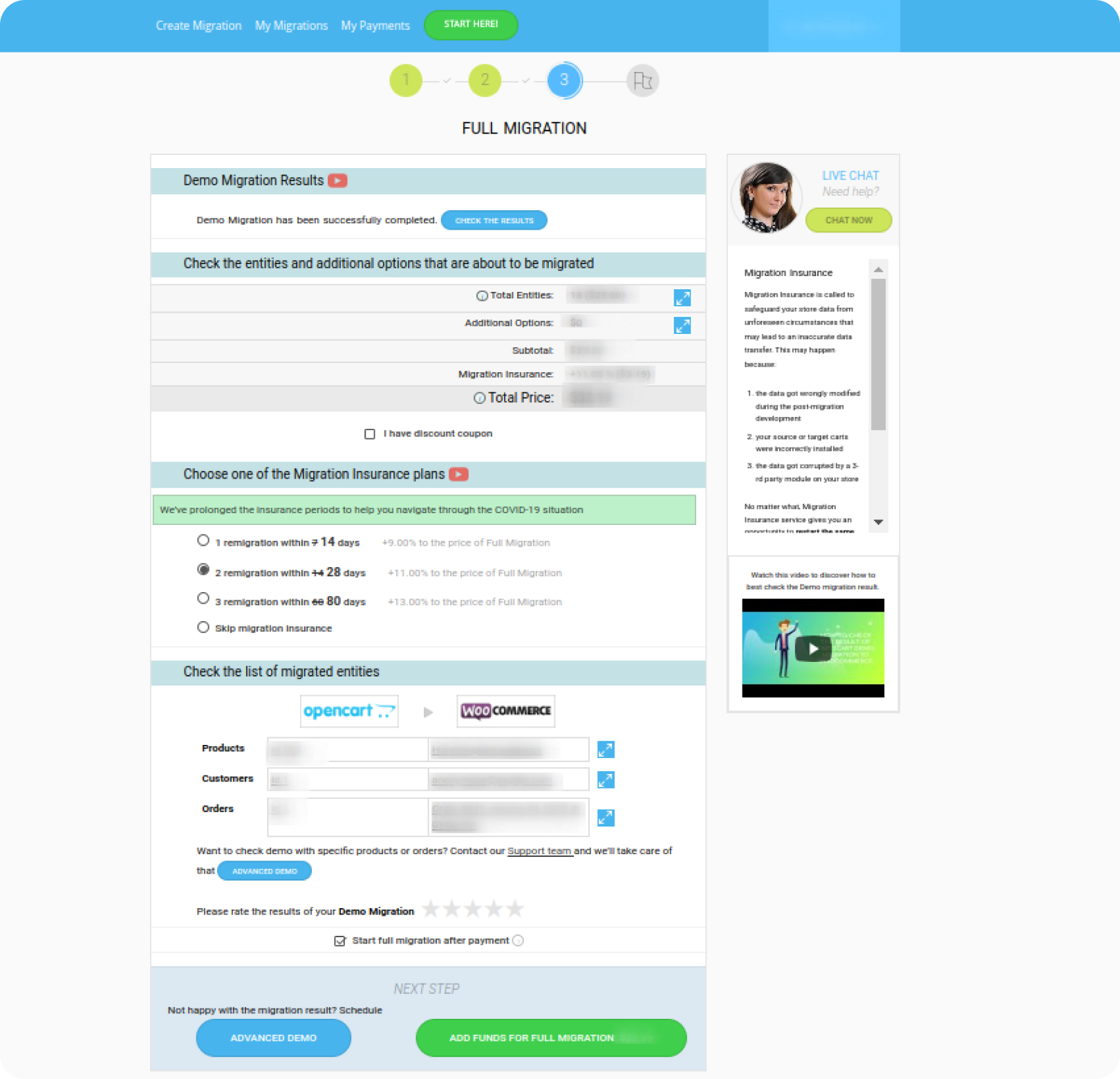
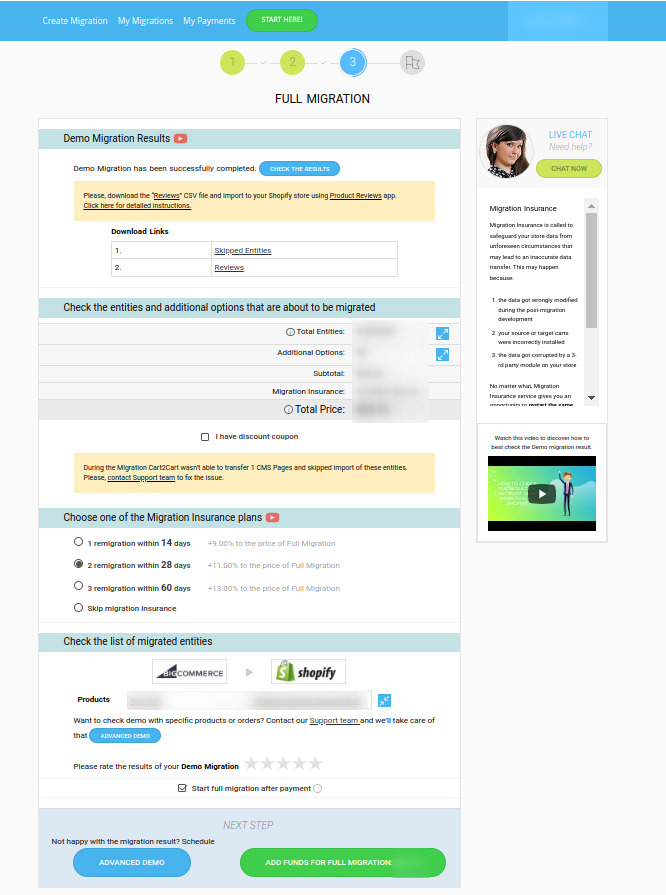
10Check Demo Migration Results

Wait for the Demo Migration to be completed. As soon as you have it done, go to your Target Cart to check the results right away.

Check Demo Migration Results

11Confirm and Start Full Migration

At this point, confirm and double-check the information provided for your store migration. Now all is set for you to start your Full Migration. If you have a discount coupon code, include it in the appropriate field. Click the Start Full Migration button.

Confirm and Start Full Migration

12Migrate only the latest entities

If you've got new products, orders and/or customers coming to your source store during your migration or right after it's complete, start New Data Sync service. It will migrate only the latest entities that were added to your source store since your last migration.

Confirm and Start Full Migration

13Enjoy Your Brand New Shopping Cart!

Now, you can check out the Full Migration results and enjoy the benefit of having your store on a brand new shopping cart!

Start Tour Data Import Now!


Migration Estimator Start the migration now!


Note: You need to have 2 shopping cart installations (source and target) available online to perform migration process.

Customer Testimonials

Performed on Amazon Elastic Cloud
Cart2Cart
Secured by Globe SSL
Cart2Cart
Cart2Cart  The bottom line is that Cart2Cart migrated a zen cart store that had 500 products, 30,000+ order records and an excess of 40,000 customers to a new Magento installation. The data was flawless and once it was done the ...  Cart2Cart
Date Written: 01 August 2011
marcus ledbetter
www.shopglitzyglam.com
Cart2Cart  Keep up the good work! Worked flawlessly. Cart2Cart
Date Written: 14 October 2010
Derek Buntin
http://perfectdesigning.net

Read more...

 
Service Version: 3.40.7099 (May 24, 2012)